How to do GRN Info Setup in Branch screen of ADempiere Retail
Configure the GRN related setup for the branch screen
User Access
Who Can Access
- Admin
- Back office
- Manager
What User Can Do
- Update
- Activate
- De-Activate
Pre-Requisite Activities
- PO Info Setup must be completed
- Item master and supplier master should be ready
- GRN format and numbering logic should be finalized
Business Rules
- GRN must be linked to an approved Purchase Order
- Quantity received cannot exceed ordered quantity without alert
- GRN cannot be edited after approval or inventory update
- Tax and price must be validated during GRN entry
- Duplicate GRNs for same PO and item must be flagged
- Inventory gets updated only after GRN confirmation
User Interface
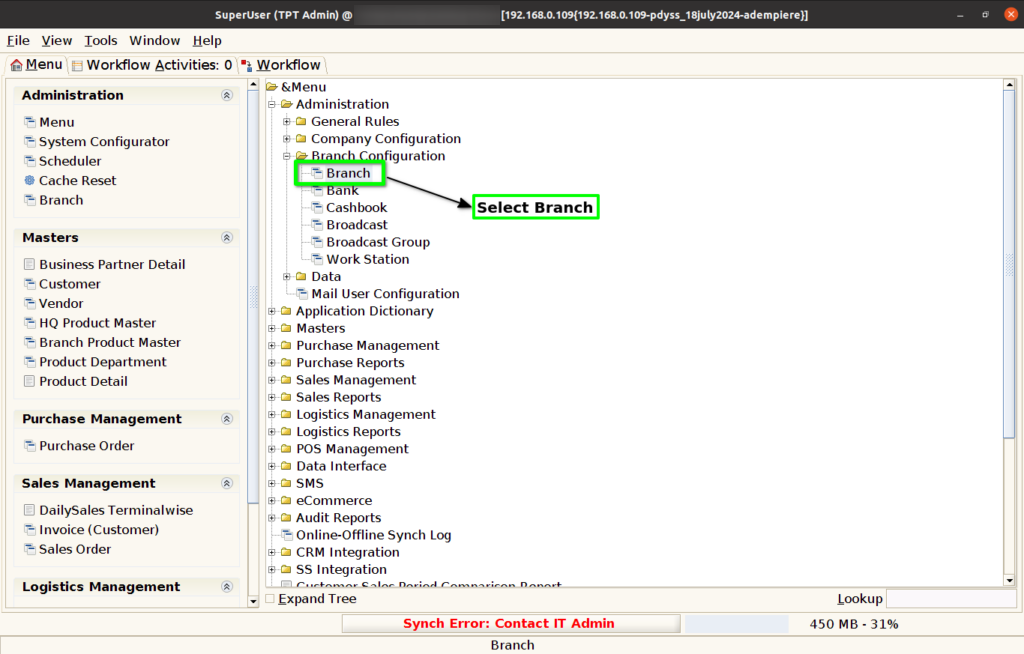
Step 1 : Select ‘Branch’ in Menu Branch Configuration -> Branch or Search Branch in Lookup.
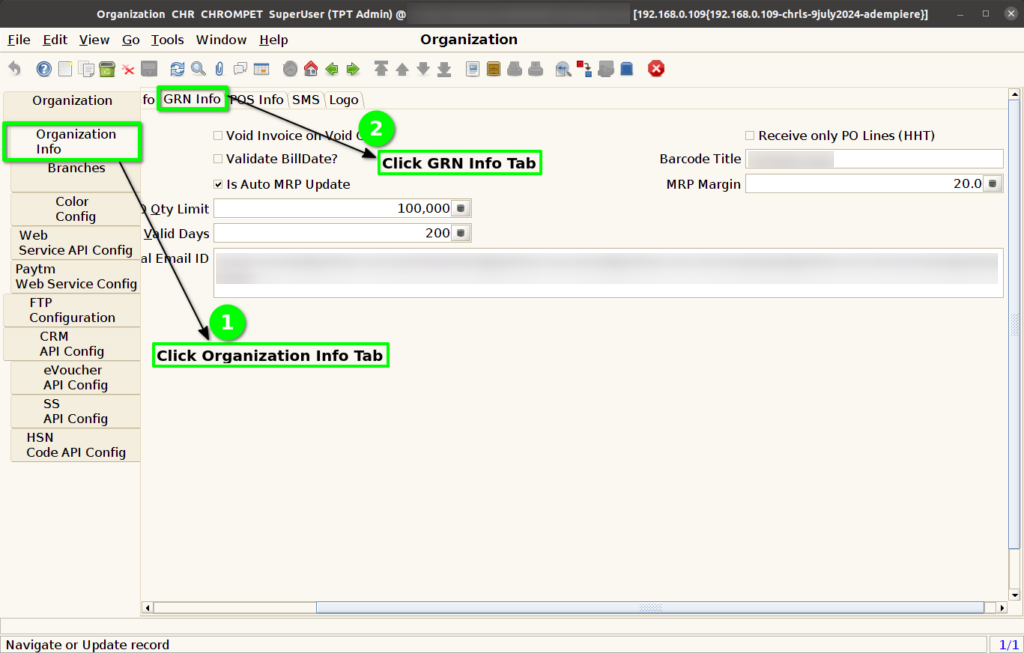
Step 2 : Select Organisation Info -> GRN Info Sub Tab.
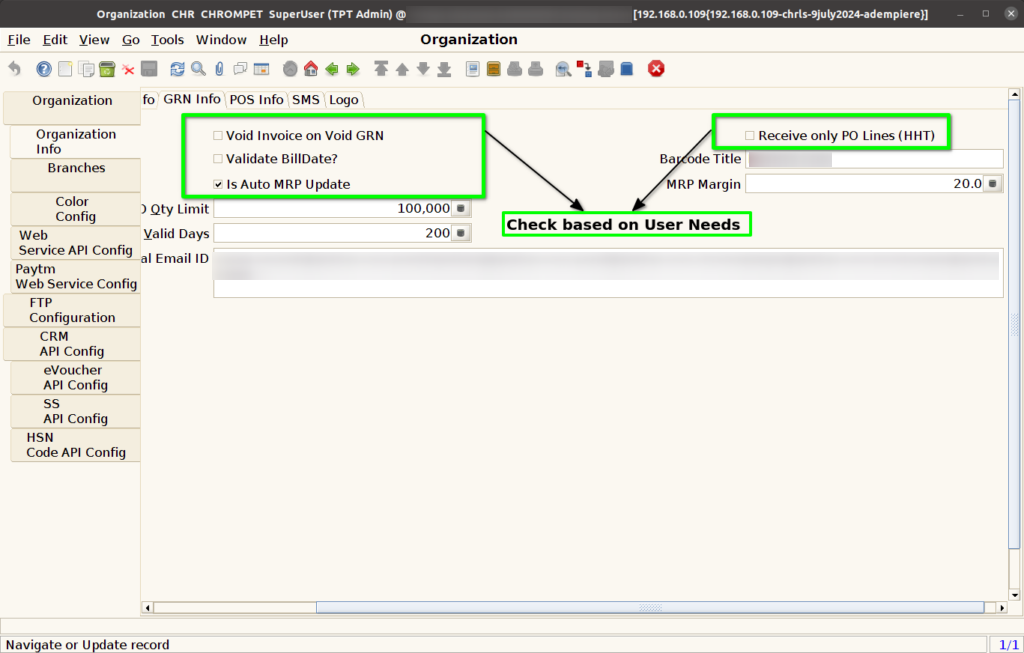
Step 3 : Select Check Box based on below user needs
- Void Invoice on Void GRN – When the Check Box is enabled, If invoice void in AR Invoice the GRN also void in GRN. If unchecked validation not working
- Validate Bill Date – When the Check Box is enabled in the GRN, the bill date will be validated, if Unchecked bill date validation not happen
- Is Auto MRP Update – When the Check Box is enabled, auto MRP update in products. If Unchecked auto MRP updates not done
- Receive only PO Lines (HHT) – When the Check Box is enabled, In HHT system allow to choose only PO Products. If Unchecked system allow to choose any products in GRN.
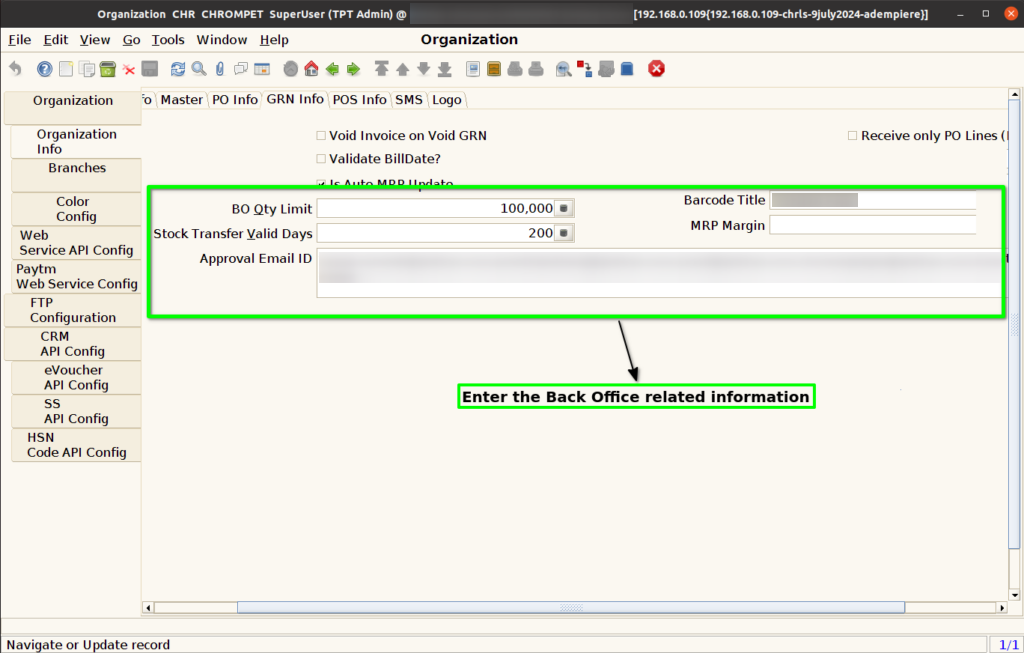
Step 4 : Enter the bellow information for Back office Validation
- BO Qty Limit – Enter the Qty Limit for Back office transaction
- Stock Transfer Valid Days – You cannot create a new document before completing the previous stock transfer document validation.
- Barcode Title – Enter the Barcode title for Barcode Print
- MRP Margin – Enter the MRP margin to update the Auto MRP Update Process for Non MRP Products (Ex-F&V and Loose Stables)
- Approval Email Id – Enter the approval email id to receive the email for Landed cost changed products based on category validation.
Step 5 : Click to Save Record.
