How to do Master Setup in Branch screen of ADempiere Retail
Product Master related configuration
User Access
Who Can Access
- Admin
- Manager
- Back office
What User Can Do
- Update
- Activate
- De-Activate
Pre-Requisite Activities
- Ensure the Master Setup Configuration is already done at HQ level.
- The user must be a TPT Admin with proper access roles.
- Branch record should already exist in the system.
Business Rules
- If “Product Approval” is unchecked, new products will not require approval at that branch.
- If “FTP Process” is unchecked, file transfer processes will be skipped.
- If “eCommerce Integration” is unchecked, product sync to eCommerce sites will be disabled.
- Proper import path must be entered before saving GKM updates.
- All changes must be saved properly for them to take effect.
User Interface
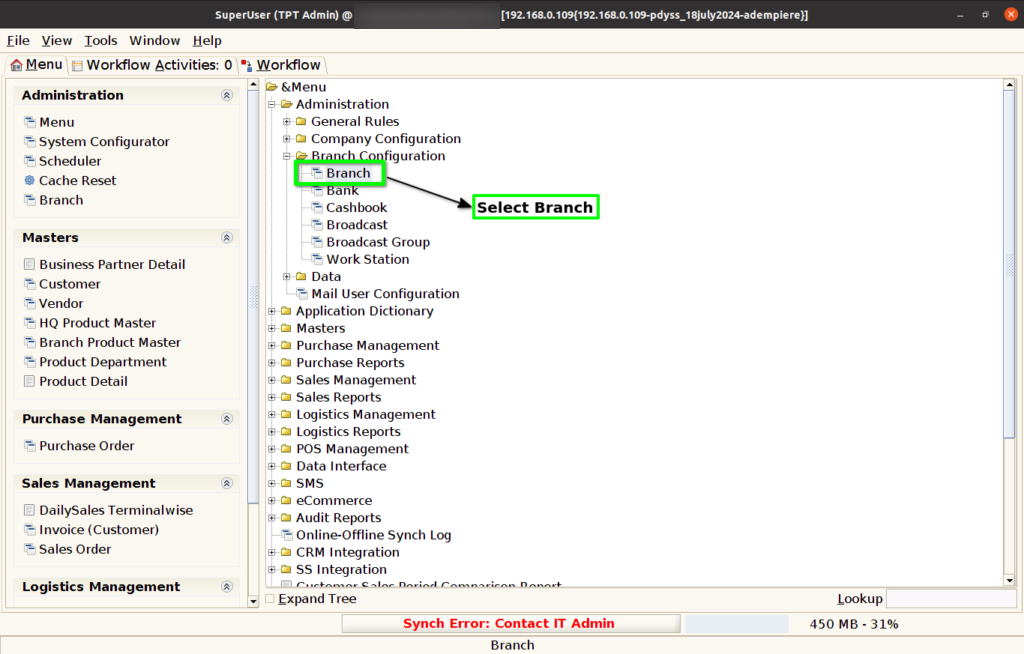
Step 1 : Select ‘Branch’ in Menu Branch Configuration -> Branch or Search Branch in Lookup.
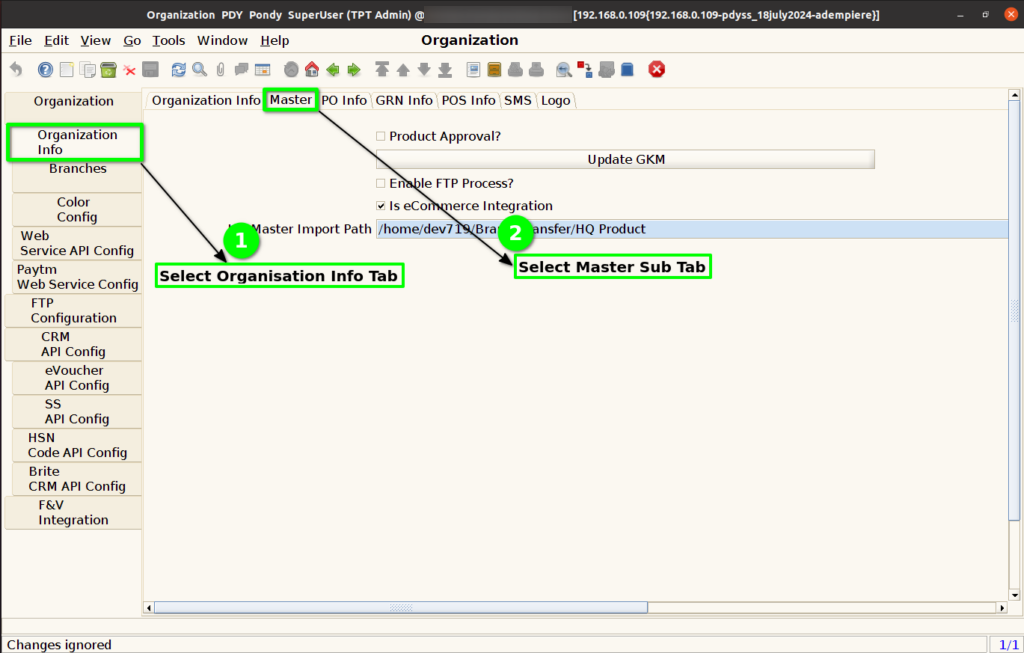
Step 2 : Select Organisation Info -> Master Sub Tab.
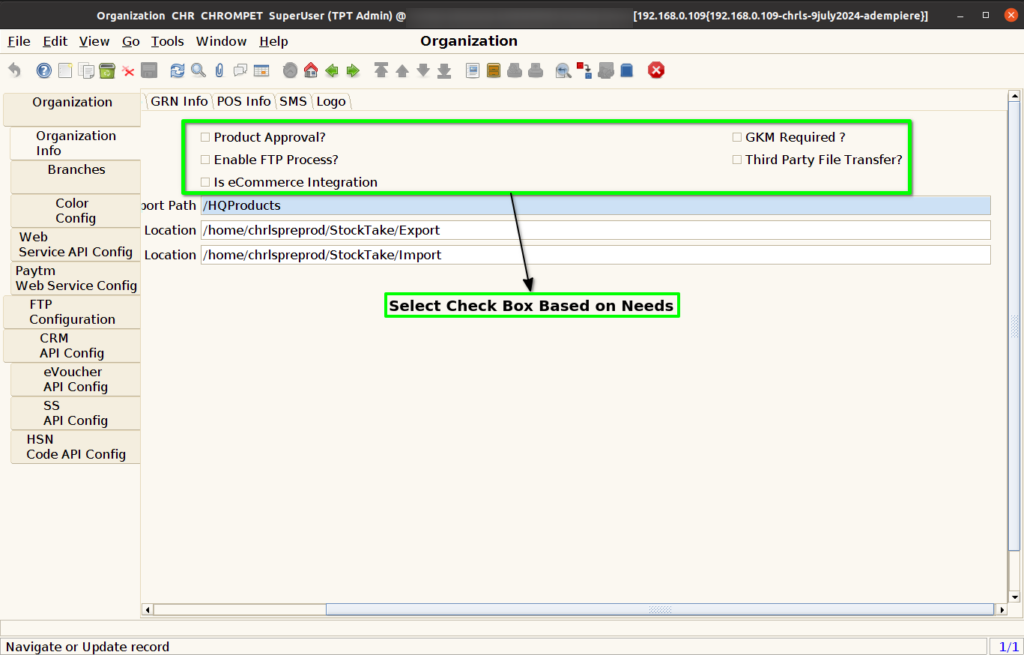
Step 3 : Select Check Box based on below user needs
- Product Approval – Check to enable new Product Approval required, If Unchecked Product Approval not required
- Enable FTP Process – Check to enable FTP Process, If Unchecked FTP Process not done
- Is eCommerce Integration – Check to enable eCommerce Integration, If Unchecked eCommerce Integration not process
- GKM Required – Check to enable GKM for Product
- Third Party File Transfer – Check to enable Third Party File Transfer.
Step 4 : Click to GKM Update Process, enter HQ Product Import Path.

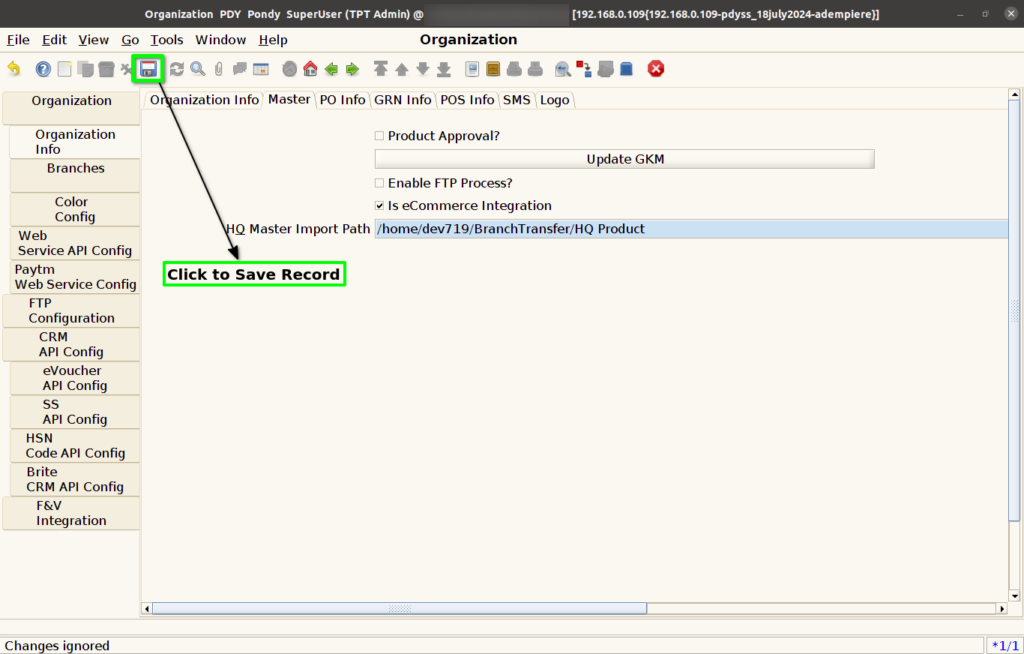
Step 5 : Click to Save Record.