How To Create and Configure Products Sold by Weight in Odoo?
To create and configure products sold by weight in Odoo, you need to enable the weight units of measure and flag the specific products to trigger a scale prompt or barcode readout
Step 1: Access the Products Menu
- Log in to your backend with Manager privileges
- Navigate to Inventory → Products → Product Master
Step 2: Create a New Products Sold by Weight
- Click the Create button
- Fill in the basic information:
- Product Name: Enter the name of your product
- Category: Select or create a product category
- HSN Code: Harmonized System of Nomenclature: A unique code that is globally accepted to identify the products and the rate of tax
- Brand: Assign brand details
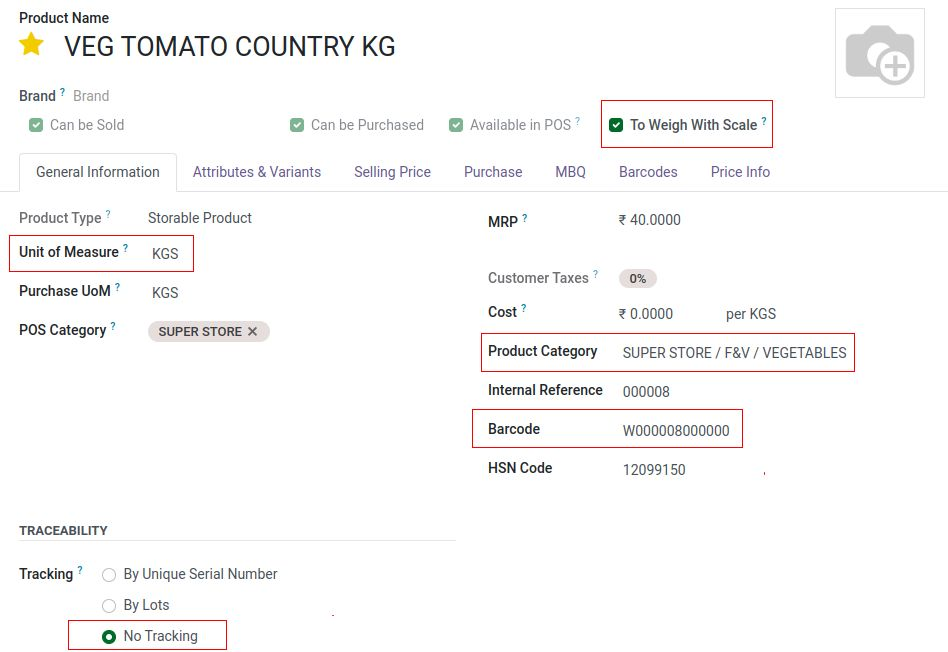
- To Weight with Scale: Enable To Weight with Scale
Step 3: Configure Products Sold by Weight
- General Information tab:
- Internal Reference: Unique SKU or product code
- Barcode: If using barcode scanning set Barcode start with ‘W’ with product code (W……NNNNNN)
- Sales Price: Default selling price
- Tracking: Set as No Tracking for weighing products
- Purchase tab:
- Vendor: Add preferred suppliers
- Purchase Price: Default buying price from vendor
- Lead Time: Supplier delivery time
Step 4: Set up Selling Price of the Products Sold by Weight
- Selling Price tab:
- Price List: Add preferred price list
- Computation: Select Fixed or formula based
- Lead Time: Supplier delivery time
- Formula Based pop up:
- Based on: Set as Product cost
- Discount : Set up Mark up % by applying ‘-‘ sign

Step 5: Add Product Images
- Drag and drop product images in the image area
- Set a main image that will appear in eCommerce
Step 6: Save the Product
- Click Save to create the product
- For storable products, you may need to:
- Create initial inventory (Update Quantity)
- Set reordering rules
Additional Options
- eCommerce: Configure online store details
- POS: Set Point of Sale specific settings
Tips
- Use the duplicate button to quickly create similar products
- Import products in bulk via the Import feature
- Set up product templates for items with many variants
