How to Process the Vendor Return in Odoo Inventory for No-Tracking Products
In Odoo Inventory, a vendor return is used when you need to send products back to a supplier. For products that are no-tracking, the process is simpler because Odoo does not track each unit individually. Instead, it manages the overall quantity of the product in your inventory. Vendor returns help you adjust your stock levels and maintain accurate inventory records when items are returned to the supplier.

Navigation to Vendor Return
After configuration, open Inventory → Operations → Vendor Return and click New to create a new record.
Selecting Vendor and Product Details
Choose the vendor from the dropdown and select a return reason. Add the No-Tracking product by clicking Add a Line and selecting the item using its product code. Enter the quantity in the Demand field and mark the record as “To Do” to proceed with the return.

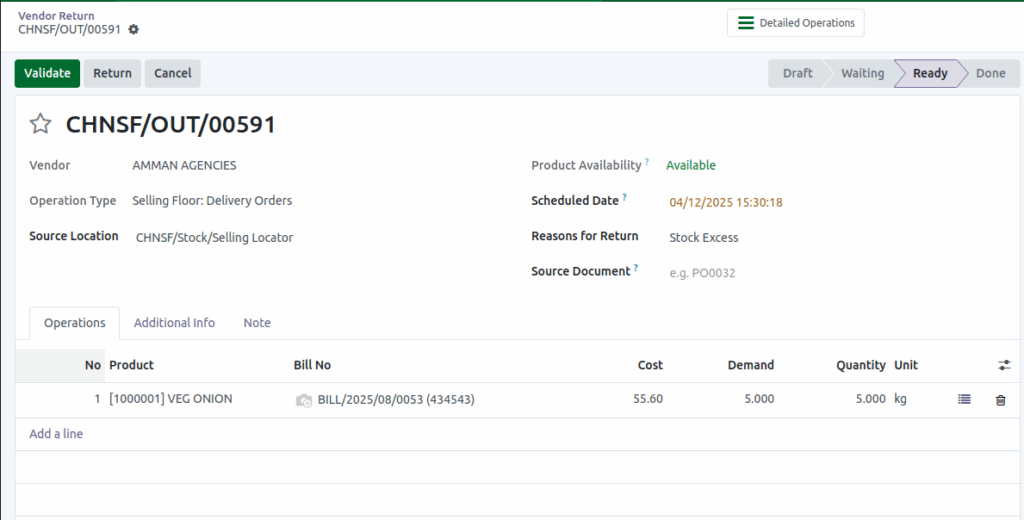
Creating and Validating a Vendor Return
To perform a vendor return, you first create a return document in the Inventory module . For no-tracking products, you specify the quantity being returned in kilograms (kg) or the unit of measure used. Once all details are entered correctly, you validate the return. Odoo update the product quantity in your warehouse immediately.
Product Quantity is Updated
After validating a vendor return, Odoo reduces the on-hand quantity of the product in your warehouse. Since the product is not tracked by lots or serial numbers, Odoo only adjusts in the total available quantity.
Viewing Updated Product Information
You can see the updated product details by opening the product in the Inventory module. For no-tracking products, Odoo shows the new on-hand quantity after the return is completed.Instead, it gives a clear view of how much stock is currently available, helping you maintain accurate inventory levels.

