How to view the Non Moving Products Report in Odoo Inventory
Managing slow-moving or unused stock is important for keeping your inventory healthy. Odoo’s Non-Moving Products Report helps identify products that haven’t been sold or used within a specific period, allowing you to take action on slow-moving items.
Accessing the Non-Moving Products Report in Odoo Inventory
To view the Non-Moving Products Report, navigate to the Inventory module from the main dashboard, then click on Reporting and select Non-Moving Products. A pop-up will appear asking for essential details to generate the report.

You need to enter the Start Period and End Period to define the time range, select a Product Category, and choose a Warehouse location. You can select multiple categories or warehouses if needed.
If any required field is left blank, the system will alert you with a message showing which fields are missing, such as Invalid fields: Start Period, End Period, Product Category, Warehouse.
Non-Moving Products Report key details
After entering all the details, click View Tree to generate the report. The report appears in a table format and displays key information for each product. It shows the Category, Product Name, Quantity Available, Last Position, and Duration.
The Category shows the subcategory of the product, while the Product Name lists all items, with different lots shown on separate lines. Quantity Available shows the stock present in the selected locations.
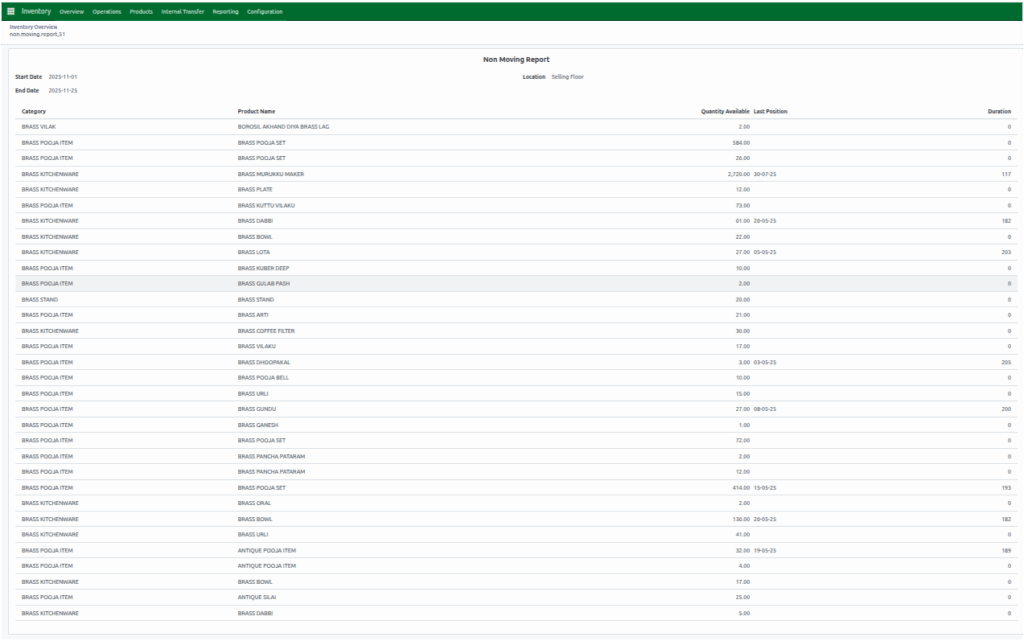
Last Position indicates the last date the product was sold in POS; if this is blank, the product hasn’t been sold yet. Duration shows how long a product has not been sold. It is calculated by subtracting the Last Sold Date from the Current Date and is displayed in days, helping you track slow-moving or idle stock.
Exporting the Non-Moving Products Report
Before exporting the Non-Moving Products Report, you need to fill in all the mandatory fields, including Start Period, End Period, Product Category, and Warehouse.
Once these fields are filled, you can export it to Excel for offline analysis. Simply click the Download Excel button, and a pop-up will appear where you can select Non_Moving_Products_Report.xls to download the file.
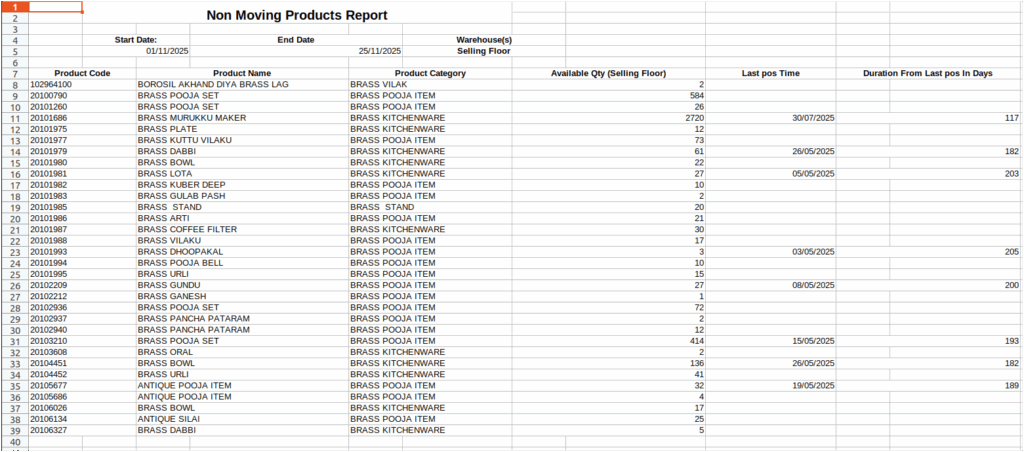
The exported Excel file includes all the details displayed in the tree view, including product categories, product names, quantities, last sold dates, duration, and location providing a comprehensive overview of non-moving inventory for review, sharing, or further analysis outside Odoo.
