How to Filter, Search and Group the Stock Location Report Data in Odoo Inventory
Managing inventory becomes much easier when you know how to read and analyze stock reports. In Odoo Inventory, the Stock Location Report is one of the most helpful tools to understand where your products are stored and how much quantity is available. Different ways of filtering and grouping options make the Stock Location Report easy to understand and customize.
Accessing the Stock Location Report in Odoo Inventory
To begin, navigate to Inventory module and click on Reporting under the Basic Reports select the Stock Location. This page gives you an overview of all products and their quantities across different warehouse locations.

Quick Search Options in the Stock Location Report
The Stock Location Report offers quick search options to help you find information faster. You can search by warehouse to view stock stored in a specific location or search by product name or code. There is also an option to search by brand to filter products belonging to a particular brand. Additionally, if you work with multiple companies, you can search by company to view stock details for a specific business entity.

After selecting your search choices, click Search to see the results. You can use one search option or combine several at the same time. If you want to remove all search options and start fresh, simply click the Reset button.
Using the Search Bar in the Stock Location Report
The search bar helps you quickly find specific information in the report. You can search by product name or code, which makes it easy to locate any item. If you want to check stock in a particular area, search using the location name or warehouse name.
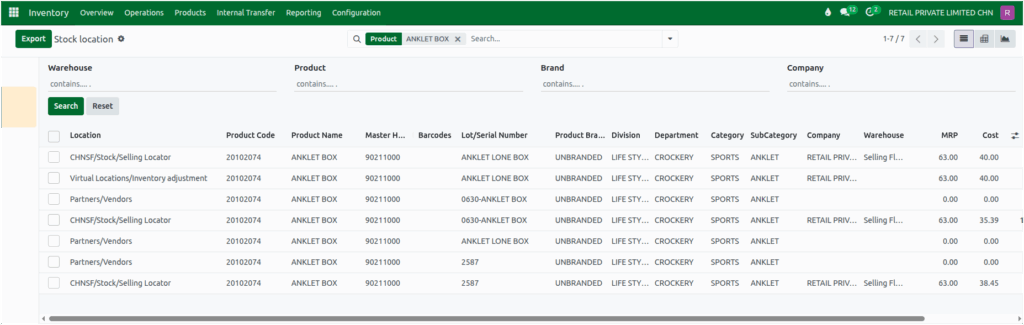
You can also find items by searching the specific product category or by unique lot or serial numbers. This makes tracking items easier, especially if your inventory has many products.
Using Filters in the Stock Location Report
You can narrow down the results using the filter options. When you click the small ▼ dropdown icon in the search bar, you will find several helpful filters.
The Internal Location filter shows only the stock stored inside your company’s warehouses, while the Transit Location filter displays items that are currently being moved from one place to another. To check products that are physically available, you can use the On Hand or In Stock filters.

If you want to identify items with stock shortages, the Negative Stock filter will highlight all products with quantities below zero. You can also filter by Incoming Date, which allows you to view products arrived within a selected date range whether by month, year or quarter. Additionally, the Starred Products option displays the items marked as favorites in the product master.
Applying Custom Filters
If you want more precise control,Odoo allows you to create your own custom filters. When you click Add Custom Filter, a popup window appears with a default rule that you can adjust. This lets you choose a field such as Product or Product Brand and apply an operator like contains, is equal to, does not contain, etc,.. and enter the value you want.

After entering the required value and clicking Add, the report updates instantly and displays a personalized and focused view of your stock information.
Using Group By Options in the Stock Location Report
The Group By options in the Stock Location Report help you organise your data in a clearer and more meaningful way. By clicking the ▼ drop down icon in the search bar, you will find several helpful group by options that you can choose how you want the information to be grouped.
Grouping by Location shows you the quantities stored in each specific area, making it easier to understand stock distribution inside or outside your warehouses. If your system handles multiple companies, grouping by Company helps you separate and analyze stock for each business entity.

The Product grouping option lets you view the total quantity of each item across all locations, giving you a complete picture of product availability. You can also group by Lot/Serial Number to see how products are tracked individually. These grouping options make it simple to compare, analyze, and manage your stock data efficiently.
Applying Custom Grouping Options
If you need more grouping options, clicking Add Custom Group shows additional fields that you can use. You can select fields such as Product Category or any other relevant field to structure the report according to your analysis needs.
Once a group is selected, the system instantly arranges the data based on that field, providing a personalized and more meaningful view of your stock information.
Saving Favorites for Quick Reuse
Odoo allows you to save your search filters or grouping options for future use. To save your current search settings, open the drop down menu and select Save Current Search. You can name your saved filter, set it as the default view or share it with other users.

Saved filters can be reused anytime with one click, and they can be removed easily using the delete (trash) icon. This makes repeated reporting tasks faster and more convenient.
By using these features in the Stock Location Report, you can quickly find the exact information you need and analyze your stock more effectively.
