How to Create a Payment Method Update in Odoo POS
Accurate payment recording is essential for maintaining smooth POS operations, ensuring clean session closures, and supporting reliable financial reporting. In cases where a payment is mistakenly recorded under the wrong method—such as a UPI transaction entered as Cash—the Payment Method Update feature in Odoo POS enables you to correct the entry efficiently and maintain data accuracy.
Purpose of the Payment Method Update Feature
The Payment Method Update function ensures precision in POS transaction records by allowing corrections to incorrectly selected payment modes. This feature is crucial for accurate end-of-day denomination, error-free reconciliation, and compliance with accounting and audit requirements. By maintaining consistent and correct payment data, businesses can avoid discrepancies and uphold the integrity of their financial reporting.
Accessing Orders in Odoo POS
To update a payment method, navigate to Point of Sale → Orders. This section displays all completed POS transactions. Use the Order Reference to locate the required order and open it to review its details.
Reviewing Payment Information
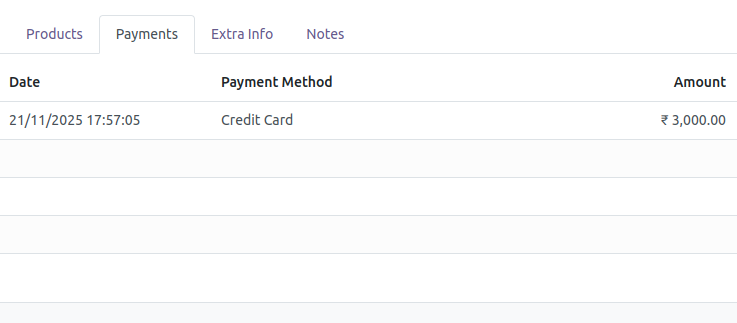
Within the Payments tab, Odoo displays all payment methods applied to the order along with their amounts. This view allows you to identify the specific entry that requires correction.
Availability of the Update Option
The Update Payment Method button is available only when the order is in Paid status. After the POS session is closed, the order is moved to Posted status, at which point updates are no longer permitted. This restriction ensures financial accuracy and preserves the integrity of closed sessions.

Using the Payment Method Update Wizard
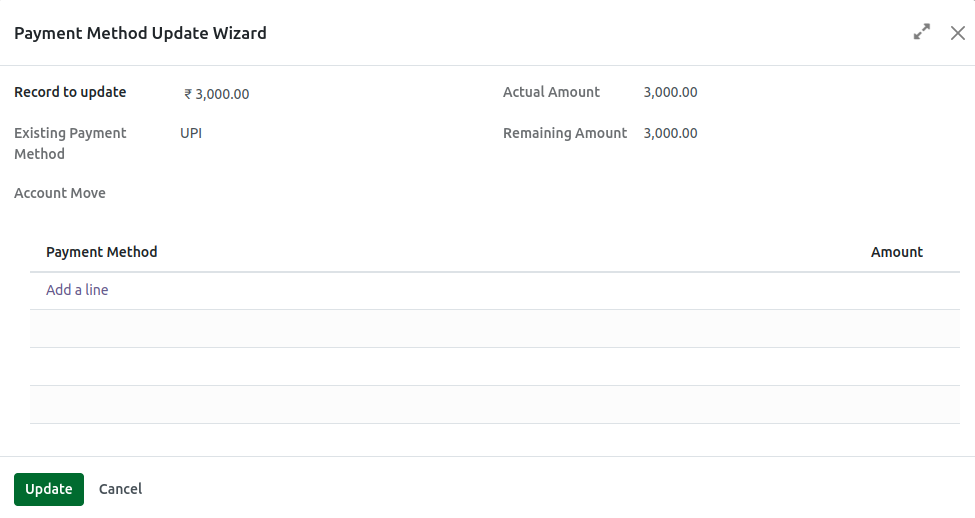
Selecting the Update Payment Method option opens a wizard where key fields—Existing Payment Method, Actual Amount, and Remaining Amount—are displayed as read-only. These fields populate automatically once you select an amount from the Record to Update dropdown, ensuring that the correct transaction details are referenced.
The dropdown lists all payment amounts associated with the order. When an amount is selected, the system immediately updates the Actual Amount, confirming which payment entry is being adjusted.
Understanding the Remaining Amount
The Remaining Amount initially mirrors the Actual Amount and updates only after a new payment method and updated value are entered. If no value is supplied, the Remaining Amount remains unchanged. This helps track the portion of the original amount still requiring reassignment.
Selecting the Appropriate Payment Method
Click Add a Line in the payment section and choose the correct payment method—whether UPI, credit card, or the applicable cash option for the terminal. Proper selection ensures compliance with POS configuration and accurately reflects the customer’s actual payment mode.
System Validations and Alerts
To maintain data accuracy, Odoo triggers alerts under the following conditions:
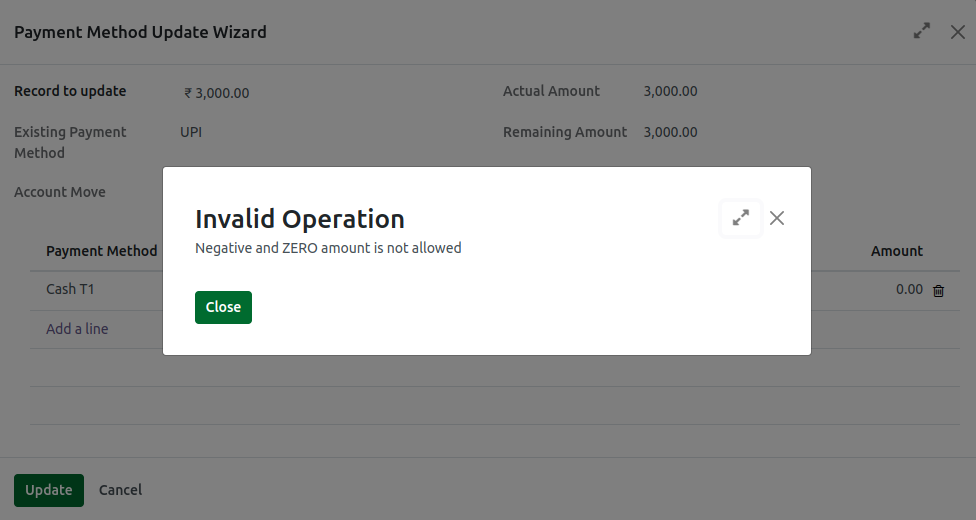
- Invalid Amounts: Entering zero or negative values generates:
“Negative and ZERO amount is not allowed.” - Same Payment Method Selected: If the updated paymode matches the existing one and the amount remains unchanged:
“Please choose a different payment method.” - Unconfigured Paymode: If the selected payment method is not enabled for the session:
“The payment method selected is not allowed in the config of the POS session.” - Duplicate Entries: Adding a paymode already used prompts:
“Please check payment method is duplicate or missing in line level.” - Amount Mismatch: If the recalculated Remaining Amount does not equal zero:
“Amount mismatch. Please check Actual amount and split-up amount.”
These system checks ensure accuracy, prevent conflicts, and maintain correct transaction records.
Finalizing the Update
After confirming the correct payment method and updated amount, click Update to apply the changes. If no modifications are required, select Cancel to exit the wizard without saving. By completing this process, you ensure that your POS system retains accurate, error-free, and audit-ready financial data.