How to Filter, Search and Group the Inventory Aging Report in Odoo Inventory
An Inventory Aging Report in Odoo is a report that helps businesses understand how long their inventory items have been in stock. It categorizes inventory by how long items have been sitting in the warehouse, which is useful for identifying slow-moving or obsolete stock, managing working capital, and optimizing purchasing decisions.
Go to the Main Menu → Inventory. Click on Reporting, then select Inventory Aging Report.
Default Filters in Report
The Incoming filter shows stock moves where the source location is not internal or transit, and the destination is internal or transit. The Has Remaining Qty filter displays only items with a remaining quantity greater than zero. These filters exclude internal transfers and fully consumed stock moves. Together, they ensure that the report focuses on available incoming inventory that is aging in stock.
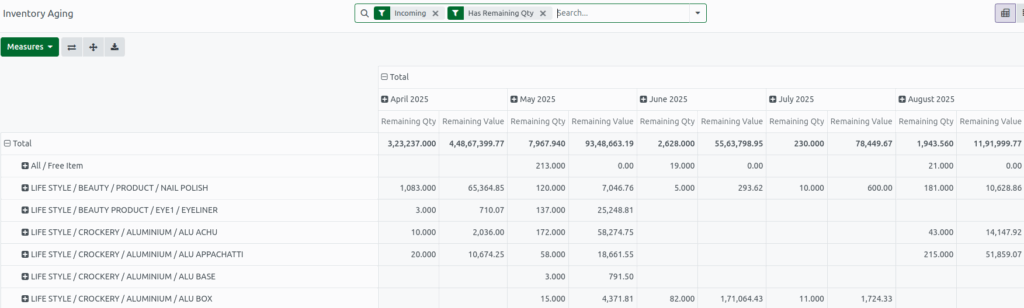
Quick Search Options
- Date: Enter a specific date to view inventory aging as of that date.
- Product: Filter by product name(s) using partial or full matches.
- Category: Narrow the results by product category.
- Company: Filter by company name in environments with multiple legal entities.
- Valuation at Date (button): Click to calculate the inventory aging and valuation based on the selected date.
Key Search Options
Product search is used to search by the product name. Reference search is used to search by the product reference or internal code. Product Category search is used to the search for the category assigned to the product. Product Template is used to search by the base product template (useful for product variants). Receipt WH is used to search by receiving warehouse location. Company is used to search the associated company.
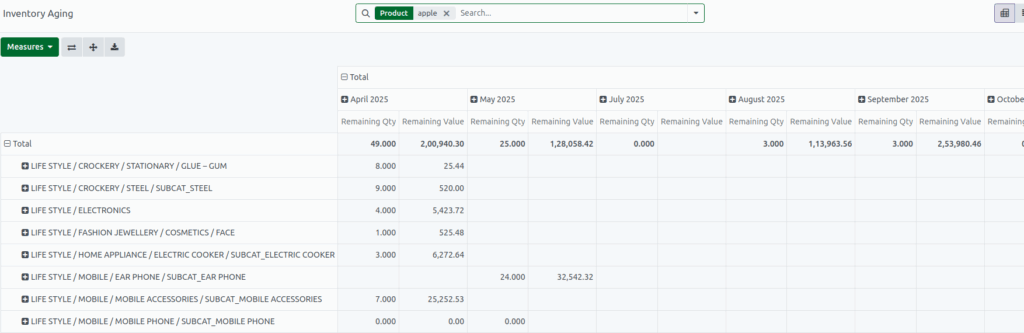
Using Filters in the Report
Click the ▼ (dropdown) icon in the search bar In the Filters section:
- Incoming: Show only incoming inventory records (items received into stock).
- Outgoing: Show only outgoing inventory records (items issued or dispatched).
- Has Remaining Qty: Show only records with remaining quantities still in stock.

Applying Custom Filters
To apply more filters ➔ Click Add Custom Filter. A custom filter popup will appear. By default, a rule is set — click it to see available filter options

Grouping Report Data
Click the ▼ (dropdown) icon in the search bar → select Group By. Choose from the default group options:
- Product: Group inventory aging data by individual product.
- Product Category: Group records based on product categories.
- Date:Group records based on the inventory transaction date.
- Company: Group data by company in multi-company environments.
- Lot/Serial Number: Group by lot or serial number for batch-tracked or serialized products.

Custom Grouping Options
To group by other fields:
- Click Add Custom Group
- A list of group-by fields will appear
- Select one to group your report accordingly

