How to verify Bill receipt after Payment method update in Odoo POS
Updating payment methods in Odoo POS ensures accurate records, smooth reconciliation, and error-free reporting. Whether a payment was entered using the wrong pay mode or requires correction, the POS system provides a straightforward process to update and verify the changes.
Access and Open Orders in POS
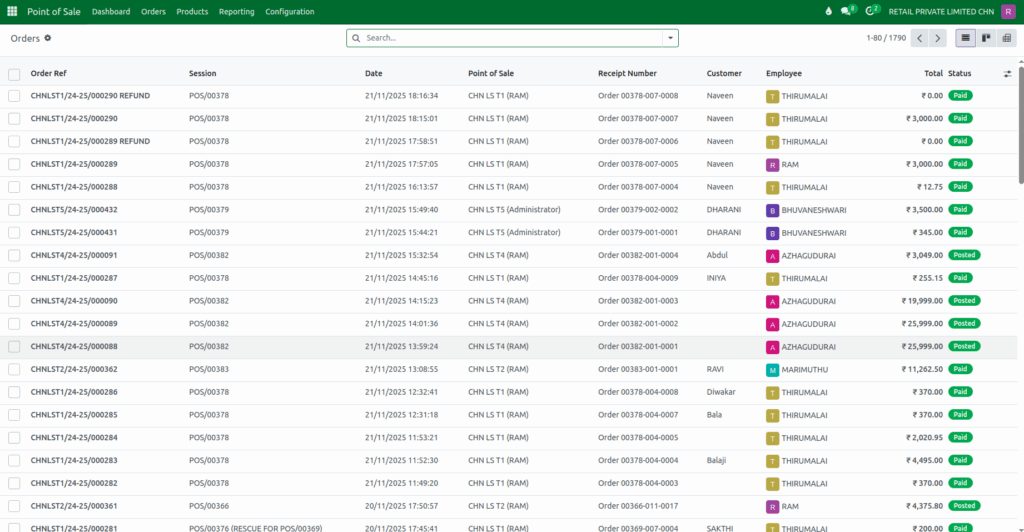
To begin, navigate to the Point of Sale module from the main menu. Select Orders → Orders to open the list of completed POS transactions. You can locate the required order by searching for its Order Reference. Once found, click on the order to view its details and proceed with the payment update process.
Using the Payment Method Update
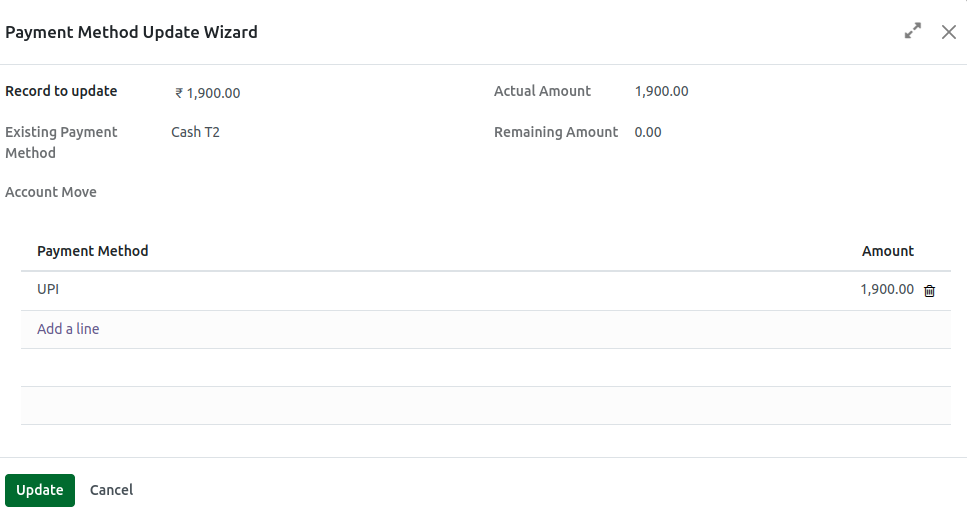
Click the Update Payment Method button to open the update pop-up window. The Record to Update drop down displays all amounts paid through different pay mode for the selected order. Once you choose an amount from the list, the fields Existing Payment Method and Actual Amount will automatically populate. The Remaining Amount will not change until you enter a new pay mode and update the amount.
Selecting Payment Methods
In the payment section, click Add a Line to add the new payment method. Select one or more pay modes that should replace the original entry, such as UPI or Credit Card. For cash payments, ensure you choose the correct cash option based on the terminal configuration. Enter the appropriate amount for each pay mode you wish to update so the system can properly balance the payment allocation.
Remaining Amount Calculation
The system automatically calculates the remaining balance using the formula:
Remaining Amount = Actual Amount – Amount Entered
To successfully complete the update, the Remaining Amount must equal 0. This ensures that the original amount is fully reassigned to the new payment method(s) without discrepancies.
Confirming Payment Updates
Once all the updated pay modes and amounts are correctly entered, review the details to ensure accuracy. Click Update to save the changes. This completes the payment correction process at the order level in Odoo POS.
Verify the Updated Payment in POS
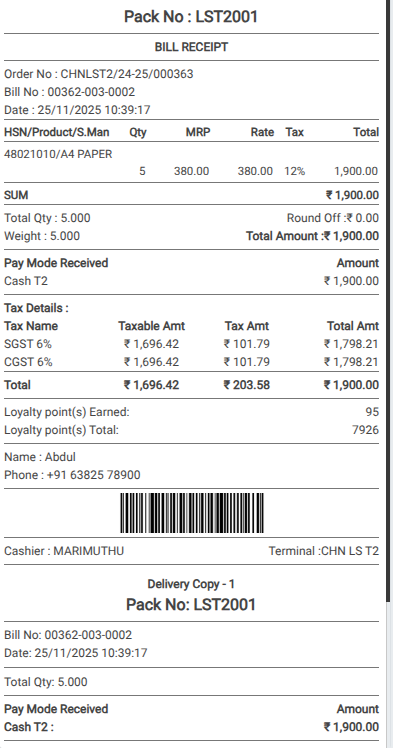
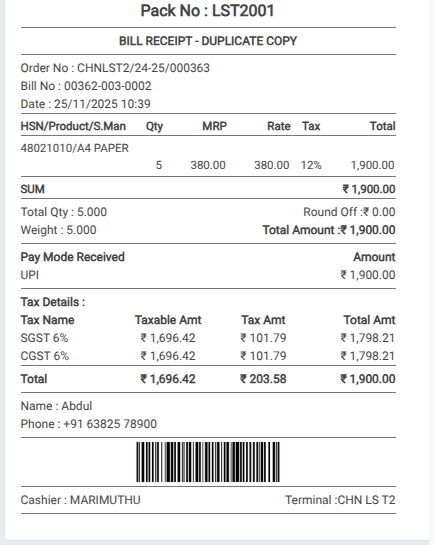
After updating the order, open the POS system to verify the changes. Click Sales Return in the POS cart and search for the order using the Receipt Number. Switch the role to Head Cashier to enable verification options, then click Print Receipt to reprint the updated transaction.
Updated Payment Details on the Receipt
The reprinted receipt will clearly reflect the updated payment information. It will display the updated paymode and the updated amount, which will appear in the Paymode Received section. This ensures that both the customer and the POS system reflect the corrected payment details accurately.