How to Filter, Search and Group the Valuation Report in Odoo Inventory
Odoo’s Inventory module includes the powerful Valuation Report, a tool designed to give businesses a clear view of their stock value, movements, and costs. The Valuation Report helps track product quantities, monitor incoming and outgoing stock, and analyse inventory value in real time. With features like quick search, customizable filters, and grouping options, it makes managing and understanding inventory much easier.
Accessing the Valuation Report in Odoo Inventory
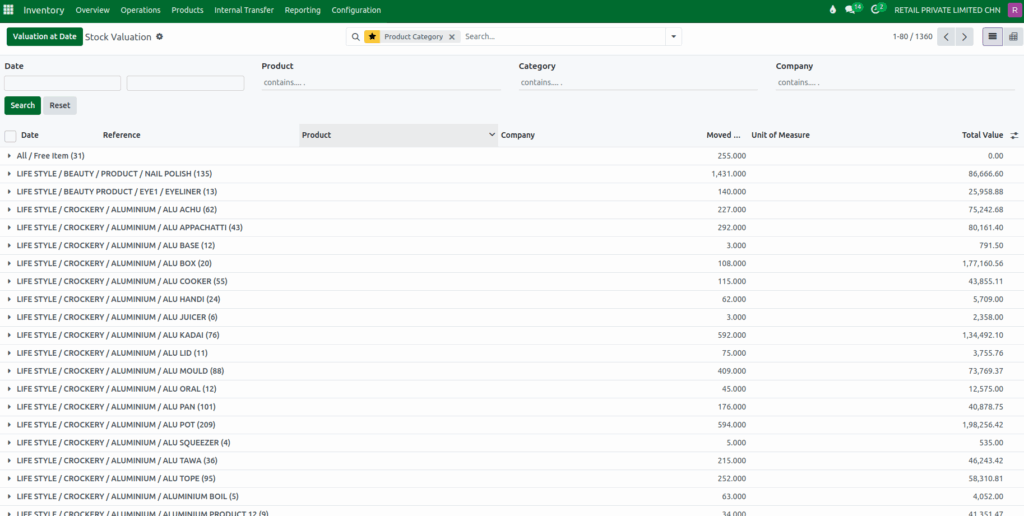
To begin working with the Valuation Report in Odoo, first open the Inventory module from your main dashboard. Once you are inside the module, go to the Reporting menu and select the Valuation Report. This report gives you a detailed view of the value of your stock, helping you analyse product movements, quantities, and cost values in real time.
Using Quick Search Filters in the Valuation Report
The Valuation Report provides a powerful search bar at the top, allowing you to quickly find the information you need. You can search by date to view transactions between a specific start and end date. You can also search for individual products using the product code, or search by product category to view results related to a particular group of products. If your Odoo system handles multiple companies, the search bar also lets you filter results based on the company name.
After setting the filters, clicking the search button displays the results instantly. You can apply multiple filters at the same time for more precise analysis, and if you want to clear everything and start fresh, the reset button removes all selected filters.
Using the Search Bar in the Valuation Report
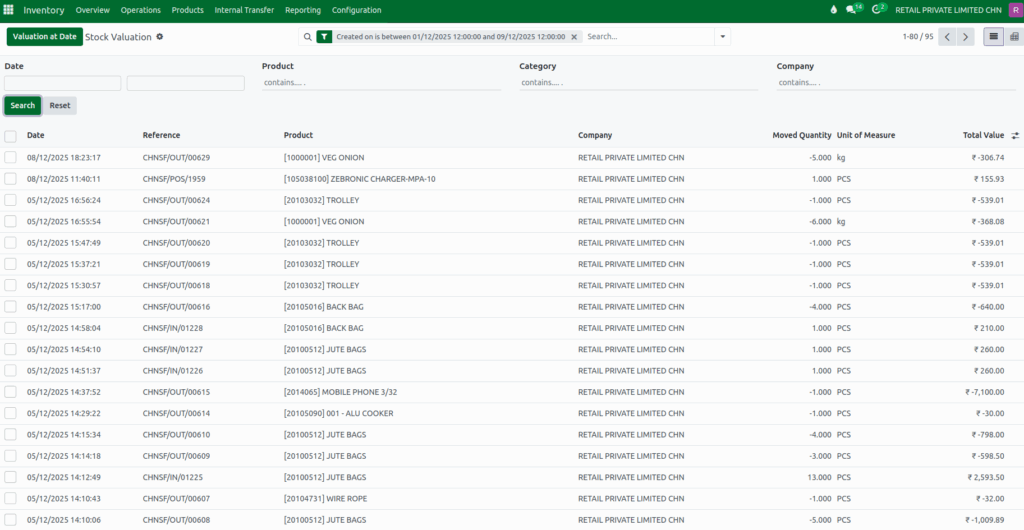
The Valuation Report offers several useful search options to help you quickly find the information you need. The Product search lets you look up valuation entries for a specific product by typing its name or code. The Reference option helps you locate transactions using internal document references linked to stock movements.
When you use the Product Category search, you can filter products based on the category they belong to, making it easier to analyse similar types of items together. The Product Template search allows you to filter based on the main structure of a product, showing valuation data linked to its template rather than individual variants.
The Receipt WH option focuses specifically on incoming warehouse receipt operations, helping you track the value of products received into the warehouse. Finally, the Company search lets you view valuation entries for a particular company, which is especially useful when working in a multi-company environment.
Filters in the Valuation Report
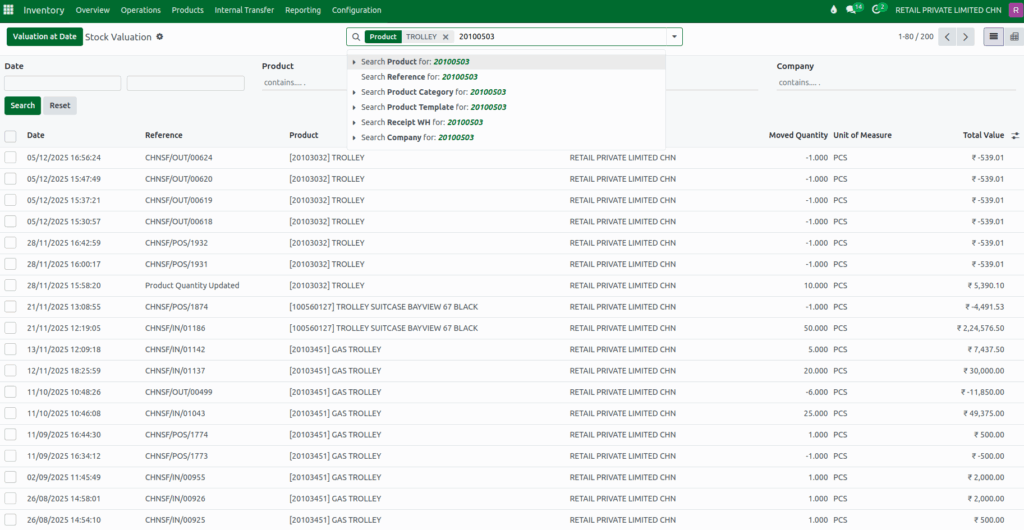
Filters make it easy to view the valuation data based on different types of product movements. When you apply the Incoming filter, the report shows all purchased or incoming quantities. The Outgoing filter displays all sold or delivered quantities. The Has Remaining Qty filter helps you find products that still have stock available in your inventory. These filters allow you to narrow down your data and focus only on the information that matters to your analysis.

Applying Custom Filters for Detailed Reporting
More specific results can be created using Odoo’s custom filter option. By clicking on Add Custom Filter, a list of available filter fields will appear. After selecting the desired field, a logical operator such as equals, greater than, or less than can be chosen. Finally, the value to be filtered is entered.
For example, to view products with a total value of 1000, a custom filter can be applied using Total Value = 1000. This feature provides complete flexibility to shape the report according to specific requirements.

Grouping Data in the Valuation Report
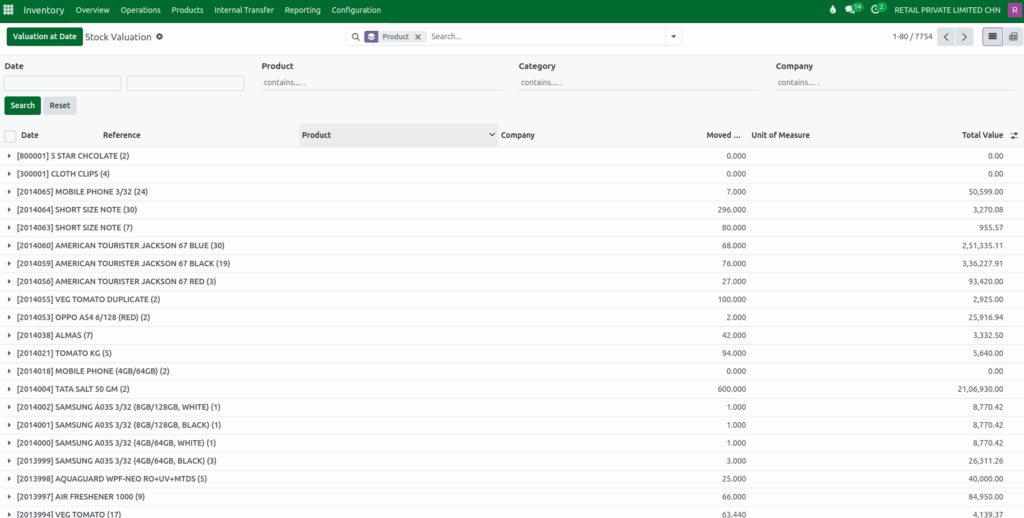
Grouping helps you organise the valuation data in a more structured way. When you group by Product, you will see all transactions arranged under each product. Grouping by Product Category arranges your data based on the category each product belongs to.
Using the Date grouping option, you can view your data month by month or year by year. If your system handles multiple companies, the Company grouping will display valuation information company-wise. You can also group data by Lot/Serial Number to follow the exact movement of a specific batch or serialised item.
Applying Custom Grouping
In addition to the default grouping options, Odoo allows you to add even more grouping choices. Clicking on Add Custom Group opens a wider list of fields that you can group your valuation data by. For example, selecting Journal Entry from this menu will immediately reorganise your report so that all valuation entries appear grouped under each journal entry. This makes it easier to analyse stock movements and their corresponding accounting entries in detail.
Saving Favorites for Quick Reuse
Odoo lets filters be saved for quick use later. To save a filter, open the dropdown menu, choose “Save current search,” and give it a name. It can also be set as default or shared with others. Saved filters can be reused anytime, and unwanted filters can be deleted using the trash icon. This makes it easy to use the same filters again without setting them every time.