How to View the GRN Bill Report in Odoo
The GRN (Goods Receipt Note) Bill Report in Odoo helps track vendor bills linked to received goods. It brings together purchase orders, goods receipt details, billing status, and payment information, making it easier to manage inventory and vendor payments with accuracy.
This report is especially useful for purchase and accounts teams that need a clear picture of what was ordered, what was received, and what has been billed.
Accessing the GR Bill Report
To open the GR Bill Report in Odoo, log in with a Purchase Manager role. From the main dashboard, go to the Invoicing module. At the top menu, select Reporting, then choose Basic Reports. In the list of available reports, click on GRN Bill Report. Once opened, an organized summary of purchase orders, goods received, and vendor bills tied to each transaction is displayed.


Search, Filter, and Group GR Bill Data
A quick search bar at the top-right allows searching using keywords such as date range, vendor name, or company name.

Multiple filters can be applied, including invoices, credit notes, posted bills, drafts, cancelled records, or specific bill dates. These filters help narrow down the information to only what is relevant.

The report supports grouping options as well. Data can be grouped by vendor to see all bills related to a supplier, by company to separate data for each business unit, by purchase order number to view all GRN linked to an order, or by bill date to analyze bills over time. Grouping helps identify patterns or irregularities in billing and goods receipt activities.
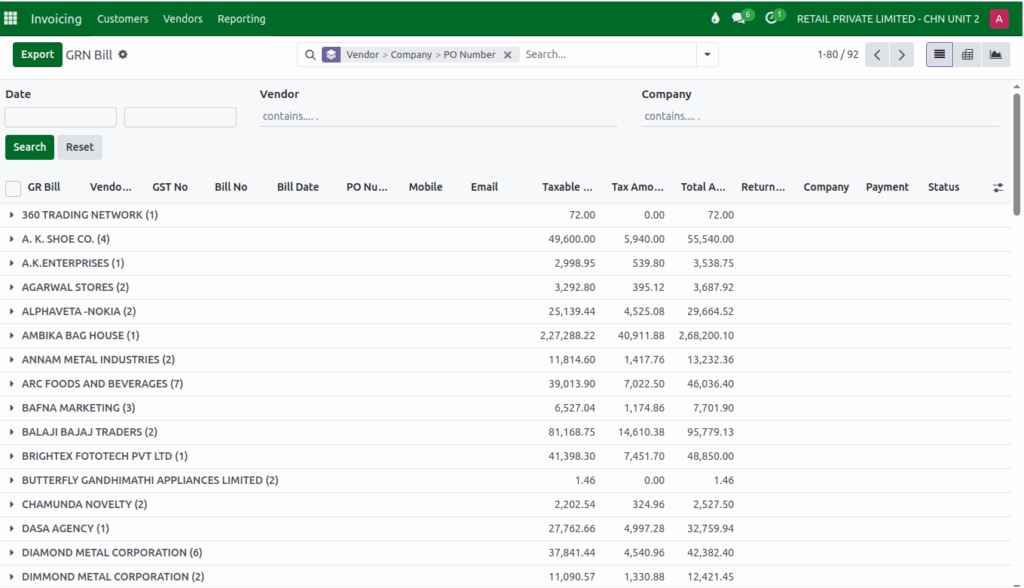
Understanding the Fields in the GR Bill Report
Each record in the GR Bill Report includes essential details for tracking and verifying transactions. The Bill Date and Bill Number identify the vendor invoice, while the Company field shows the legal entity involved. Vendor contact details, such as email and mobile number, support communication when needed.
The GR Bill field links the invoice to the goods receipt note, ensuring billed items match received goods. Fields like GST number, payment status, and overall bill status reflect tax and processing information. Additional fields such as PO Number, return reason, taxable amount, tax amount, and total amount provide a clear financial summary of each transaction.
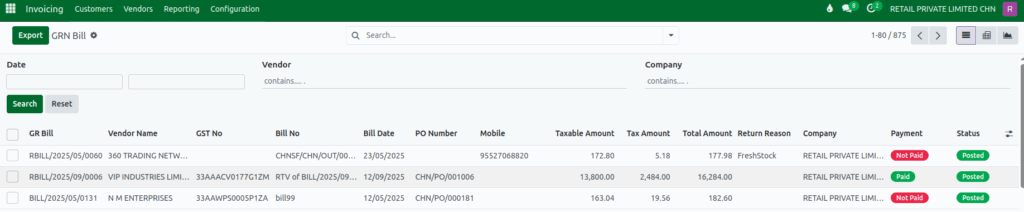
Views and Data Presentation
Odoo provides multiple viewing options for the GR Bill Report.In the List View, all records appear in a table format showing details such as bill number, vendor, bill date, purchase order, amount, and status. Sorting, filtering, or grouping can be applied to these columns, and any row can be opened to view the bill in detail.

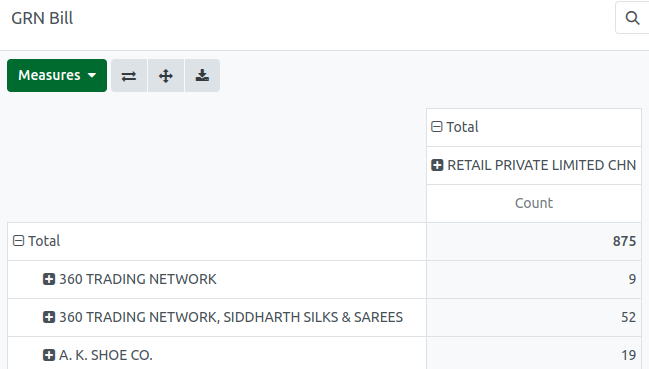
The Pivot View allows summarizing and analyzing large sets of billing data. Fields can be rearranged to create custom reports displaying totals, quantities, taxes, or comparisons based on vendors, dates, or product categories, making it useful for financial and procurement analysis.
The Graph View offers a visual display of billing data through bar charts, line graphs, or pie charts. Trends, high-volume suppliers, and seasonal changes can be observed by plotting amounts, quantities received, or tax values.

Exporting GR Bill Data
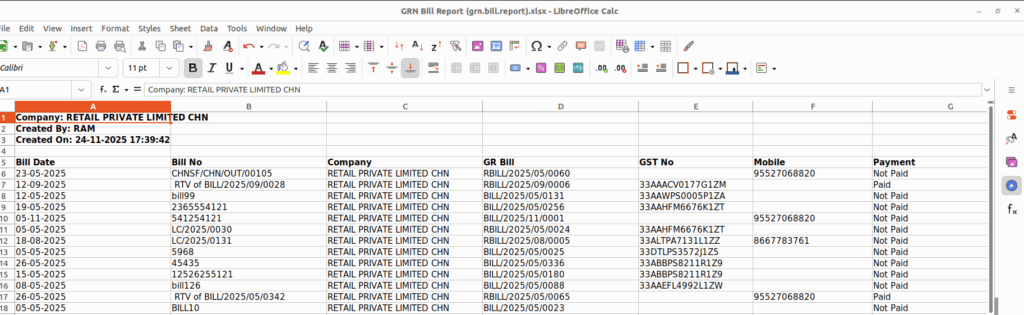
The GRN Bill Report can be exported for offline use. Data can be downloaded in Excel or CSV formats, with options to apply filters or select specific fields before exporting. This feature supports advanced analysis, sharing with other teams, or integration with external tools.