How to Refund and Exchange Same Product in Odoo POS?
Managing refunds and exchanges can sometimes be tricky, but with Odoo POS, the process is simple, fast, and accurate. Whether a customer wants to return a product, get a refund, or exchange it for another item, Odoo makes it easy to handle these transactions while keeping your stock, billing, and customer records up to date.
Completing a Sale in POS
Open the POS and add products to the POS cart. There are three convenient ways to do this: by entering the product code manually, scanning the product barcode, or scanning any associated multi-barcode. Adjust the quantities as needed for each item and select the customer. Once the order is ready, go to the payment screen by clicking the Payment Mode button or using the shortcut key F4. On the payment screen, select the preferred payment method. Finally, complete the transaction by clicking Validate or pressing alt + v. Then the system will automatically generate the bill receipt for the sale.
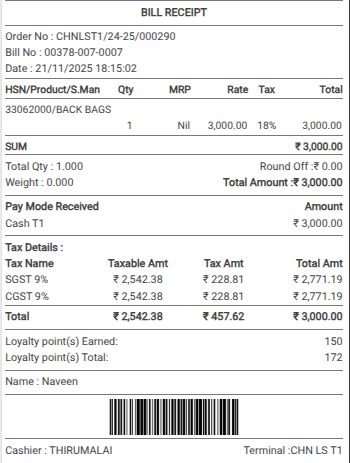
This completed receipt and its Receipt Number is important because it is required if a refund or exchange needs to be processed later.
Initiating a Refund in Odoo POS
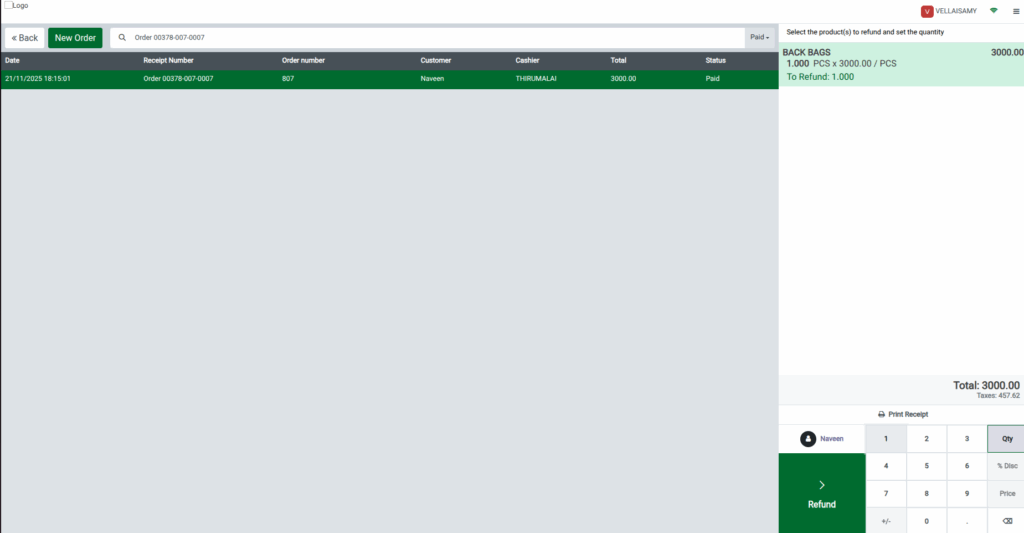
Refunds are processed through the Refund screen in the POS Cart. You can search or scan the receipt number to retrieve the order. Once the order appears, switch to the Head Cashier role, select the product to refund, enter the quantity to return (for example, Qty = 1), and click Refund.
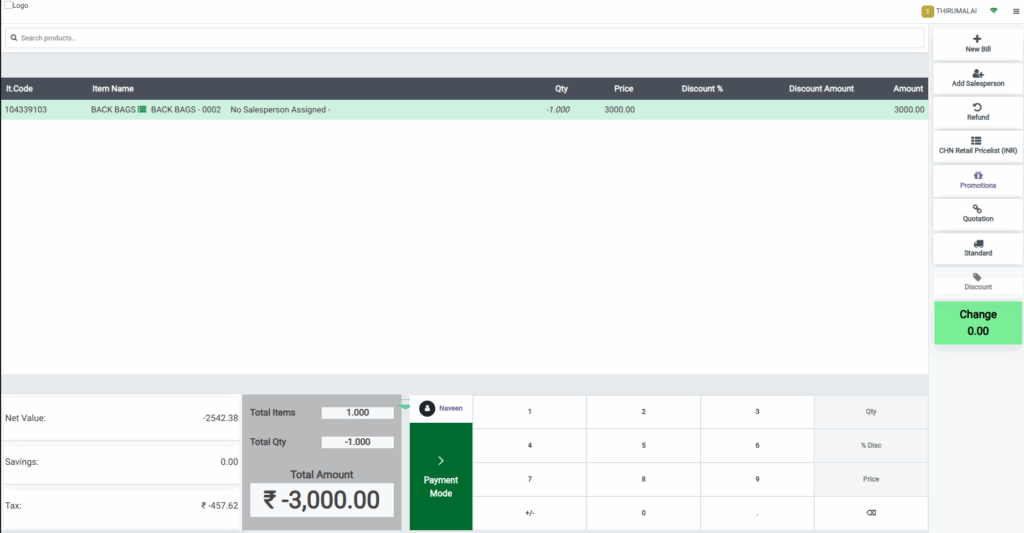
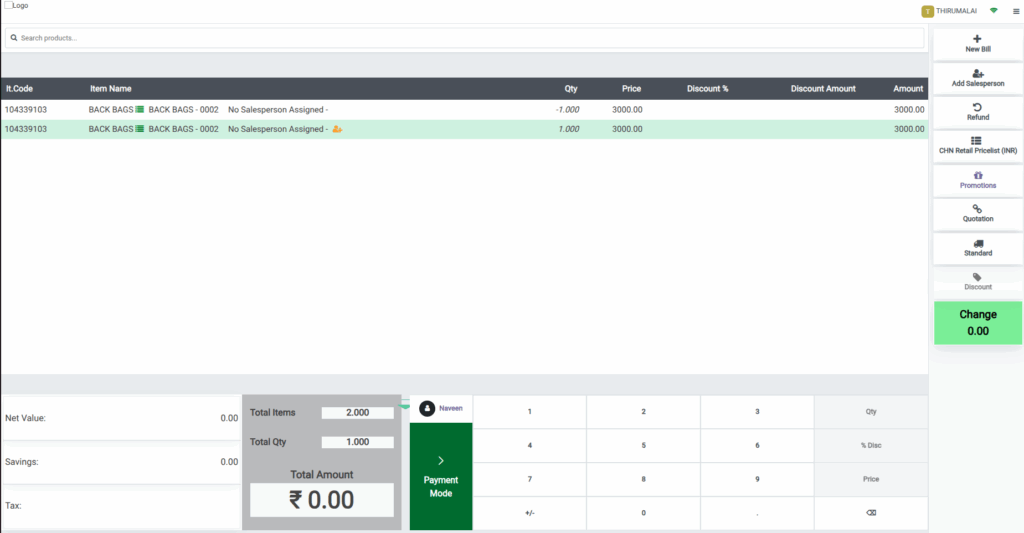
You will then be redirected back to the POS Cart. Switching to the Cashier role, the returned product will appear with a negative quantity, customer details (name and phone) are displayed in the Customer tab, and the total amount shows as a negative value, indicating the refund due to the customer.
Processing the Exchange in Odoo POS
To exchange the product, search or scan the same product again. For products tracked by lot or serial number, make sure to select the exact lot or serial number being exchanged. The exchanged product will appear with a positive quantity, and the total amount updates to ₹0.00, showing no additional charge. The total quantity in the POS Cart now reflects the correct value of 1. Verify all details in the POS Cart to ensure accuracy before proceeding.
Completing the Transaction in POS
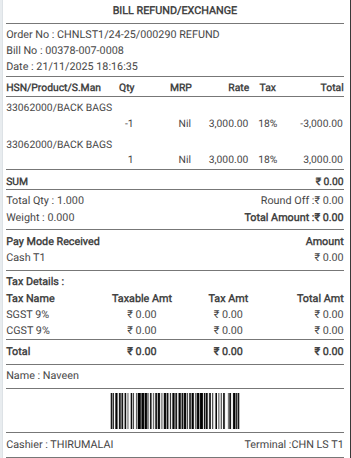
Once everything is confirmed, click Payment Mode, select the payment method (for example, Cash), and click Validate to finalize the transaction. The bill will be labeled as BILL REFUND/EXCHANGE, clearly indicating the transaction type. It will display the refunded and exchanged product, a total amount of ₹0, and no tax applied. This completes the order with zero balance, while ensuring that stock levels, billing, and customer records remain accurate.