How to View the Sales Summary Report in Odoo POS
The Sales Summary Report in Odoo POS helps businesses quickly understand their overall sales performance. It gives a clear view of total sales, refunds, customer details, tax amounts, and other useful information. This report is helpful for monitoring day-to-day sales activity and identifying sales trends within a specific time period.
Accessing the Sales Summary Report
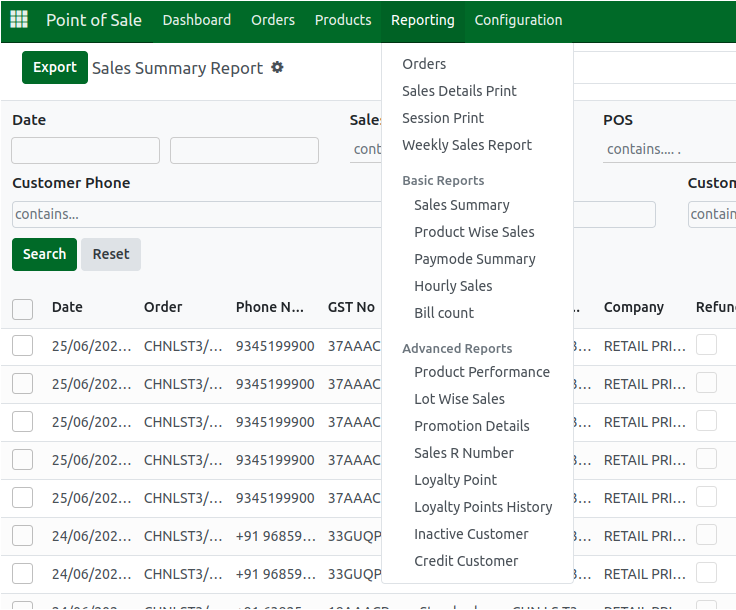
To open the Sales Summary Report, go to Point of Sale → Reporting → Sales Summary. This screen is designed for users who need to keep track of sales figures, and only the Head Cashier has permission to view this report. Once the report is opened, users can see all POS transaction details in one place, making it easy to study sales activity for the selected time range.
Using Filters, Grouping, and Search Options
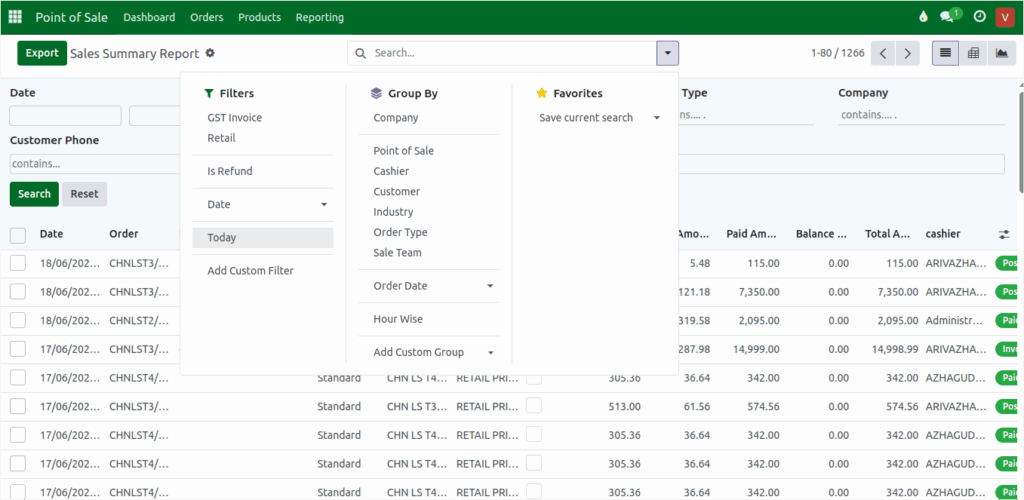
The report includes several filters to help narrow down the data. Filters such as GST Invoice, Retail, Refund, and Date allow users to focus on specific types of sales. For example, choosing the GST Invoice filter will show only sales linked to registered business customers, while selecting “Today” will display only the current day’s POS sales. The Refund filter shows only transactions where a refund was made.
The Group By option helps organize the report based on fields like Company, Point of Sale, Cashier, Customer, Industry, Order Type, and Sales Team. For example, grouping by Cashier will show sales handled by each cashier, while grouping by Company will display sales by business entity. Users can also add Custom Filters and Custom Groups if they need extra fields, such as GST Number or Sales Team.
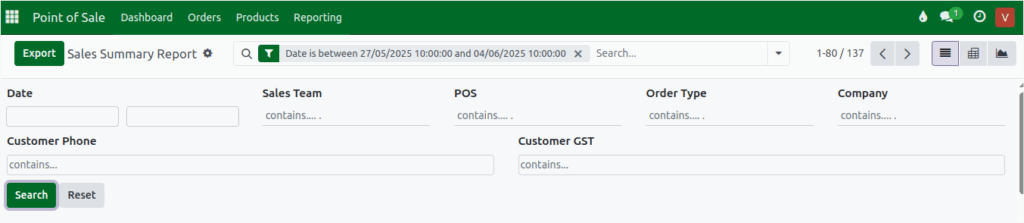
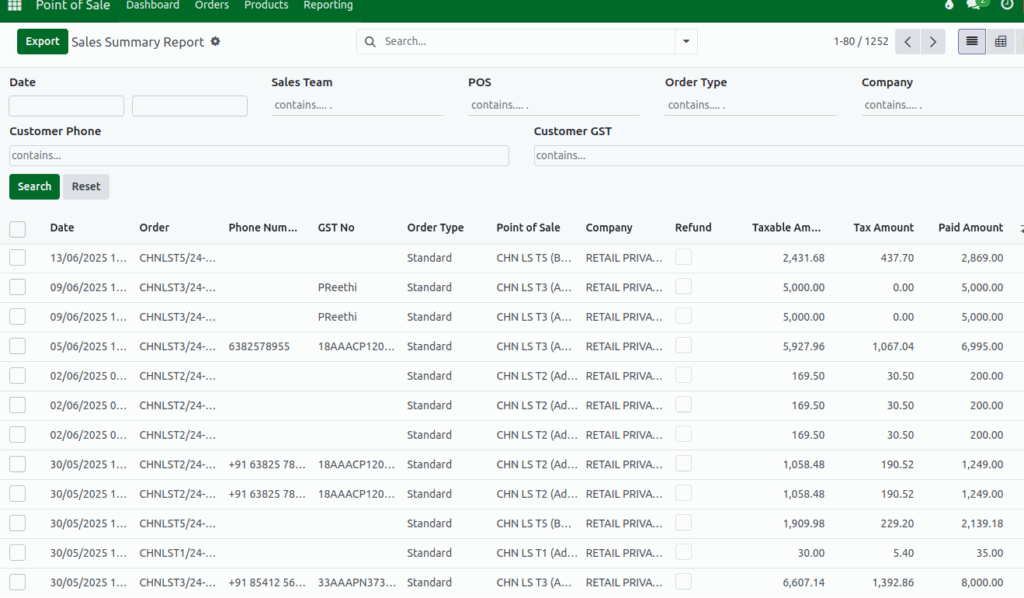
A Quick Search bar is available for faster access. You can search using fields like Date, POS terminal, Order Type, Sales Team, Customer Phone Number, or Customer GST Number. These search options make it easy to find specific transactions without applying multiple filters.
Understanding the Fields in the Sales Summary Report
The report shows details related to POS billing. The Date field displays the POS bill date, while the Phone Number field shows the customer’s contact number. If the customer is registered under GST, their GST No will also appear.
The Point of Sale field shows the name of the cashier’s terminal used for the transaction, and the Cashier field displays the cashier’s name.
The Status can show three types—Paid, Posted, or Invoiced—indicating the stage of the POS order. Finally, the Paid Amount represents the amount the customer has paid for the POS bill.
    • Taxable Amount: The Total Amount before tax, calculated as:
TotalAmount/(1+Tax %)
    • Tax Amount: The Tax Amount calculated as:
Taxable Amount *( Tax % / 100).
    • Total Amount: The POS Bill Amount, calculated as:
Taxable Amount + Tax Amount.
The report also indicates whether a refund has been processed; if a refund exists for a transaction, the
Refund checkbox will be enabled. Additionally, the Order field displays the POS Bill Order Number, allowing easy tracking of each point-of-sale transaction.
Viewing and Exporting the Report
The Sales Summary Report can be viewed in three different ways.
The List View arranges all records in a table format, showing each transaction with fields like Date, Cashier, Paid Amount, and more.
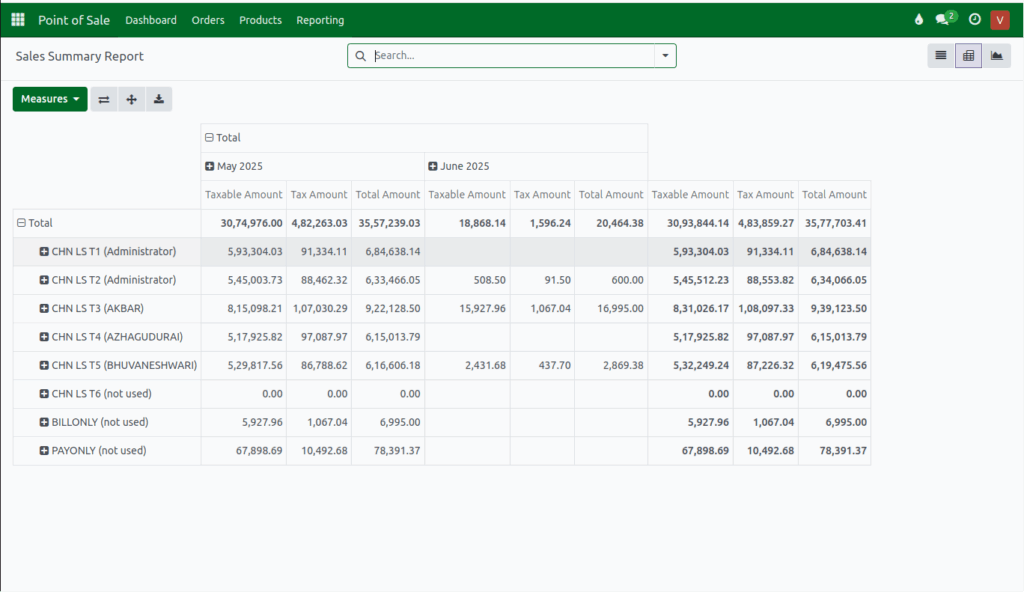
The Pivot View organizes the data into a summarized table, allowing users to group and compare values across different dimensions.
The Graph View displays the data visually using charts, making it easier to analyze trends.
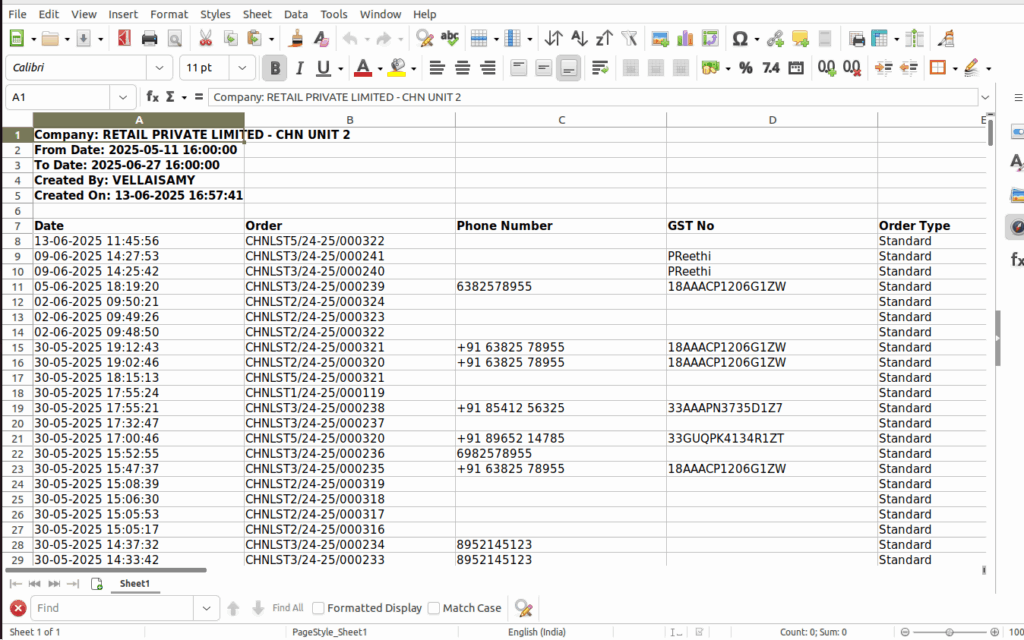
Users can also export the report to Excel if they need to work with the data outside Odoo. After applying the necessary filters or grouping options, clicking the Export button will generate an Excel file based on the selected data.