How the Details are Displayed in POS Settlement Print in the Odoo POS
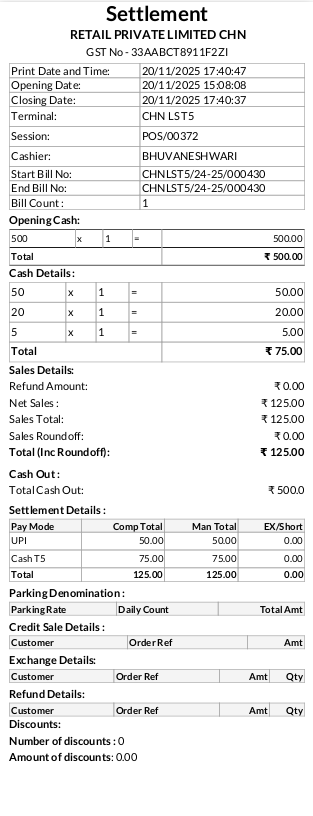
After close the POS Session to view the pay mode wise sales, Return and Refunds, Refunds and Exchange, Order Count likewise details can view in the POS Settlement print its can access by headcashier and its not editable
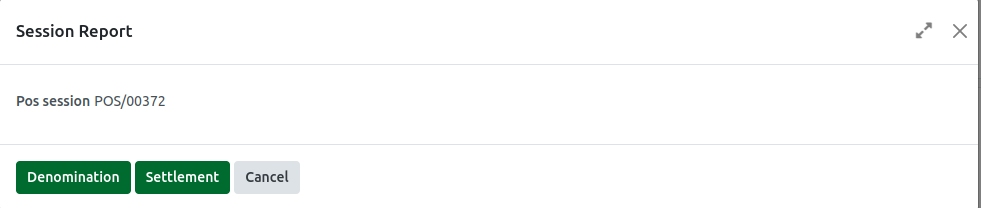
Accessing the Session Report
From the Main Menu, select Point of Sale, then select Reporting and click Session Print. The Session Report popup will appear. The POS Session field is mandatory to print. Select the desired Session ID, and it will auto-fill in the POS Session field. Click the Settlement button to print denomination details. A PDF will download automatically. Open the PDF to view.
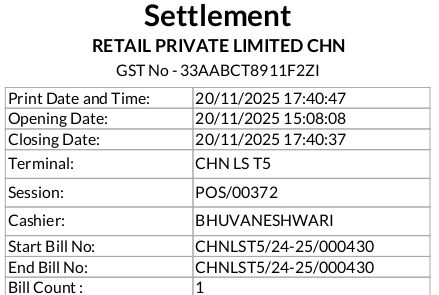
Header Section and Session Details in Settlement Print
The report displays Settlement as the title, identifies the business associated with the session through the Company Name, and shows the company’s registered GST Tax ID.
In the Session Details, the Printed Date & Time shows when the report was generated. The Opening Date indicates the start time of the POS session, while the Closing Date displays the time of the last transaction. The POS Terminal Name and the unique Session ID assigned to the session are also shown, along with the Name of the Cashier. The Start and End Bill Numbers represent the range of order numbers generated, and the Bill Count shows the total number of orders.
Cash and Payment Details in Settlement Print
The Opening Cash represents the amount of cash available at the start of the session, as entered by the cashier. The Cash Details section shows the total cash counted at the end of the session, along with its denominations, which are used to validate cash accuracy.

Sales Details in Settlement Print
The Refund Amount represents the total value of refunds issued during the session.
Net Sales reflects the total sales after deducting refunds, calculated as Net Sales = Sales Total − Refund Amount. The Sales Total shows the gross sales before any roundoff adjustments, while the Total (Including Roundoff) displays the final sales figure after roundoff has been applied.

Cash Out Section in Settlement Print
The Cash Out Amount represents the amount withdrawn from the register, such as the removal of opening cash. This value is displayed under the Total Cash Out field and is used to track any manual cash adjustments made during the session. All Cash Out entries are also shown in the
Settlement Print for audit and verification purposes.
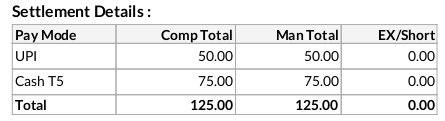
Settlement Details (Pay Mode-Wise) in Settlement Print
The Pay Mode field shows the type of payment used, such as Cash, UPI, or Credit Card. For each payment mode, the Computer Total represents the system-calculated amount, while the Man Total is the amount manually entered by the cashier at the end of the session. The Ex/Short value indicates the difference between the system and manual totals, calculated as Excess/Shortage = Computer Total − Man Total. The Total row summarizes the Comp Total, Man Total, and Ex/Short amounts across all payment modes.
Bank-Wise Details in Settlement Print
This section lists all configured banks, such as ICICI, HDFC, and Axis, and shows the amounts entered against each one. It also displays a combined total for all banks, and these bank details will appear in the
Settlement Print.
Parking Denomination in Settlement Print
This section shows the revenue collected from parking fees during the session. The Parking Rate represents the fixed fee (e.g., ₹100, ₹50, ₹20), while the Daily Count indicates the number of tokens issued for each rate. The Total Amount is calculated as Parking Rate × Daily Count, and the
Total row provides the sum of all parking revenue.