How to view the Stock History Report in Odoo Inventory
The Stock History Report in Odoo Inventory shows all product movements, making it easy to track incoming, outgoing, and internal transfers. It helps ensure accurate stock records and is useful for user who need to monitor activity across warehouses, locations, and product categories.
Accessing the Stock History Report in Odoo Inventory
To view the Stock History Report, navigate to the Inventory module from the main dashboard, then click on Reporting and select Stock History. This will display the report in List View, showing all stock movement records in a table format.
Searching, Filtering and Grouping Stock History Report Data
Odoo makes it easy to search specific stock movements using the search bar. You can search by Location, Product, Transfer Document Number, Lot/Serial Number, Reference or Category to quickly find relevant records.
The report can also be filtered to focus on certain transactions, such as completed movements (Done), incoming stock from vendors, outgoing stock, internal transfers, or movements within a specific date range, like the last 30 days, three months, or a year. For more advanced filtering, you can add custom filters.

Grouping the data helps organize stock movements for easier analysis. Common grouping options include Product, Status, Date, Transfer Document, Location, or Category. This allows users to compare product movements, track pending or completed transfers, and analyze stock across different locations or product types.
Stock History Report Key Details
The Stock History Report displays key information for each stock movement. The Date column shows when the transaction occurred, while Reference indicates the related Document Number, such as a vendor return, GRN, stock adjustment, or internal transfer. Product details include Product Code, Product Name and Lot/Serial Number, makes it proper, helping track individual items.

Location details show From Location and To Location, and the Quantity column indicates units moved, with green for incoming and red for outgoing stock.You can see additional product information such as Brand, Division, Department, Category and Sub-category, which helps in organizing inventory.
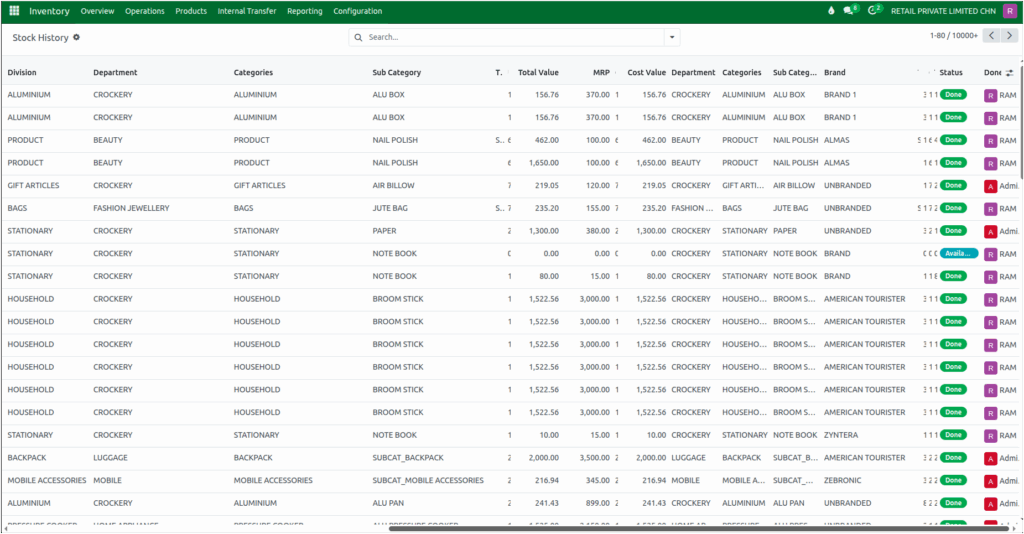
The Company column identifies the responsible company or branch and the Status shows whether the movement is available, waiting, done, or partially available and Done By field shows the user completing the transfer.
Pricing and cost information is also included. The MRP (Maximum Retail Price) and the Cost of the product is displayed and Total Value is displayed using the formula Cost × Quantity.
Viewing and Exporting Stock History Report
The Stock History Report is displayed in a list view, showing all stock movement details in rows for easy reading. Pagination controls allow you to navigate through long lists.
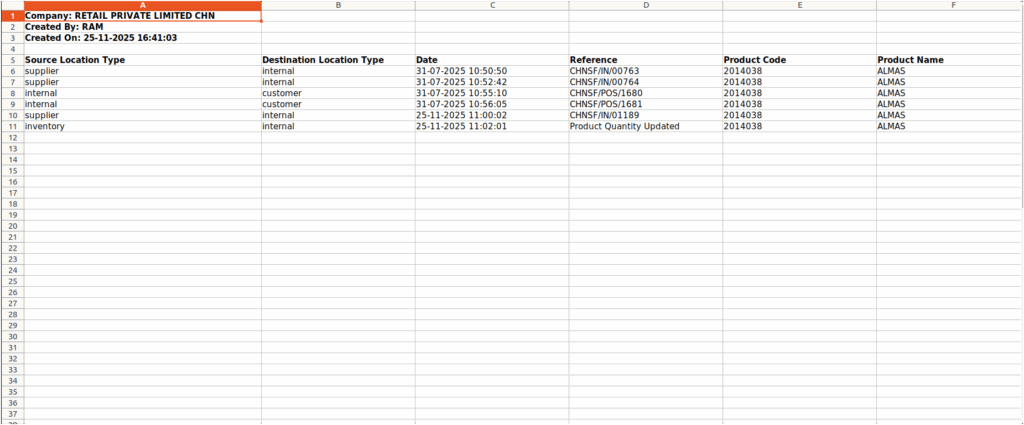
You can also export the report to Excel for offline analysis. To do this, click the Actions (gear icon) on the report toolbar and select Export All. The exported file includes all displayed details, along with the company name, the user who exported the report, the export date and time. This makes it simple to review and share stock movement data outside Odoo.