How to view the Odoo Inactive Customer Report in POS
The Inactive Customer Report in Odoo helps businesses identify customers who haven’t made a purchase for a chosen period, usually the last three months. The system checks each customer’s last order date and marks them as inactive if the date falls before the selected From Date. This makes it easy for businesses to find dormant customers and plan re-engagement campaigns.
Access and User Permissions
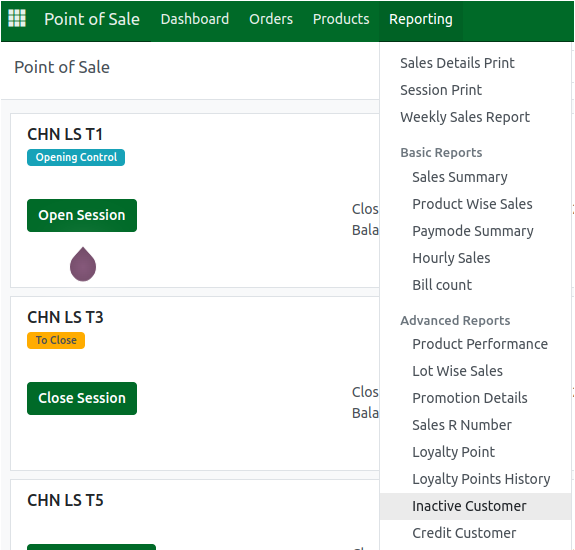
To open the report, simply go to Point of Sale → Reporting → Inactive Customer. Users with the Head cashier role have permission to view POS reports, including this one. Once the report loads, Odoo automatically sets the From Date to three months before today, but users can change it as needed to widen or narrow the inactivity period.
Search, Filter, and Grouping Options
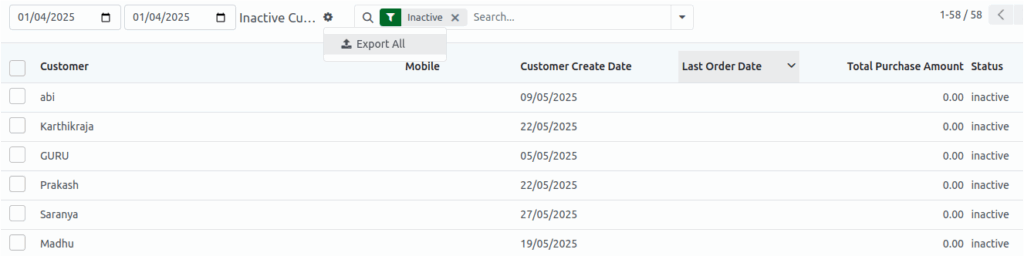
The report supports quick search functionality, allowing users to search by customer name or mobile number. The From Date is the main filter, Odoo checks whether each customer’s last purchase happened before this date to determine inactivity. Customers with recent purchases appear as active and will not be shown.
There are several filter options including customer name, registration date, customer ID, last purchase date, mobile number, total spend, campaign start and end dates, and activity status.
Grouping is also available, allowing the report to be grouped by fields like customer name, registration date, last purchase date, mobile number, campaign start date, or customer status to help organize and analyze customer segments.

Information Displayed in the Report
The report shows useful customer details in a clean table. It includes each customer’s name, mobile number, the date they were created in the system, their last purchase date, and the total amount they have spent. Odoo automatically assigns the customer status based on the From Date.
If the customer’s last order date is older than the From Date, they appear as inactive; otherwise, their status is active. This helps users quickly understand customer activity and identify individuals who may need follow-up communication or targeted promotions.

Views and Export Options
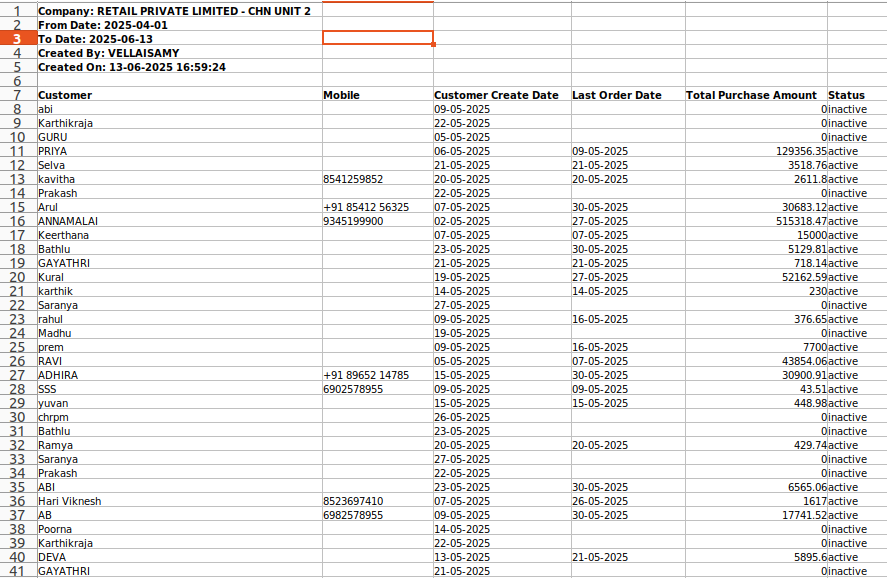
The data is displayed in a simple tabular format with sortable fields for easy navigation. Users can click on any customer entry to view their complete profile. If the report needs to be analyzed or shared, it can be exported in Excel or CSV format using the Export button.
Before exporting, users should ensure that the correct filters, especially the Inactive filter are applied so that the exported data remains accurate and relevant for marketing campaigns or internal reporting.