How B2B Invoice Sync with SAP
The B2B invoice sync feature helps send GST invoices from Odoo POS directly to SAP. This makes accounting, GST filing, and financial tracking easier and error-free. Once an invoice is generated in POS, the system automatically sends it to SAP through an API.
SAP processes the invoice and returns a response showing whether the sync was successful or if any errors occurred. Each invoice’s status is recorded in the SAP API log, where successful records appear as “Parked,” and failures show the error message for troubleshooting.
Integration Workflow for B2B Invoice with SAP
The integration workflow for B2B invoices with SAP begins when a POS order is completed for a GST-registered customer who is already synced with SAP. After the order is finished, the system automatically generates an invoice, which can be viewed in the Invoicing module under the list of B2B invoices.
Only completed invoices are eligible for syncing, and the system sends them to SAP in real time for processing. SAP receives the invoice, processes it, and returns a response that may show Success, Parked, or Failed.
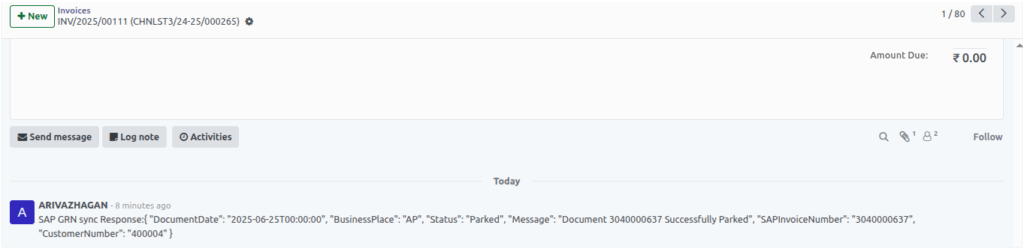
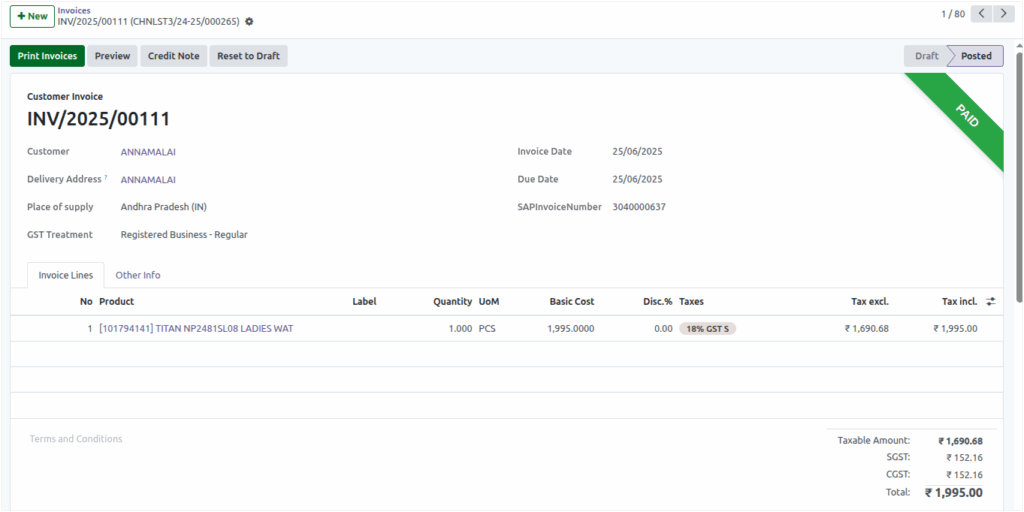
When the response is successful, SAP generates an Invoice Number, which is automatically saved in the SAPInvoiceNumber field inside the invoice. This number can be viewed directly by opening the invoice record. Finally, the full SAP response is saved as a log entry within the invoice, allowing users to track the transaction and its status for future reference.
SAP Log Details for B2B Invoice
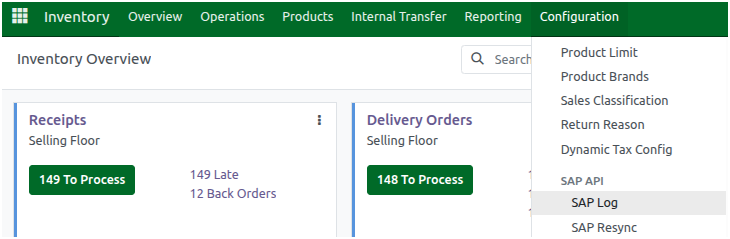
To view SAP log details for B2B invoices, you can navigate from the main dashboard to the Inventory module,
open the Configuration menu, and then select SAP API → SAP Logs.
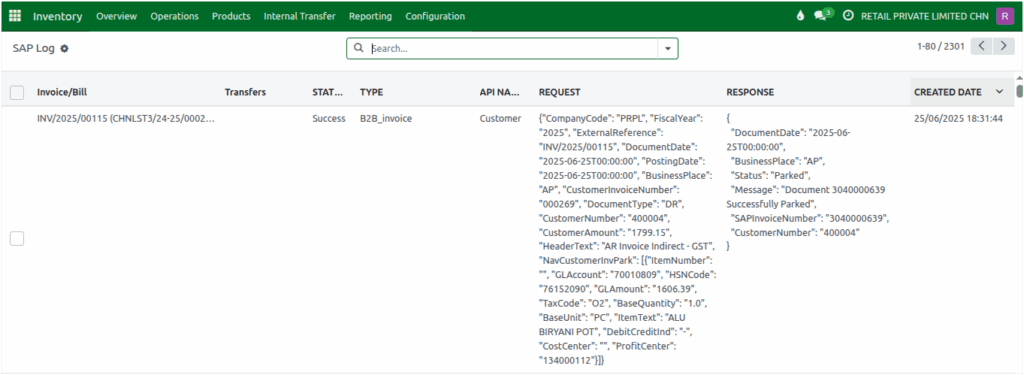
In this log screen, you can see detailed technical information related to each B2B invoice sent to SAP. The Invoice/Bill field shows both the invoice number and the related POS order number in a single format. The Status field displays whether the invoice was successfully processed or failed; when SAP returns a “Parked” response, the status appears as “Success,” and when the response is “Error,” the status shows “Failed.”
The Type field always identifies the document as a B2B Invoice, while the API Name appears as “Customer,” indicating that the log is related to the customer linked with the invoice. The Created Date shows when the log entry was generated, helping track when the system recorded the transaction.
The Request Field section contains all key data sent to SAP, including company details, fiscal year, invoice references, customer information, accounting values, taxes, and other financial details required for SAP processing.
The SAP API log displays several important fields for each B2B invoice, showing all the data sent to SAP during invoice processing. It starts with the Company Code, such as PRPL, which identifies the company in SAP, followed by the Fiscal Year, which helps record the transaction in the correct financial period. The External Reference shows the exact B2B invoice number issued to the customer.
The Document Date is the date printed on the invoice, while the Posting Date shows when the invoice was officially recorded in SAP, which may differ if the entry is posted later. The Customer Invoice Number represents the last part of the POS order number, such as 000266 from CHNLST3/24-25/000266. The Document Type indicates the kind of document being processed, and if it appears as DR, it means a Customer Invoice or Debit Memo.
The Business Place field shows the state-specific code like TN33, PY34, KL32, or KA29 based on the region. The Customer Number identifies the SAP customer linked to the invoice, while the Customer Amount shows the total amount the customer has to pay after discounts and offers. The Header Text provides extra information such as “AR Invoice Indirect – GST,” indicating a GST-based AR invoice.
The NavCustomerInvPark section contains details of each item sold in the invoice, listing every product separately along with its quantity. For each item, the system shows the ItemNumber, GLAccount (the SAP profit account used to record sales and taxes), HSNCode, and GL Amount, which represents the taxable value of the item. If a GL account is not configured, it appears as “false.” The Tax Code reflects the tax type set in the Tax configuration, and if not defined, it displays an empty value.
The Base Quantity and Base Unit indicate how many units were sold and the measurement type, such as PC for pieces, KG for kilograms, or CV for cases. The ItemText shows the product name, while the DebitCreditInd indicates whether the value is recorded as a debit or credit. The CostCenter identifies the department responsible for the cost, and the ProfitCenter shows which part of the company made the profit from the sale.
Example Request Format
{
"CompanyCode": "PRPL",                                                // SAP Company Code
"FiscalYear": "2025",                                                        // Fiscal year for posting
"ExternalReference": "INV/2025/00114",                        // External system reference (Invoice Receipt Number)
"DocumentDate": "2025-06-25T00:00:00",                    // Invoice document date
"PostingDate": "2025-06-25T00:00:00",                         // Date of posting to SAP
 "BusinessPlace": "AP",                                                   // Business location code
"CustomerInvoiceNumber": "000268",		      // Represents the last segment of the POS order number
 "DocumentType": "DR", 				      // Document Type
"CustomerNumber": "400004",                                       // SAP Customer Number
"CustomerAmount": "55.4", 				       // Total amount payable by customer
"HeaderText": "AR Invoice Indirect – GST",	       // Description for header level
 "NavCustomerInvPark": [
	{
	"ItemNumber": "",                                                 	// Line item number (optional)
	"GLAccount": "70010809",                                    	// SAP GL account to debit/credit
	"HSNCode": "73239390",                              	// HSN code
	"GLAmount": "49.46",				// Amount posted to GL
	 "TaxCode": "O2", 					// Tax code (used to determine GST applicability)
	"BaseQuantity": "1.0", 				// Quantity of goods/services
	"BaseUnit": "PC", 					 // Unit of measure (e.g., PC = pieces)
	"ItemText": "ALU APPACHATTI",			// Line item description
	 "DebitCreditInd": "-", 				// '+' for debit, '-' for credit
	"CostCenter": "",					// SAP cost center (optional)
 	"ProfitCenter": "134000112"				// Profit center (optional)
	}
	]
}
Response Field
The response fields in the SAP API log provide important information about the status of a B2B customer invoice processed in SAP. The Document Date shows the official date recorded for the invoice, while the Business Place indicates the business location code linked to the transaction. The Status field tells whether the invoice was processed successfully or if an error occurred, with common statuses such as “Parked” for successful syncing and “Error” when processing fails.
The Message gives a clear description of the result, such as “Document 2200000730 Successfully Parked,” or an error message if something went wrong. The SAP Invoice Number is the unique number assigned by SAP to the invoice, used for tracking future processes. The Customer Number identifies the SAP customer associated with that invoice, helping link the transaction to the correct account for billing and accounting.
Example Response Format
{
  "DocumentDate": "2025-06-25T00:00:00",       // Date when the document was created
  "BusinessPlace": "AP",                       	       // Business location code
  "Status": "Parked",                                            // Status display either Parked or Failed
  "Message": "Document 3040000638 Successfully Parked",
						      // Message confirming successful parking in SAP
  "SAPInvoiceNumber": "3040000638",            // Invoice number assigned by SAP
  "CustomerNumber": "400004"                        // SAP Customer Number
}