How Odoo Sync Vendors and Customers to SAP
Syncing vendor and customer details with SAP helps keep information accurate across systems. Odoo allows users to quickly fetch or update details from SAP using the Tax ID. This ensures the vendor or customer data stays consistent, avoids manual entry mistakes, and speeds up the onboarding process. The sync process works for both vendors and customers with only small differences in navigation.
Syncing Vendor Details to SAP
To sync vendors with SAP, navigate to Purchase → Order → Vendors. Before syncing, enter the vendor’s Tax ID in the given field and add a temporary vendor name. Once the Tax ID is entered, the system automatically loads core details such as the vendor’s name, address, and PAN information. Clicking the “Sync from SAP” button fetches all vendor data from SAP, including the SAP vendor number.
After syncing, you can verify that the fetched SAP number matches SAP records by checking the Vendor Screen Log Note. The system also creates a log message saying “Partner details synced successfully” to confirm the process.
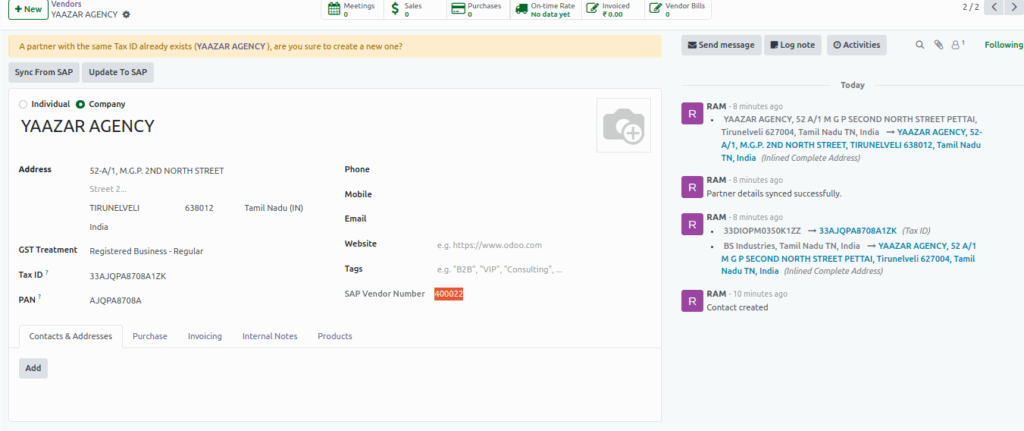
If any details need corrections or updates, you can modify the vendor information in Odoo. After making the changes, click “Update to SAP” to push the updated details back into SAP. Once the update is complete, the system adds another log entry stating “Partner updated successfully”, confirming that the vendor information has been updated in SAP.

Syncing Customer Details to SAP
To sync customers, navigate to Sales → Order → Customers. The process is similar to vendors. Enter the customer’s Tax ID and add a dummy customer name before syncing. When the Tax ID is entered, the system automatically loads customer details such as name, address, and PAN information.
After clicking “Sync from SAP”, the full customer record including the SAP customer number gets fetched into Odoo. You can check the Customer Screen Log Note to ensure the values match SAP records. A log entry saying “Partner details synced successfully” confirms that the sync was completed.
If changes are needed for the customer data, update the information in Odoo and click “Update to SAP”. The system then send the updated data to SAP. After the update is successful, the log entry “Partner updated successfully” will appear, confirming the update.

