How to Filter, Search and Group the Stock Take Report Data in Odoo Inventory
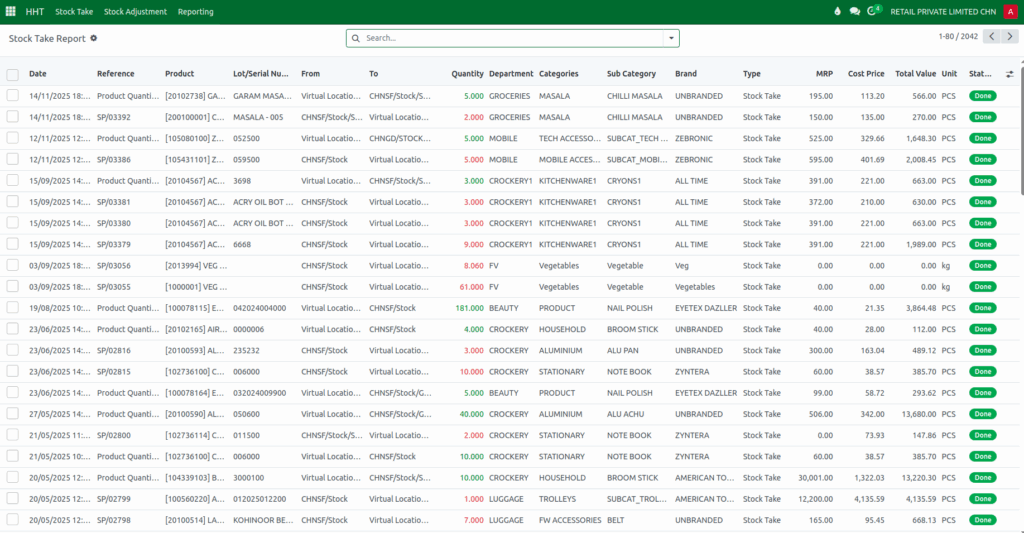
The Stock Take Report in Odoo helps you review stock movement and inventory adjustments made during stock-taking activities. It gives a complete view of what items were counted, moved, or updated. Below is an easy guide to help you search, filter, group, and save your report settings for quicker access.
Accessing the Stock Take Report
To open the Stock Take Report, go to the Main Menu and select HHT. From there, click on Reporting and choose Stock Take Report. Once the report opens, you can use the search bar to find specific information. You can search by location to view stock related to a particular area or warehouse. Searching by product lets you look up items by their name or type. You can also search using transfer details to view incoming, outgoing, or internal moves. If you know the reference number of a transaction, you can search using that as well. The report also allows you to search by product category and by lot or serial number when you need to track batch-specific or serialized items.
Applying Filters and Date Options
Filters help narrow down the data displayed in the Stock Take Report. By clicking the dropdown icon next to the search bar, you can filter records marked as Done, which shows completed stock actions, or use Ready to view items prepared for the next step. The To Do filter displays items that are still pending. Additional filters include transaction types such as Incoming for stock entering your inventory, Outgoing for items being sent out, and Internal for movements happening between company locations.
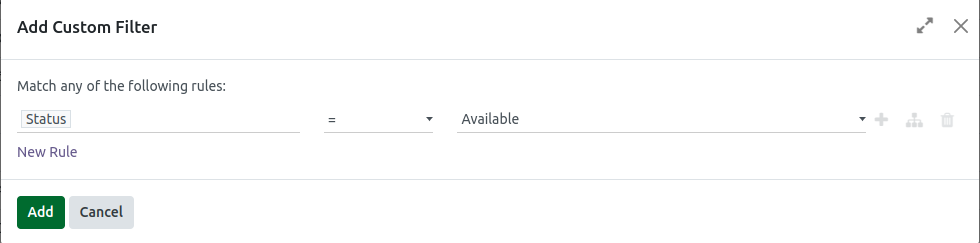
You can also filter data by time using the Date dropdown. This includes options such as the last three months, any quarter (Q1 to Q4), or the last three years. If none of these fit your needs, you can use Add Custom Filter to create a more specific filter. A popup will appear where you can choose a field, select the condition, and enter the value you want. After adding it, your report updates instantly based on the custom filter you selected.

Grouping the Stock Take Data
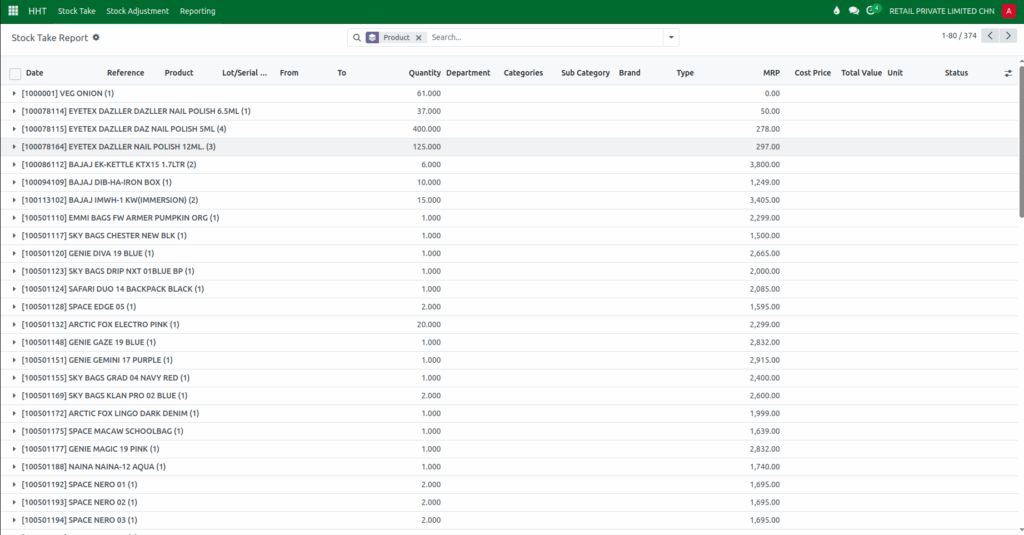
Grouping helps you organize the report so it becomes easier to analyze. You can group the data by clicking the dropdown icon in the search bar and selecting Group By. Odoo provides several default group options, such as grouping by Product to see movements by item, grouping by Status to understand where each item stands in the process, or grouping by Date to arrange records based on when the transaction happened. You can also group by Transfer to see stock movements between different locations, by Location to check activity in each warehouse or branch, by Category to review product types, or by Carrier to identify which delivery service was used. If you need to group by something different, you can choose
Add Custom Group and select any field available.
Saving Your Favorite Search Views
If you use the same filters or groupings often, the Favorites feature helps you save time. After setting your search terms, filters, or groupings, open the Favorites menu and choose Save Current Search. You can give your saved search a name, and even choose to load it automatically the next time you open the Stock Take Report. This makes it easier to keep using the same report view without setting everything again.

