How to Process a Goods Receipt (GR) Using an HHT Device in Odoo Purchase
Processing a Goods Receipt (GR) in Odoo becomes quicker and more accurate when you use an HHT (Handheld Terminal) device. Instead of typing product details manually, you can simply scan items as they arrive. This saves time and reduces mistakes during the receiving process.
Enabling GRN Scan for Users
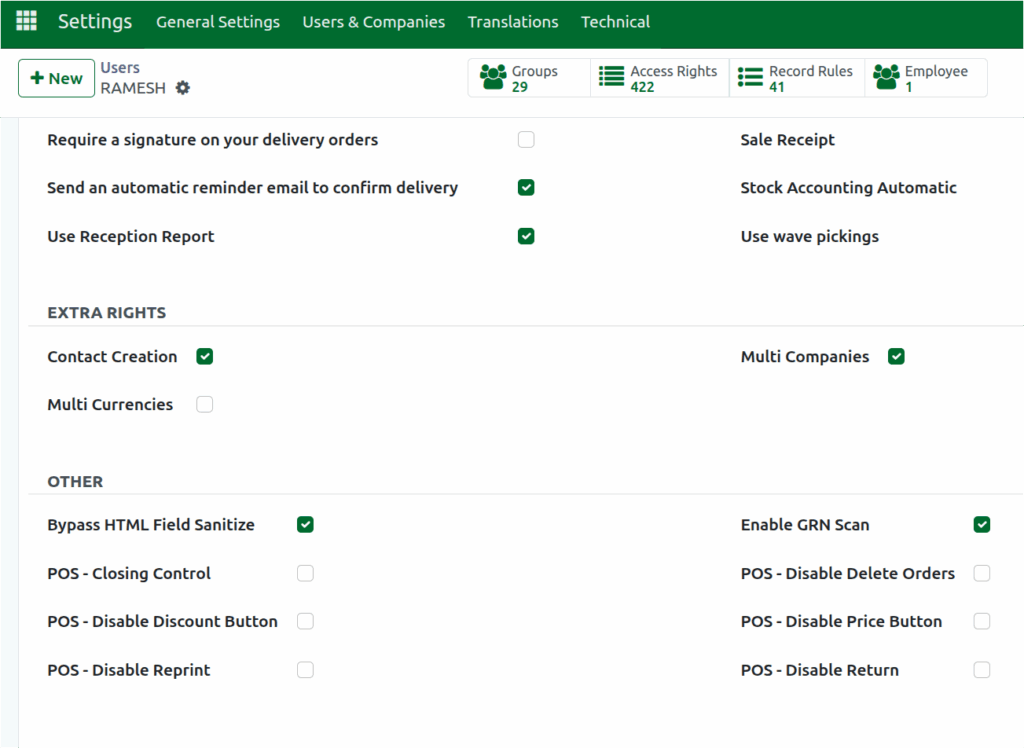
Before you start scanning received items, the GRN scan feature must be turned on for the users who handle the goods. This can be done from the Settings module in Odoo. Open the user profile, scroll to the Others section and enable the Enable GRN Scan option. Once enabled, the user can scan product barcodes, multi-barcodes and lot barcodes directly during the GR.
Accessing the GR on the HHT Device
After a Purchase Order is confirmed, the system automatically creates a GR. To start processing it using the HHT device, open Odoo through the device browser and log in with the appropriate role.
Scanning Items on the HHT Device
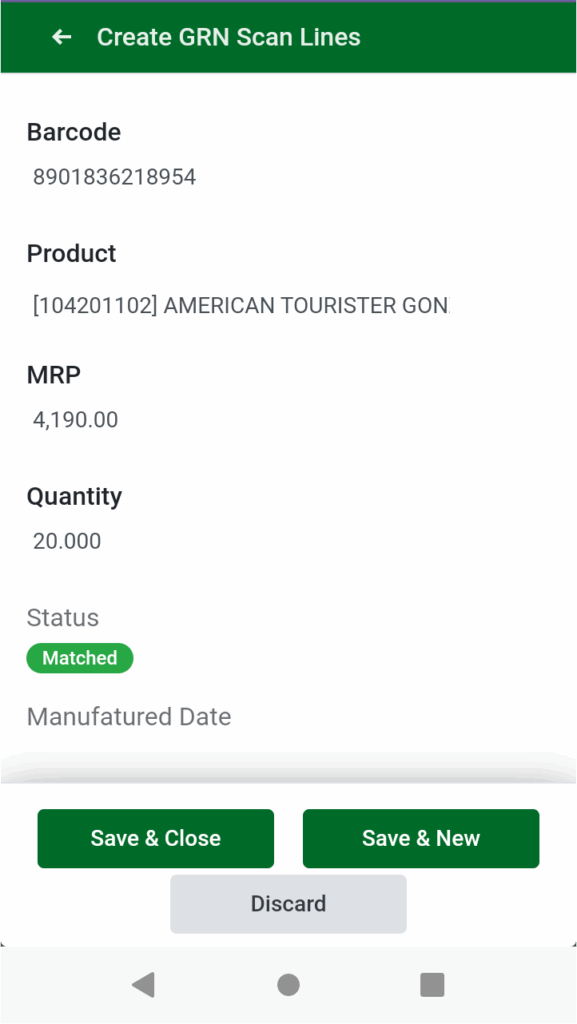
Once the GR is open on your HHT device, you can begin scanning the received products. The HHT device supports scanning the product barcode, the multi-barcode assigned in the product and Lot Barcodes used for lot and unique serial number based products.
Each time you scan a product barcode, the Quantity for that item increases automatically. The system also fills in details like lot or serial numbers and expiry dates when applicable.
The system displays the status for each item after scanning. If the scanned quantity matches the Purchase Order, the status shows Matched. If the received quantity is less than the PO quantity, the status shows Less, and if it is more, the status shows More. This makes it easy to identify discrepancies immediately.
Reviewing Quantities and Validating the GR
If any item has been received in a different quantity than expected, you can manually adjust the Quantity on the screen. After checking that all scanned items and quantities are correct, tap the Validate button.
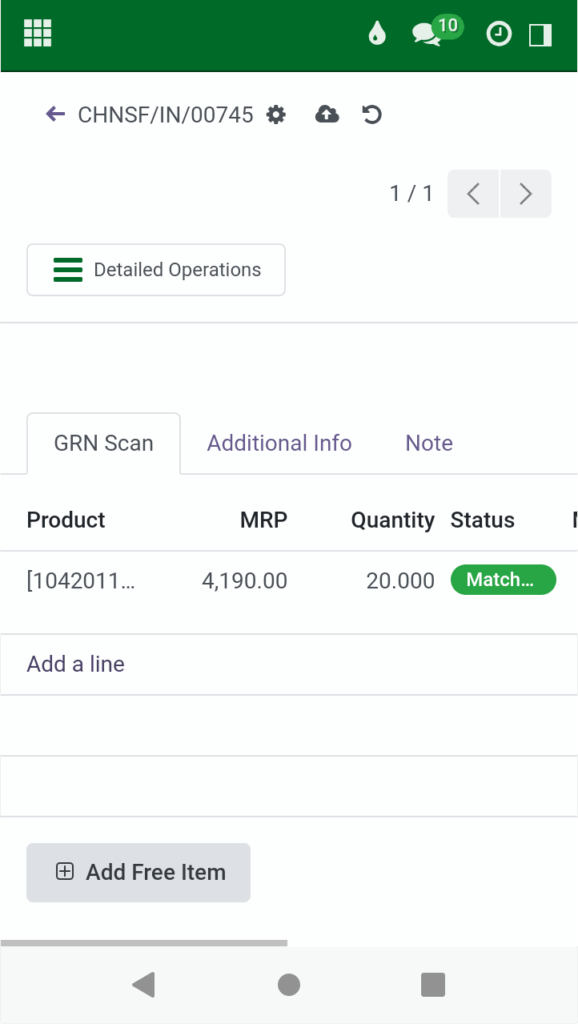
The GR is then completed and the received stock is updated in the inventory. Using an HHT device makes this entire process faster, easier, and far more accurate.
