How to Process a Stock Take Using an HHT Device in Odoo
Performing a stock take becomes much easier when using an HHT (Handheld Terminal) device. It helps warehouse teams scan products quickly enter counted quantities and adjust stock levels directly in Odoo.
Creating a new Stock Take using an HHT Device
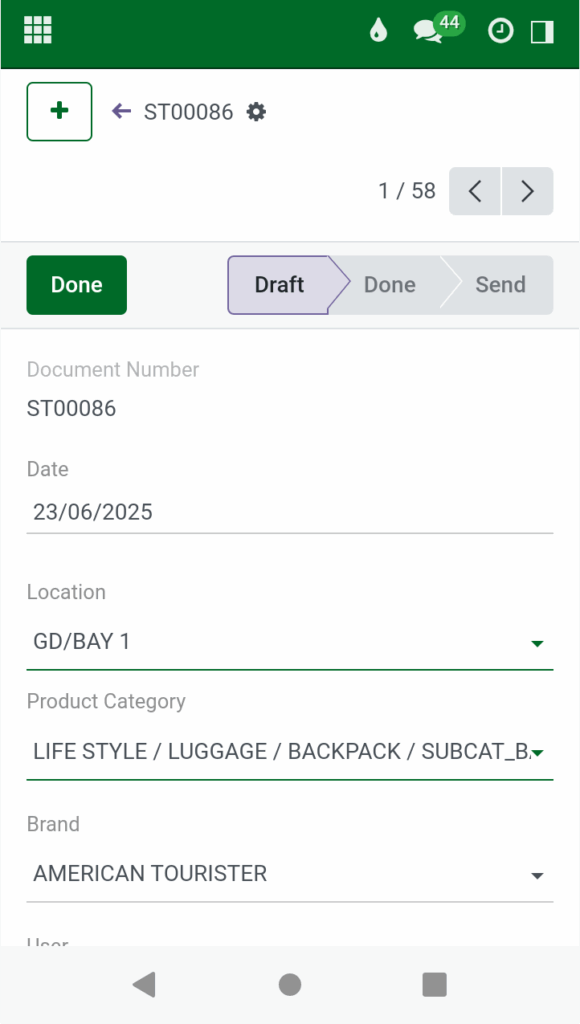
Start by opening Odoo on your HHT device through the browser and log in with your credentials. Navigate to the HHT module and click +NEW to create a new Stock Take Document . This will open a stock-take session where you can record the counted quantities. You can also select the product category and the specific location to make sure you are counting the right set of items.
Scanning and Recording Products during Stock Take using an HHT Device
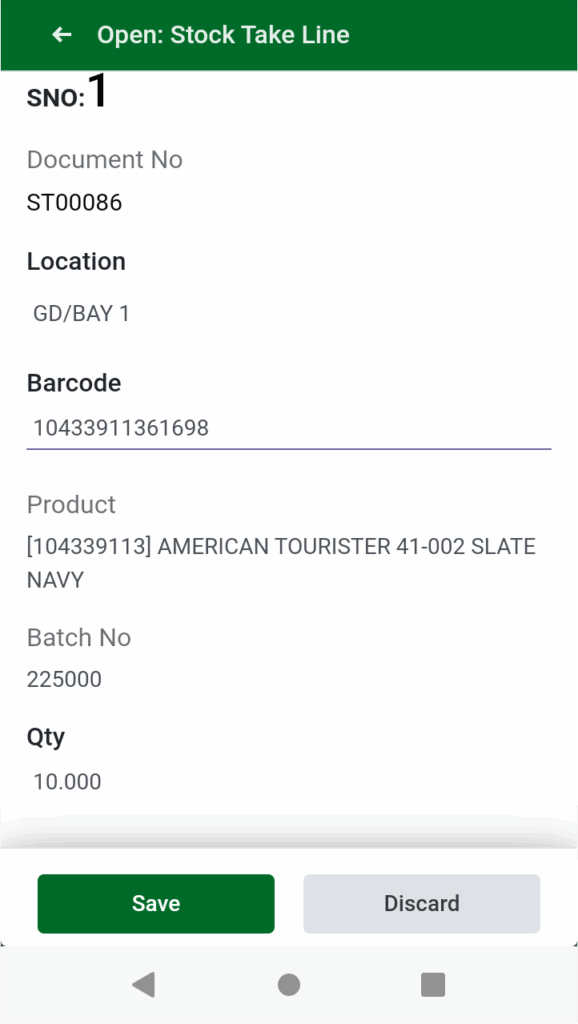
Once the Stock Take Document is created, scanning can begin. The device supports scanning the main product barcode, any multi-barcode assigned to the product or lot barcodes used for lot-based or unique serial-number-based items.
After each barcode is scanned, the system will prompt you to enter the physical quantity you counted. During a stock take in Odoo, the system allows a maximum of 999 units per product. If you try to enter 1,000 units or more, the system will show a validation error and prevent you from saving it.
This limit also applies when entering the same product on additional lines, ensuring that no single product exceeds the maximum allowed quantity during stock take.
Use the touchscreen or keypad on the device to input the number and confirm it before moving to the next item. Continue scanning and recording each product one by one until all items in the area have been captured. Once all quantities have been entered, make sure to save your progress.
Reviewing and Validating the Stock Take
After the full count is done, review all scanned product lines to ensure the quantities match the actual physical stock. This verification step can be done either directly on the HHT device or through the desktop interface. Check product entries, quantities, and locations to confirm accuracy. When everything looks correct, validate the stock take document by clicking the Done.
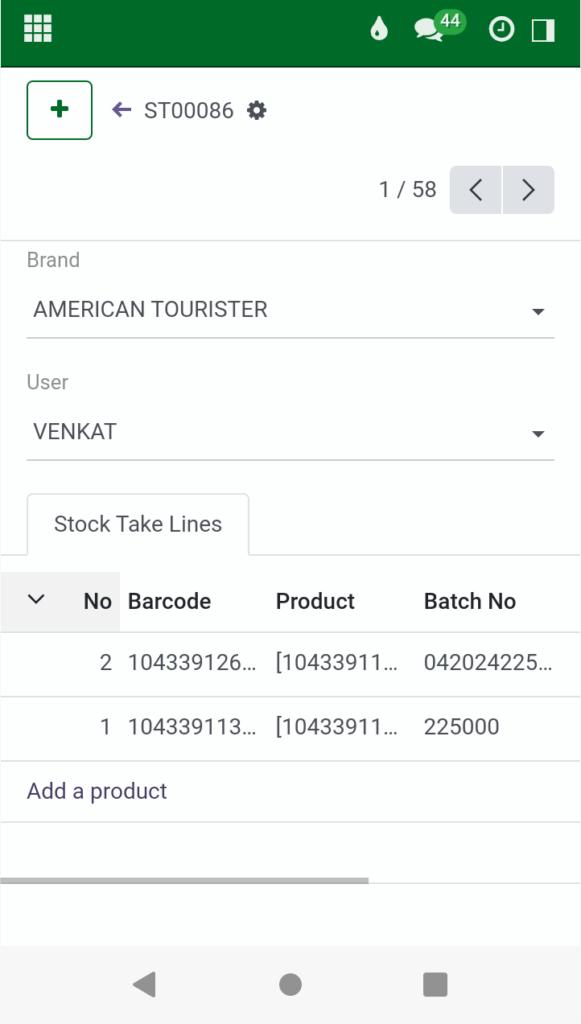
After completing the stock-take process and updates the system with the new stock levels, changing the document status from Draft to Done.

This updates the system with the new stock levels, automatically performing the necessary stock adjustments and consolidation.
