How to create a Product Category in Odoo Inventory
In Odoo Inventory creating and managing product categories is a key feature that helps organize your inventory in a structured way. The Product Categories is used for better product classification and reporting.
Accessing the Product Categories Screen
To begin, go to the Inventory module, then navigate to Configuration -> Products -> Product Categories.This section provides a centralized view of all the existing product categories.
Searching for Existing Categories
To quickly find an existing product category in Odoo, use the Search Bar at the top of the screen. You can search by Product Categories or Parent Category.
Creation of New Product Category in Odoo Inventory
To create a new product category in Odoo, click the +New button. This will open a screen where you can enter the necessary details for the new category.
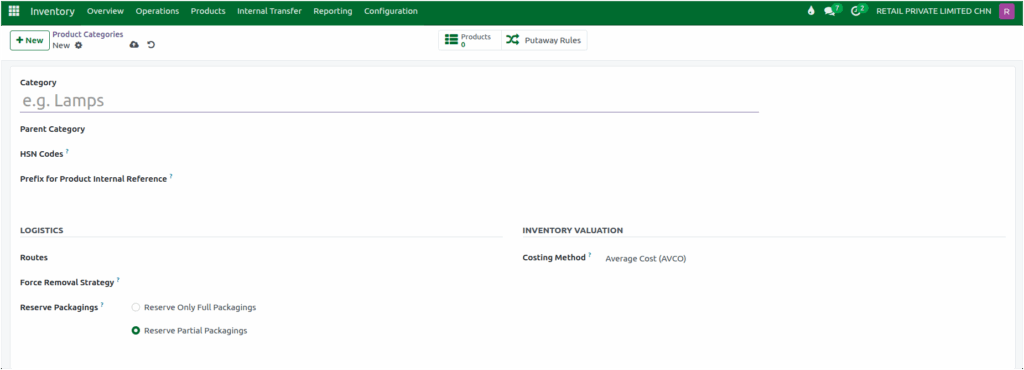
First, You need to specify a Category Name (for example, CHILLI MASALA) in the category field, as it is a mandatory step.
Then in the Parent Category field, you can select from the drop down list of already created categories, allowing you to build a hierarchical structure for your products.For example, you may choose the Parent Category as SUPER MARKET/ GROCERIES / MASALA , helping to organize your products effectively within a well-structured category system.

Set a Prefix for Product Code
Next, you can set a prefix for the internal product reference within each category. This unique prefix is used to generate consistent product codes, making it easier to identify products and manage inventory.

If a duplicate prefix is entered, Odoo will display a Validation Error: “Prefix must be unique!”, ensuring that each category has a distinct identifier.
Assign HSN Codes to Product Categories
Next you can assign one or more HSN codes to a product category using the HSN Codes field.

When a product is assigned to a specific category in the Product Master, only the HSN codes associated with that category will be displayed for selection.This helps in correctly assigning taxes and makes it easier to follow tax rules.
Set Costing Method for Product Categories
Finally, the costing method for all products within a category it is set as Average Cost (AVCO) by default.

This ensures that the average cost for products is calculated correctly,helping you manage inventory costs more accurately and efficiently.
Save and View Products in a Category
Click Save to store the product category, making it available for assigning products. Once products are mapped to a category, you can view them in the Products smart button tab on the Product Categories screen.
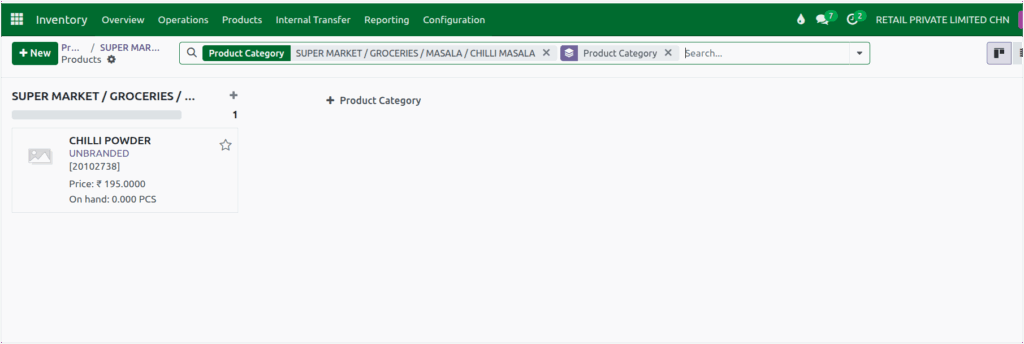
The products will be displayed in a Kanban view, providing a clear and organized overview of all items associated with that category.
Category Validation: Preventing Duplicate Product Categories
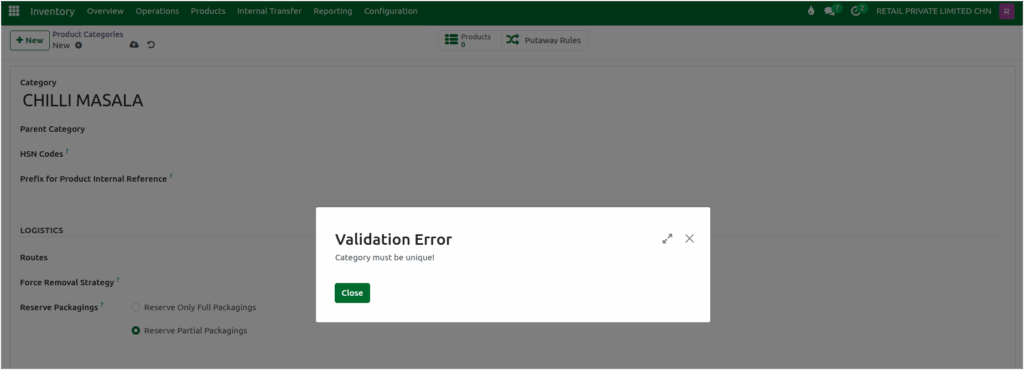
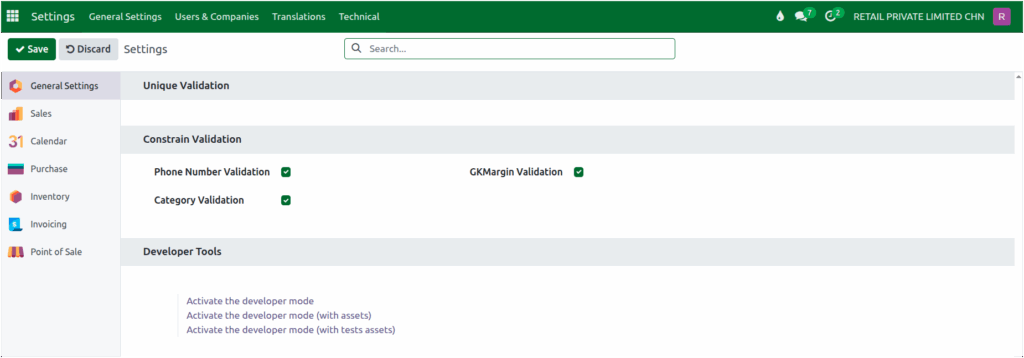
If Category Validation is enabled under the Settings → Constrain Validation section, during Product Category creation the entered category name must be unique.
If you try to enter a name that already exists, it will display a Validation Error: “Category must be unique!”, ensuring that each product category remains distinct and properly organized.