How to Create a Stock Take Document in odoo
Stock take(also known as Inventory Count or Physical Inventory) is the process of manually counting and recording all inventory items a business holds at specific point in time.
- Verifying actual stock vs system stock.
- Detecting theft, damage or data entry errors.
To access the stock take in the HHT module, it will automatically take you to the Stock take page.
Create a Stock Take
- Date: Choose the Stock take date otherwise its choose the default date.
- Location: Choose the stock location for counting. Example inculde:
- Virtual Location/Inventory adjustment (for adjustments).
- Virtual location/Scrap (for discarded items).
- Product Category: Select a product category to perform the stock take on products within the category.
- Brand & User: select the product brand and choose the user who will validate the stock take.
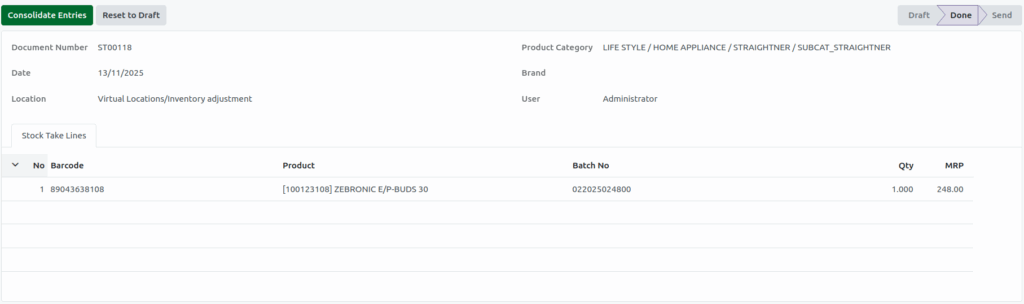
- Once the Stock Take Document is saved, a Document number will be generated.
Note: Both location and Product Category are mandatory fields.

Adding the Product
- Click the add a product, Create Stock take line popup will occur.
- In the Barcode add the product barcode or lot barcode, enter the product quantity in quantity field.
Note: If the Product is an F&V product, then add the product code
Quatity limits and Validation for Serial Number Products
A Maximum quantity of one can be assigned per serial number product to maintain accuracy. Attempting to assign quantities greater than one of serial number products triggers a validation error.
Maximum Quantity Limits for Stock Take
In stock take quantity, there are some limits: entering a quantity of 1,000 or more triggers a validation error, preventing the action, and the maximum quantity limit of 999 applies even when the same product is entered on subsequent lines.
Display of MRP In Stock Take Documents
The maximum Retail Price (MRP) is displayed within the stock take document for reference. Then save & close option is not displayed in individual stock take line to streamline workflow.

Stock Take Entry Loaded Product Information
After Creating the Stock take, the following fields and values are loaded into each stock line
Barcode:89043638108
Product Name: [100123108] ZEBRONIC E/P-BUDS 30
Batch No: 022025024800
Qty: 1
MRP : 248.00
And click the Done button
Status Change to ‘Done’ After adding Stock Lines
Stock line are successfully added to inventory adjustment. The system automatically updates the document status to Done. The status change indicates the stock take process is completed.
Consolidate stock take Documents
The Consolidate Entries option is enable automatically after all required stock line are added. This option allows user to combine multiple stock take entries into one consolidate document. Click the Consolidate Entries Button. The system shows the location of the consolidated entries. Then choose any one location in the popup, after confirm its.
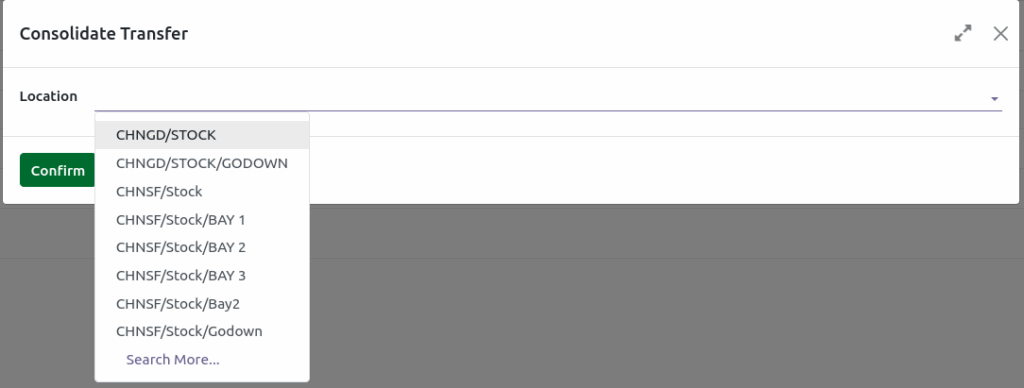
The System Display the message
Stock Adjustment Created With This Document SA00153 , Total Product Count 1.
This indicates that a stock adjustment document (SA00153) has been created for the selected location.

