How to B2C Invoice Taxwise Sync with SAP in Odoo
The B2C Invoice Taxwise sync in Odoo helps send retail POS sales to SAP by grouping all orders based on their tax percentages. This ensures that each tax rate, such as 5%, 12%, or 18%, is posted correctly to the matching GL account in SAP.
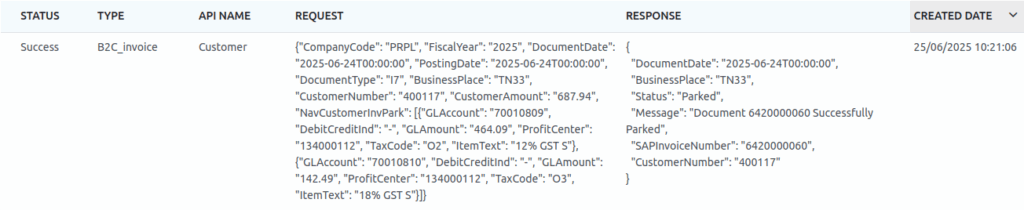
When the sync runs, Odoo sends all tax-wise totals for the selected date, and SAP parks the invoice. After this, Odoo displays whether the sync was successful or if any errors occurred.
How to Start the Taxwise Sync Process
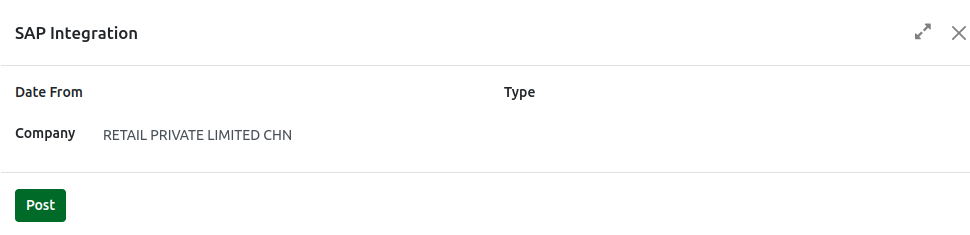
Before starting the sync, all POS terminals must be closed because the system allows syncing only when every POS session is completed. Only retail B2C orders are included in this process. To start syncing, go to Point of Sales → Configuration → SAP API → SAP Sync.
When the SAP Sync button is clicked, a pop-up window named SAP Integration opens. In this window, the user must select the From Date, choose the Company, and set the Type as TaxWise. Once the POST button is clicked, Odoo starts sending the tax-wise invoice data to SAP and then updates the status so the user can review the result.

Request Details Sent from Odoo to SAP
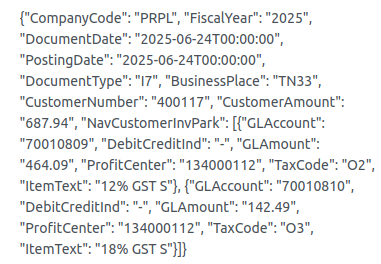
During the sync, Odoo sends a structured request to SAP that contains all the tax-wise B2C invoice data. This request includes the Company Code, which shows the company handling the order, and the Fiscal Year, which indicates the year of the transaction. It also contains the Document Date and Posting Date, which tell SAP when the transaction happened and when it must be recorded. The Document Type is shown as I7, which identifies the entry as a B2C invoice. The Business Place field displays the store location code, such as KA29 for Karnataka or TN33 for Tamil Nadu. The Customer Number identifies the default retail customer used for B2C invoices.
The Customer Amount is the total value of all POS sales combined based on different tax percentages. Inside the request, every tax rate appears as a separate line under NavCustomerInvPark. Each line contains the GL Account of the tax rate, the Debit or Credit indicator, the taxable amount grouped by that tax rate, the Profit Center, the Tax Code, and the Item Text, which shows the tax description like “12% GST S” or “18% GST S.” These details help SAP post each tax category properly.
{
  "CompanyCode": "PRPL",                 // SAP Company Code
  "FiscalYear": "2025",                  // Fiscal year for posting
  "DocumentDate": "2025-06-24T00:00:00", // Invoice document date
  "PostingDate": "2025-06-24T00:00:00",  // Date of posting to SAP
  "DocumentType": "I7",                  // Document type for B2C Invoice TaxWise
  "BusinessPlace": "TN33",               // Business location code (used in GST/invoicing)
  "CustomerNumber": "400117",            // SAP customer ID (B2C customer)
  "CustomerAmount": "687.94",            // Total invoice amount including all applicable tax rates

  "NavCustomerInvPark": [                // Tax-wise line items in the invoice
    {
      "GLAccount": "70010809",           // GL account code linked to 12% GST
      "DebitCreditInd": "-",             // '-' for credit posting
      "GLAmount": "464.09",              // Taxable amount for 12% GST
      "ProfitCenter": "134000112",       // Profit center (optional, based on org setup)
      "TaxCode": "O2",                   // Tax code representing 12% GST
      "ItemText": "12% GST S"            // Description showing the applicable tax
    },
    {
      "GLAccount": "70010810",           // GL account code linked to 18% GST
      "DebitCreditInd": "-",             // '-' for credit posting
      "GLAmount": "142.49",              // Taxable amount for 18% GST
      "ProfitCenter": "134000112",       // Profit center (same as above)
      "TaxCode": "O3",                   // Tax code representing 18% GST
      "ItemText": "18% GST S"            // Description showing the applicable tax
    }
  ]
}
Response Details Returned from SAP
After SAP processes the request, it sends a response back to Odoo. This response contains the Document Date and Business Place again for reference. The Status field tells whether the document is successfully parked or if there was an error. When the sync works correctly, the status shows Parked, and the Message field displays a note such as “Document 6420000060 Successfully Parked.” The SAPInvoiceNumber also appears, showing the invoice number generated by SAP.
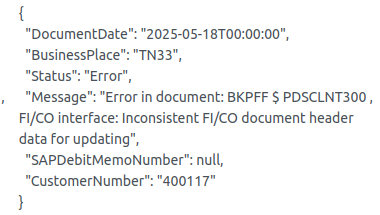
If something goes wrong, the Status appears as Error, and the Message explains the problem, such as missing configuration or incorrect data. When an error occurs, SAP does not generate any invoice number, and the related field remains empty. The Customer Number in the response helps identify which B2C customer entry the log belongs to. Odoo also records the Created Date, which shows when the document was added to the SAP API log.
Example for Successfully Parked Response:
{
  "DocumentDate": "2025-06-24T00:00:00",      // Date of the document
  "BusinessPlace": "TN33",                    // Business location code
  "Status": "Parked",                         // Status of the document sync
  "Message": "Document 6420000060 Successfully Parked", // Status message from SAP
  "SAPInvoiceNumber": "6420000060",           // SAP generated invoice number
  "CustomerNumber": "400117"                  // SAP customer ID
}

Example for Error Response:
{
  "DocumentDate": "2025-05-18T00:00:00",  // Date of the document
  "BusinessPlace": "TN33",                // Business location code
  "Status": "Error",                      // Status indicating sync failure
  "Message": "Error in document           // Error message from SAP
  "SAPDebitMemoNumber": null,             // SAP debit memo number (not generated due to error)
  "CustomerNumber": "400117"              // SAP customer ID
}