How to Create a Service Product in Odoo Inventory
In Odoo Inventory, a service product is used to represent services like delivery, installation, transport, or any kind of work that does not have stock. Creating a service product helps you include service charges in sales orders, purchase orders, or bills. It also helps manage how these services affect your product costs.
Starting the Service Product Creation
To create a service product, go to the Inventory module and open Products. Click on the New button to create a new product. Enter the name of your service in the product name field. This field is required to save the product.
If the service is something you sell, enable Can be Sold. If you buy this service from a vendor, enable Can be Purchased. You can also enable Available in eCommerce if you want to show this service on your website.
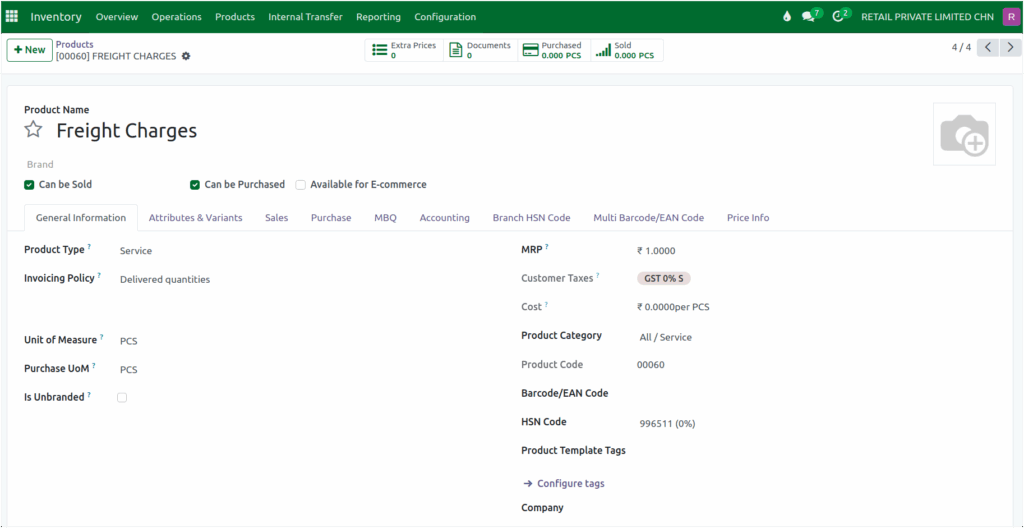
In the Product Type field, choose Service, Odoo automatically sets the product category to “All/Service” which means this product will act like a service and not a stockable item.
Next, choose the HSN code for your service. The HSN code decides which tax rate applies to your service product. When you select the HSN code, Odoo automatically updates the Customer Taxes and Vendor Taxes fields with the correct tax rates.
If you want your service to affect the total cost of products, you can enable the Is a Landed Cost option. First, go to Inventory → Configuration → Settings, and under the valuation section, make sure Landed Cost is enabled. Once this setting is active, you’ll see the “Is a Landed Cost” checkbox in the product’s purchase tab.

If Landed Cost is enabled, the cost of the service will be added to the total cost of the goods. The default split method should be selected as ‘By Current Cost’.
By Current Cost: The landed cost is split according to the current cost of each product unit, meaning products with higher costs receive a larger share of the landed cost.
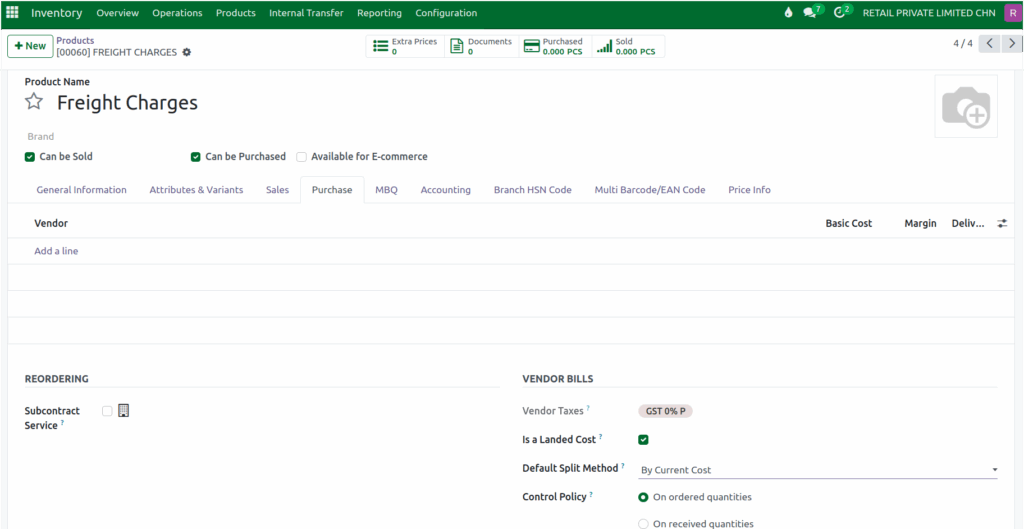
If Is a Landed Cost is not enabled, the service cost will not change the total cost of the product. It will simply be recorded separately as a service expense.
After filling in all the details, click Save to create your service product.
