How to Filter, Search and Group the Product Master in Odoo Inventory
The Product Master in Odoo’s Inventory module is a central hub for managing all products in a business, including both physical goods and services. It provides a comprehensive overview of inventory, allowing users to track product details, monitor availability, and organise items efficiently. With powerful search options, built-in filters, custom filters, and grouping features, the Product Master makes it easy to locate specific products, analyse inventory data, and manage stock effectively.
Accessing the Product Master in Odoo Inventory
To begin with the Product Master in Odoo, open the Inventory module from the dashboard. From there, navigate to the Product menu and select Product Master. This section provides a comprehensive overview of all products in the system, including physical goods and services, making it easier to manage, track, and organise your inventory efficiently.
Using the Search Bar in the Product Master
The Product Master in Odoo allows users to search for products using a variety of fields to quickly locate and analyse inventory. The Product search lets you find specific items by name or internal product code. Brand allows filtering to display all products associated with a particular brand. Product Category helps filter results based on the category a product belongs to, while POS Product Category focuses on products grouped for the Point of Sale system.
Vendor allows searching for products supplied by a specific vendor or supplier. Attribute allows filtering based on product attributes such as size, color, or material. Finally, Multi Barcode/EAN Code lets you find products using their barcodes or EAN codes, which is especially useful for quickly scanning and locating items in the inventory.

Using Filters in the Product Master
The Product Master comes with a variety of built-in filters that help quickly refine the data. The Services filter shows non-physical products, while the Products filter displays physical items. The Available in POS filter shows products that are ready for sale in the Point of Sale system. The Can be Sold filter displays products that can be purchased through POS, while the Can be Purchased filter shows items that can be bought through Purchase Orders. The Favorites filter displays only favorite products, and the Warnings filter shows products with warnings attached.
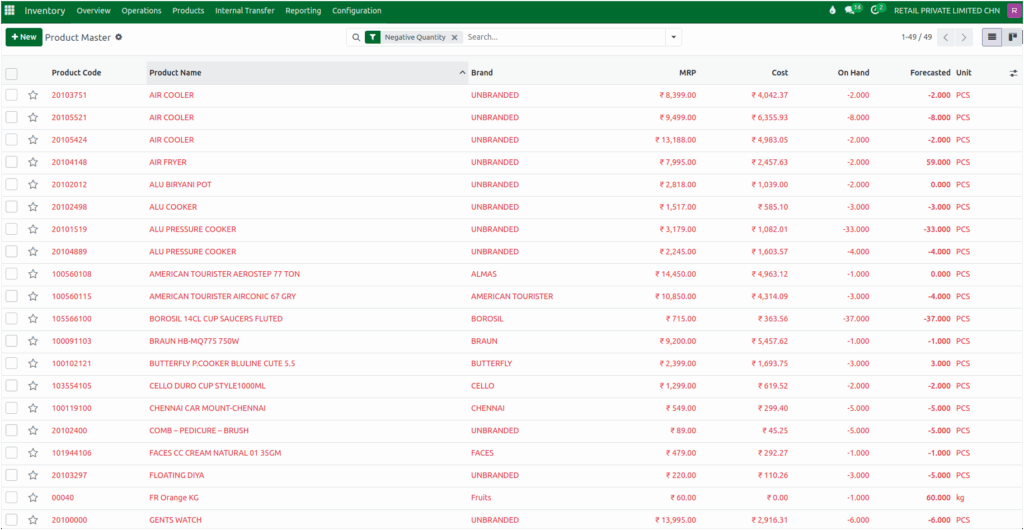
Additionally, Archived lists inactive products, Negative Quantity identifies items with on-hand quantities less than zero, and Ecom Products focuses on products available on the eCommerce platform. These filters allow users to quickly find the products they need and analyse inventory based on specific criteria.
Applying Custom Filters in the Product Master
For more precise reporting, Odoo allows creating custom filters. By clicking on Add Custom Filter, a list of available fields appears. Once a field is selected, a logical operator such as equals, not equals or contains can be applied, and the value to filter by is entered.
For example, to view products with a tax rate of 18, a custom filter can be set using Tax = 18. This feature provides flexibility to tailor the report to specific business requirements.

Grouping Data in the Product Master
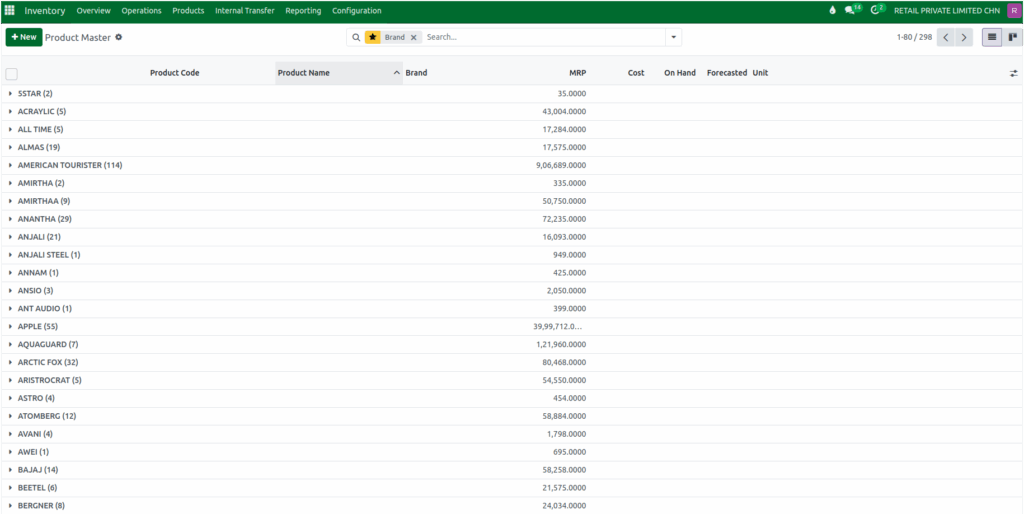
Grouping helps organise products for easier analysis. In the Product Master, data can be grouped by Brand, which displays all products sorted by brand, or by Product Type, showing each type of product separately. Products can also be grouped by Product Category or by POS Product Category to focus on products sold through the Point of Sale system.
Applying Custom Grouping
In addition to default grouping options, Odoo allows users to add custom groupings. By clicking on Add Custom Group, a wider range of fields becomes available for grouping. For example, selecting Brand from this menu reorganises the report so that all products are grouped under each brand, making it easier to analyse inventory based on brands or other custom criteria.

Saving Favorites for Quick Reuse
Odoo lets filters be saved for quick use later. To save a filter, open the dropdown menu, choose “Save current search” and give it a name. It can also be set as default or shared with others. Saved filters can be reused anytime, and unwanted filters can be deleted using the trash icon. This makes it easy to use the same filters again without setting them every time.