How to Print a Stock Adjustment Document and View its Details in Odoo Inventory
Printing a Stock Adjustment document in Odoo is useful for maintaining a clear and reliable record of all changes made to inventory. It helps verify that the adjustments entered in the system match the physical stock, making audits easier and ensuring accuracy across the inventory records. It also allows teams to stay informed by sharing updated stock information whenever needed.
Creating a Stock Adjustment
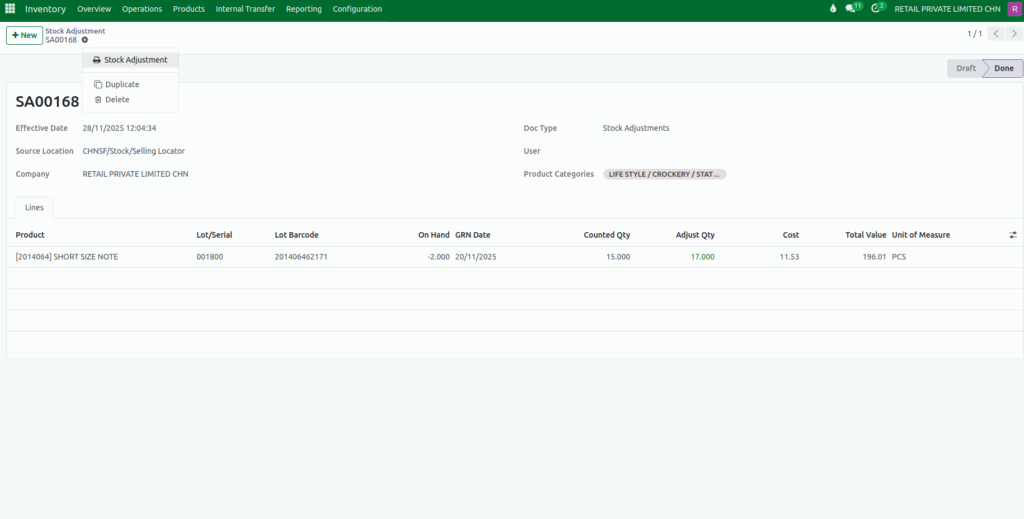
To create a Stock Adjustment document, start by clicking the +New button in the Inventory module. The system automatically fills in details such as the effective date, the company name, and the document type, which is set to Stock Adjustment by default.
After this, select the source location where the products are stored and choose the appropriate product category. Once all initial details are filled in, save the document, and Odoo will generate a unique Stock Adjustment Document Number that identifies the adjustment.
Stock Adjustment Details
After creating the document, add the product that needs adjustment and choose the appropriate lot or serial number. Enter the counted quantity, which represents the actual physical stock, and make sure all details are accurate before proceeding.
When attempting to print, Odoo may display a message saying, “Please confirm the order to continue printing”. This alert appears when the stock adjustment has not yet been validated. To continue, simply click the Validate button, which confirms the update and adjusts the inventory levels accordingly.

Printing the Stock Adjustment Document
Once the stock adjustment is validated, printing the document is straightforward. Open the Stock Adjustment screen, click the Action icon, and select the Stock Adjustment option from the dropdown menu. The system will then generate a downloadable PDF file containing the complete stock adjustment details.
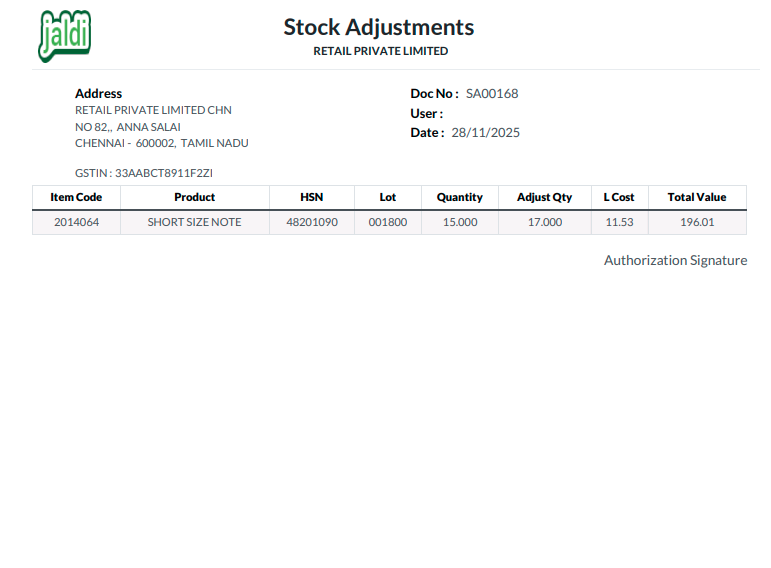
View Stock Adjustment Print
The printed document has a clear and professional layout. At the center of the header, it displays the title “Stock Adjustment” along with the company name, while the company logo appears on the left side. The top portion of the print shows essential information such as the company address, the document number (for example, SA00168), the user who created the adjustment, and the creation date.
The main section of the print provides a detailed table containing information about each product involved in the adjustment. It includes the item code, product name, HSN code, and the selected lot. The pricing section shows the existing quantity in the lot, the adjusted quantity, the average cost per item, and the total value of the adjustment. These details help businesses understand the financial impact of each stock change and maintain full transparency in their inventory operations.