How to Print and View Odoo Off Claim Invoice Print in Inventory
Odoo provides a simple way to print and view Off Claim Invoices within the Inventory module. This feature is used after processing additional costs on products, allowing you to generate a clear and well-formatted invoice.
Print the Off Claim Invoice
To begin, go to the Inventory module and navigate to Operations → Additional Costs. Here, you can either select an existing additional cost record or create a new one. Once the additional cost process is completed, click the Settings button, choose “Off Claim Invoice” to print the document.
Printing works only when the Off Claim Invoice has been validated. If the record is still in draft state, Odoo displays a message saying: “Please Validate the Record to continue printing.”

Header Information on the Printout
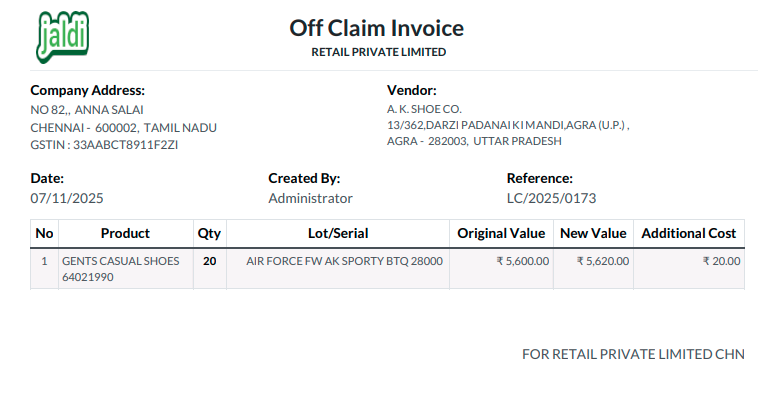
When the Off Claim Invoice print is opened, the top section displays important details. The title “Off Claim Invoice” along with the company name appears at the center, making it clear what the document is about. On the top-left corner, you will see the company logo.
Company and Vendor Address Details
After the header information, the company and vendor address details shown here.Below the header information, the Company Address is shown on the left, including the address and GSTIN. On the right, the Vendor Address is displayed, showing the supplier’s details such as name, address, mobile number, and GSTIN.
Reference and Claim Details
The invoice includes a reference that shows the Off claim invoice Document No. The Date field shows when the claim was made. There is also a Created By field that indicates which user generated the Off Claim Invoice. These details help track and verify the claim process.
Product and Quantity Details
In the next section, the printout lists all the claimed products. Each product appears with its HSN code for better identification. The lot number is pulled automatically from the claimed product, ensuring accurate tracking of the exact items involved in the claim. It shows the Quantity of each product to apply Additional Cost.
Cost Information
The invoice also displays the value-related details for each product. It shows the Original Value before the claim, the New Value after adjustments, and the Additional Cost applied during the process. These values make it easy to understand the cost changes and ensure transparency in the off claim process.