How to Process the Stock Adjustment for No-Tracking Product in Odoo Inventory
Managing inventory accurately is essential for any business, and Odoo simplifies this process by automatically updating product values after a stock correction. When you complete a stock adjustment for a non-tracking product, Odoo recalculates the product’s on-hand quantity, total inventory value, and average cost so that your records always stay aligned with the actual physical stock available in your warehouse.
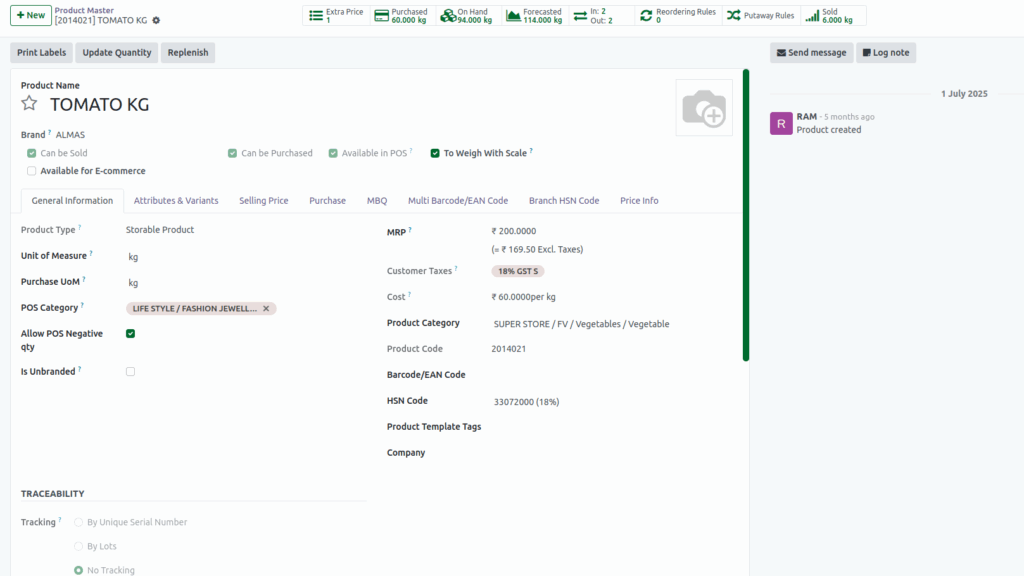
Accessing the Product Details in Odoo Inventory
Whenever a stock adjustment is validated in Odoo, the system refreshes the product-level inventory information. This includes the updated on-hand quantity, the revised total value. Because non-tracked products do not use lots or serial numbers, all valuation is handled at the product level.
For these calculations to work correctly, the product must be configured with No Tracking. For instance, if a product currently has an on-hand quantity of 34 KG with an average cost of 60 and a total value of 2040 Odoo uses these figures to maintain accurate inventory valuation. You can view these details anytime by opening the Product Master in the Inventory module, where the on-hand quantity, cost, and valuation information are displayed clearly.
Creation of Stock Adjustment in Odoo Inventory
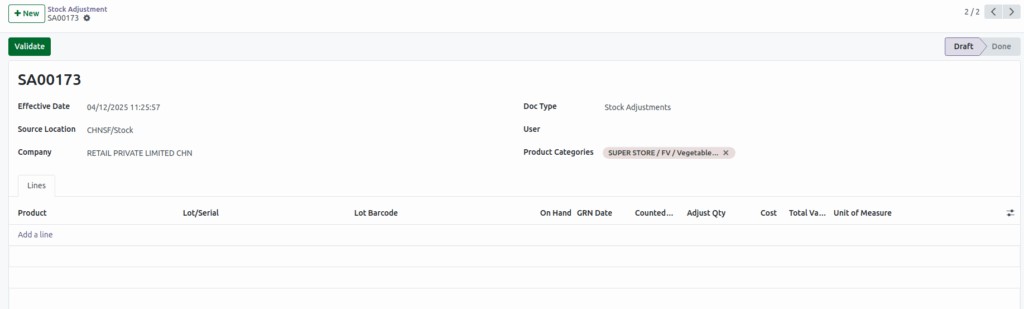
To create a stock adjustment in Odoo, click +New to start a new adjustment document. The Document Type automatically appears as Stock Adjustments. Select the Source Location where the stock is stored and choose the related Product Category. After clicking Save, Odoo generates a unique Stock Adjustment Document Number for reference. Once the document is created, add the products that need correction. Since these products are not tracked by lots or serial numbers, Odoo will automatically show the current On-Hand Quantity and the existing Cost. You then enter the physically counted quantity — for example, 5 KG. Odoo compares this count with the system quantity and calculates the difference as the Adjust Quantity.
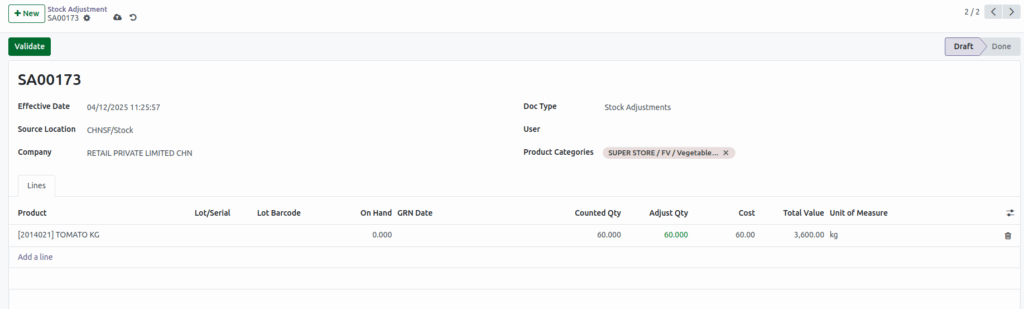
Validating the Stock Adjustment Document
After verifying all entries, click Validate. Once validated, Odoo updates the product’s on-hand quantity based on the new physical count and recalculates both the total value and the average cost according to the costing method. This ensures your product valuation remains accurate and consistent with the actual stock available in your warehouse.
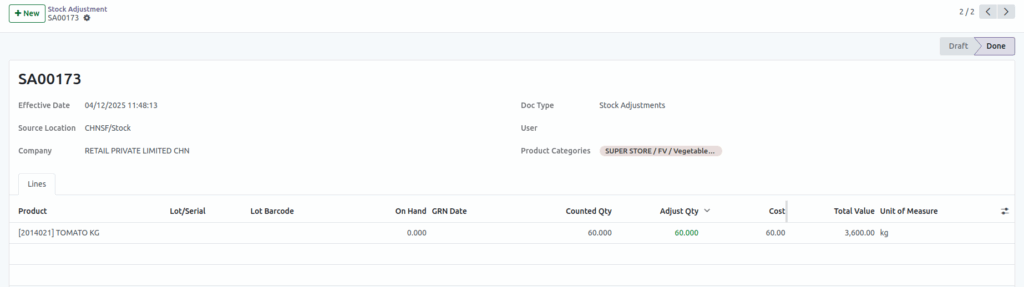
Viewing the Updated Product Details
To review the updated results, you can return to the Product Master. For example, if the new on-hand quantity after adjustment becomes 60 KG and the cost used during the adjustment is 60
Odoo applies this cost to calculate the new Total Value using the formula:
Total Value = Cost × On-Hand Quantity → 60 × 60 = 3600
With each stock adjustment, Odoo keeps your product values updated and precise. This automated process helps your inventory consistently reflect true quantities and costs, ensuring smooth, reliable, and error-free stock management for no-tracking products.