How to Process the Vendor Product Change in Odoo Inventory
Odoo provides a convenient feature called Vendor Product Change in the Inventory module that helps businesses seamlessly transfer products from one vendor to another when the same products are available from multiple vendors.
Access the Vendor Product Change in Odoo Inventory
Start by navigating to the Inventory module in Odoo.
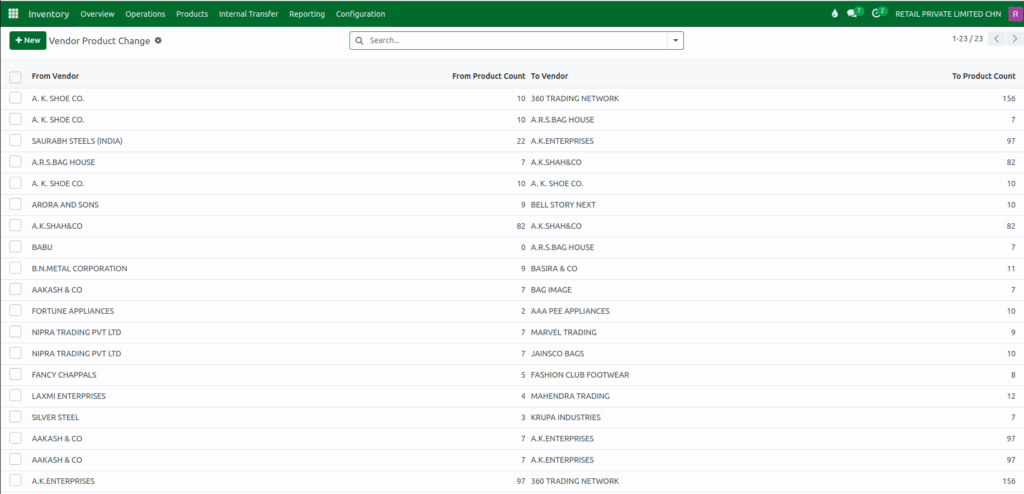
From the menu, go to Products → Vendor List → Vendor Product Change.
This page displays all existing vendor product change records, showing details such as:
- From Vendor
- From Product Count
- To Vendor
- To Product Count
Create a New Vendor Product Change
Click on the + New button to create a new record.
A form will appear where you can define the details of the vendor product change.
Select From and To Vendors
The From Vendor and To Vendor fields are mandatory for creating a Vendor Product Change.
- Choose the From Vendor from the drop down list.
Instantly, the From Product Count field will update to show the total number of products associated with that vendor. - Next, select the To Vendor from the drop down list.
Similarly, the To Product Count field will update to display the total number of products linked to the selected vendor.
Note: The From Product Count and To Product Count fields are read-only and automatically update based on the chosen vendors.

Execute the Vendor Product Change
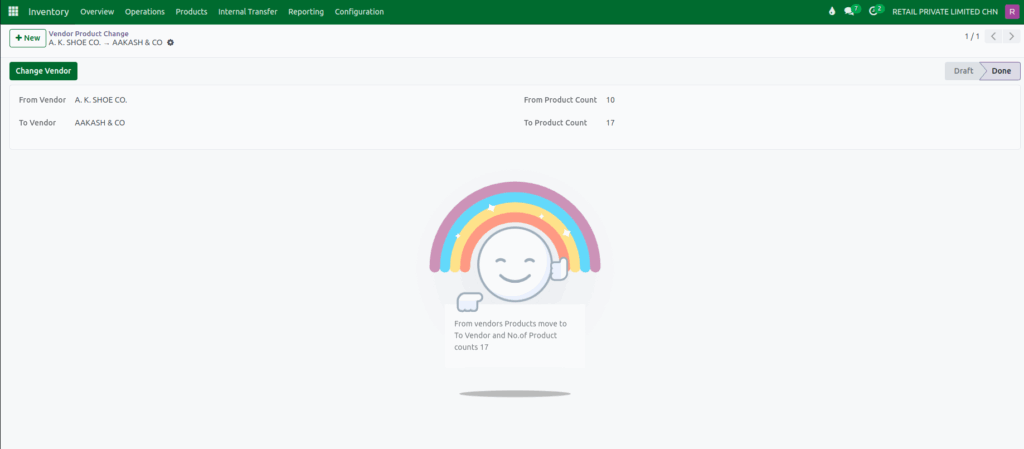
Once both vendors are selected, click the Change Vendor button located at the top of the form.
At this stage, Odoo will display a confirmation message such as:
“From vendor’s products moved to To Vendor and No. of Product counts: 17.”
After this operation:
- The To Product Count updates to reflect the new total:
(From Product Count + To Product Count) - The document status automatically changes from Draft to Done.
Validation
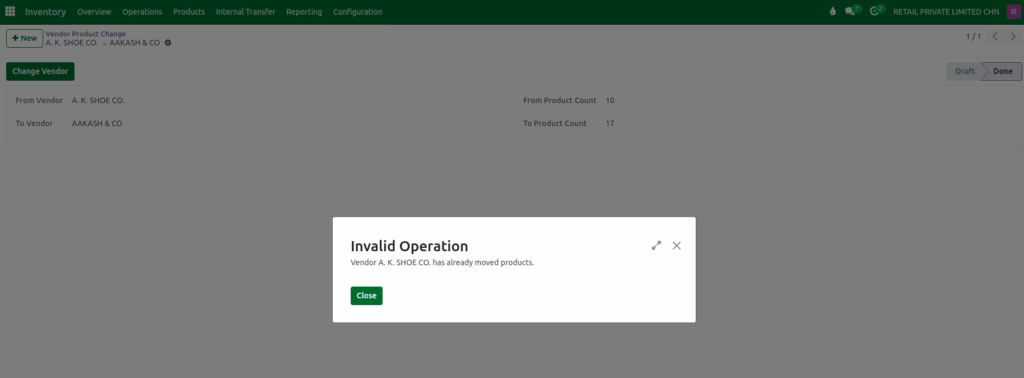
If you attempt to click the Change Vendor button again after the document is completed, Odoo will display an Invalid Operation warning message:
“ Vendor A. K. SHOE CO. has already moved products.”
This ensures that the vendor product change cannot be processed more than once for the same record.
Verify Vendor Change in Product
Finally, open the product that was associated with the From Vendor.
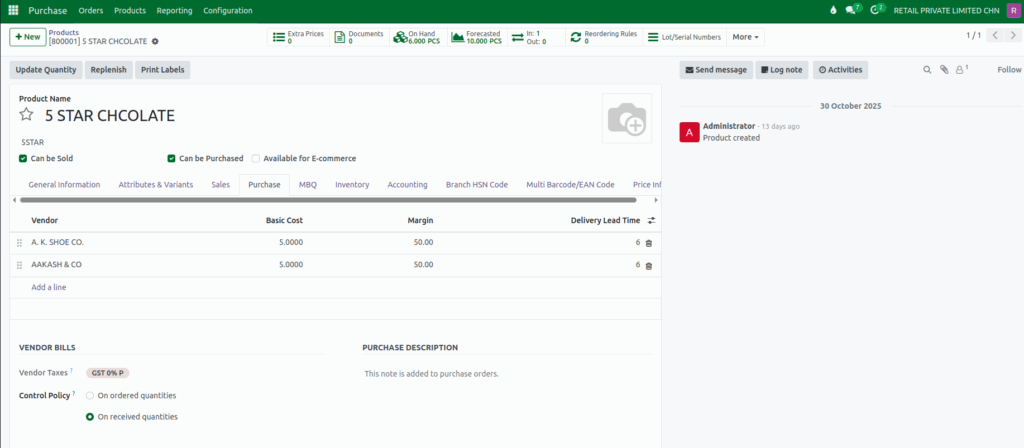
In the product’s Purchase tab, you will now see that the To Vendor has been added automatically.
The new vendor entry will also inherit the From Vendor’s basic cost.