How Product and Lot Values are updated after Scrap Wastage in Odoo Inventory
Scrap Wastage is a common part of inventory operations, especially in warehouse management. Odoo simplifies this process by automatically updating product and lot values whenever a scrap transaction is completed in the Inventory module. This ensures accurate stock and financial records, whether the products are tracked by lot or not.
No Tracking Products – Value Update After Scrap Wastage
For No Tracking Products, the process begins by navigating to Inventory → Operations → Adjustments → Scrap Wastage. Users can create a new scrap document by clicking the + New button, selecting the product category, and choosing the correct source location.
In the product tab, the desired No Tracking Product is selected, and the adjusted quantity to scrap is entered. The system automatically displays the cost and total value of the scrapped quantity. Once the scrap document is validated, the product’s on-hand quantity is updated.

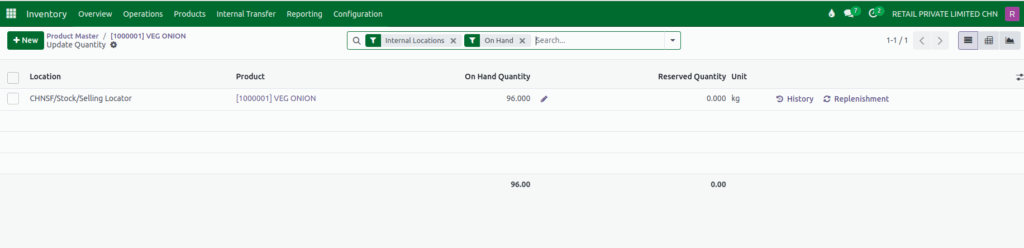
By opening the product form and clicking the On Hand Quantity button, users can verify that the scrapped quantity has been reduced and the remaining stock is correctly reflected for the selected location.

Lot Products – Value Update After Scrap Wastage
For Lot Products, the workflow is similar but with additional lot-specific details. After navigating to the Scrap Wastage menu and creating a new document, users select the product category, source location, and the specific lot to scrap.
Odoo automatically loads the lot barcode and GRN date. The adjusted quantity is entered, and the system displays the associated cost and total value. Upon validation, Odoo updates the stock and valuation for the selected lot.

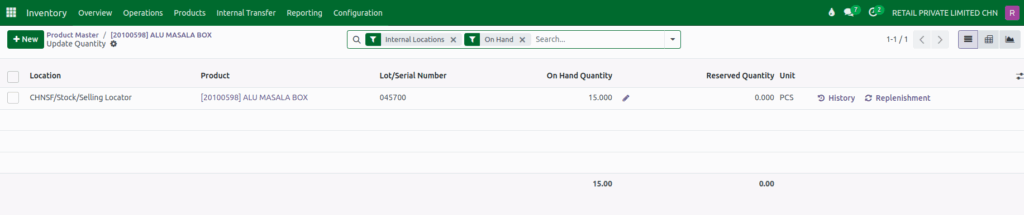
Users can verify the changes by opening the product form, clicking the On Hand Quantity button, and confirming that the remaining stock for the lot and location is accurate.
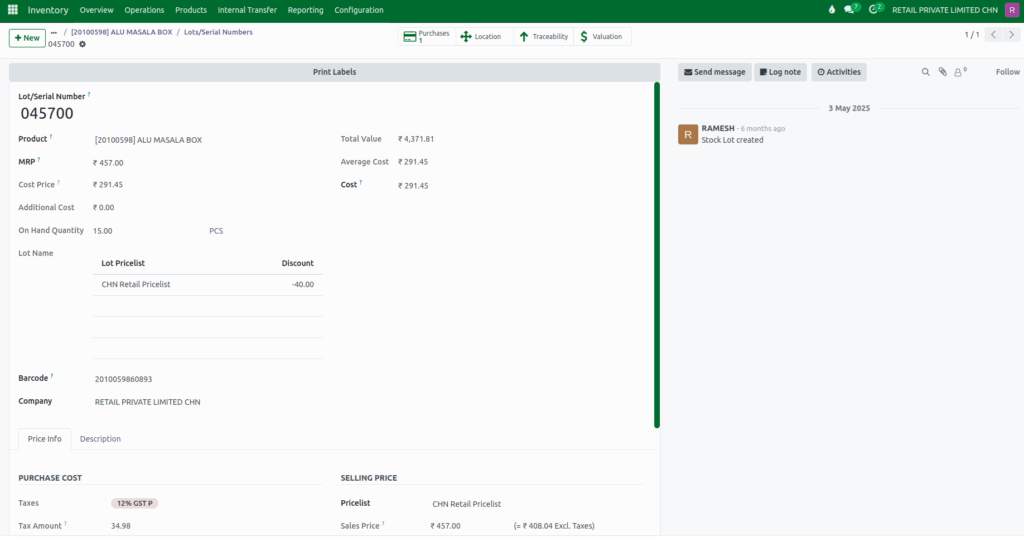
Additionally, the Lot/Serial Numbers button allows users to inspect the lot’s on-hand quantity is reduced after scrap wastage is completed and total value is calculated for the updated quantity.
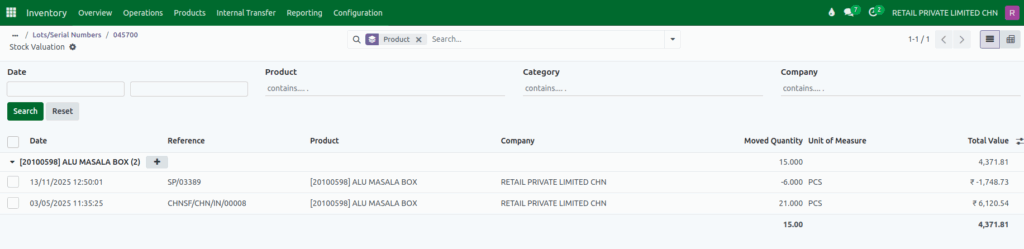
The Valuation button provides detailed information on the moved quantity and total value, which is displayed as negative for the scrapped quantity, along with other relevant details for verification.