How to Manage Packaging Details When Creating a Purchase order in Odoo
In Odoo “packaging quantity” refers to the number of individual units contained in one package, box, or case as supplied by the vendor in Purchase Order. It defines how the items are packed and shipped, and therefore affects how you order, receive, and store them.
Purpose of Packaging in Purchase Order
Packaging in a PO defines how products are grouped and shipped.Ensures the correct quantity is shipped and invoiced based on packaging.Helps maintain product integrity during transit by selecting appropriate packaging.
Configuring a Packaging details for the Product
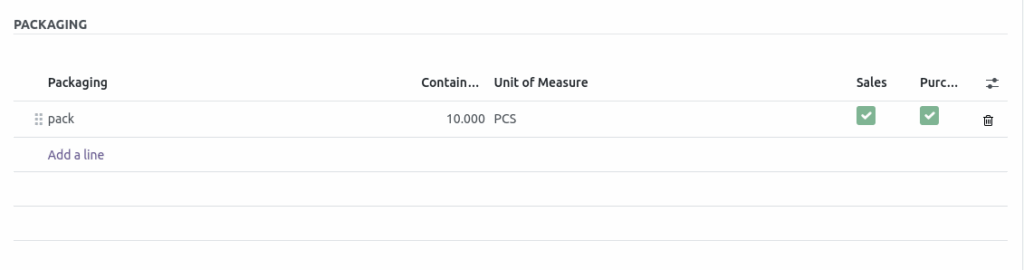
In the product , open the general information tab find the packaging section.Click Add a line or Add Packaging.
Packaging Type – e.g., Box, Case, Pack.
Contained Quantity – e.g., 10 units per box.
Create a New Purchase Order Document
Click +New to create a new purchase order document.Select the vendor from the list.Add the product using the product code.When you click Save, the PO document number is generated
Packaging Selection
Click on the Packaging field to view available options for the selected product. The packaging options shown are those already configured in the Product Master. Only packaging options that are set up for the specific product will appear in the PO. Choose the appropriate packaging based on the product’s quantity and requirements
Assigning Packaging Quantity
After selecting the Packaging for the product. Enter the packaging quantity to define how the product should be grouped. The system will calculate the final Quantity based on the contained and packaging quantities. For example, if the contained quantity is 20 and the packaging quantity is 2, The final Quantity
will be updated to 40.
Creating a New Packaging in PO
In the Packaging field enter the Packaging name and select Create and Edit then enter the Contained quantity and click Save and Close to add the new packaging. Assign a value for packaging quantity.The Quantity will be updated accordingly.
Finalizing the Purchase Order
Ensure the calculated quantity matches the required total quantity.Review the product details to ensure accuracy.Verify the selected vendor information.Check the packaging details, total amount, and tax amount.Click Save to finalize and confirm the purchase order.

