How to create an Unbranded product in Odoo Inventory
When managing inventory in Odoo, some products don’t carry a brand name but still need proper tracking and pricing. Creating an unbranded product with lot tracking helps you maintain clear records, avoid mix-ups and manage stock more accurately.
Enable the Lot & Serial Numbers Checkbox
Go to Inventory → Configuration → Settings. Scroll down to the Traceability section and enable the Lots & Serial Numbers checkbox to track products using lot and serial numbers. Then, click the Save button.
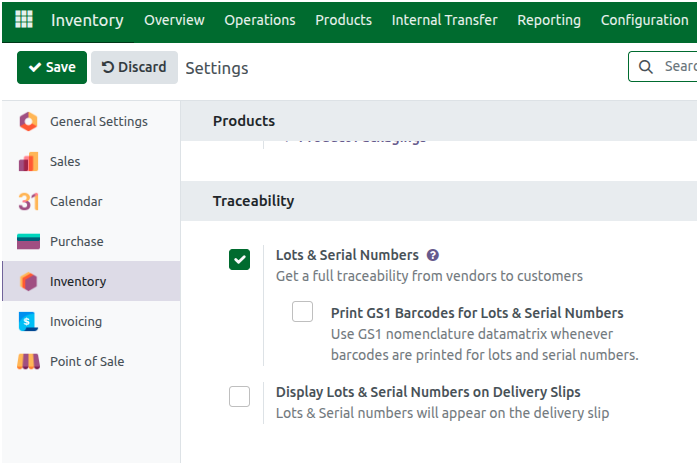
Creation Of Unbranded Product in Odoo Inventory
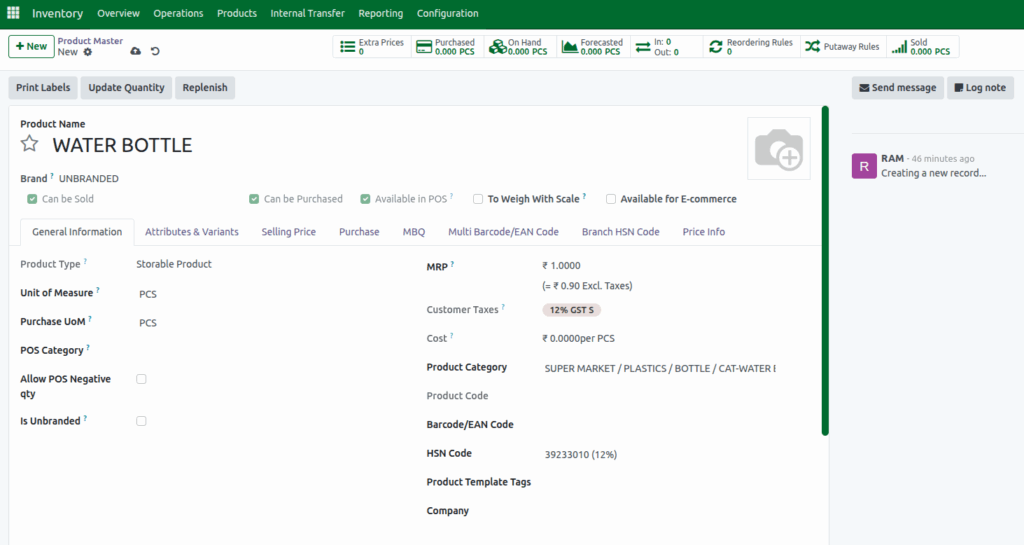
To create a new product in Odoo, go to the Inventory module, then navigate to Products → Product Master. Click the + New button to open the product creation form.
Begin by filling in all the mandatory fields such as the Product Name, Product Category and set the Brand as UNBRANDED. These details are mandatory because they help organize and categorize your inventory, making it easier to manage and analyze your product data in the future.
Once the basic details are entered, select the appropriate HSN Code for the item. Odoo automatically applies the corresponding Customer Taxes based on the HSN configuration.
In the General Information tab of the product creation screen, scroll down to the Traceability section. Here, you will see the Tracking field, which gives you three options: By Unique Serial Number, By Lots, and No Tracking. These settings control how Odoo tracks and manages the product throughout your inventory.
Choose either By Lots or By Unique Serial Number, and this automatically enables the Valuation by Lot/Serial Number checkbox. So each lot can be monitored individually and allows to record the manufacturing date and expiration date for the product.

Enabling Is Unbranded checkbox
Enable the Is Unbranded checkbox to make the product behave like an unbranded item. When this option is turned on, you will need to manually create the lot numbers during the Goods Receipt (GR) process.

Configure Basic Fields for a Product
Choose the Unit of Measure and Purchase UoM, which are usually set to “PCS” by default. Enter the Maximum Retail Price (MRP) and make sure the Product Type is set as Storable Product so Odoo can track its stock.
Assign the appropriate pricelist for Unbranded products. Once a pricelist is selected, set the pricing rules either as MRP or Landed Cost.

Once all the information is filled in, save the product to generate the Product Code. The product will then be created in the system and ready for procurement, inventory, and billing processes.
