How to Filter, Search and Group the Lot/Serial Number Master Data in Odoo Inventory
Managing lot and serial numbers is important for tracking products, monitoring stock movements, and maintaining accurate inventory records. In Odoo Inventory, the Lot/Serial Number Master provides a clear view of all lot and serial numbers along with product details, creation dates, and stock information. With powerful search, filter and grouping tools, it becomes easy to review and analyze your inventory data efficiently.
Accessing the Lot/Serial Numbers Master in Odoo Inventory
To open the Lot/Serial Numbers, go to the Inventory module from your dashboard. Then click on Products and select Lot/Serial Numbers. This screen provides an overview of all lots and serial numbers created in your system.
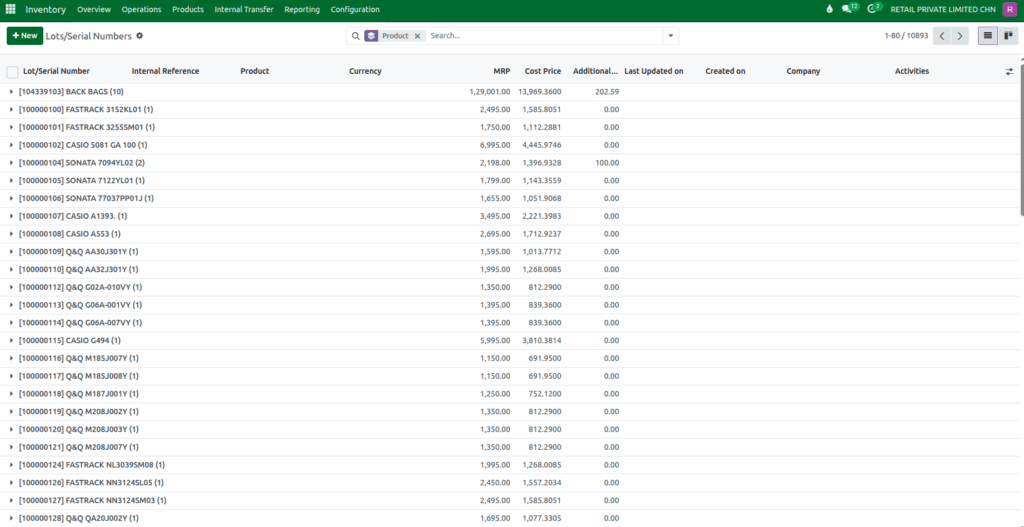
By default, the Lot/Serial Numbers Master is grouped by Product, allowing you to see lot and serial numbers organized under their respective products.
Using the Search Bar in the Lot/Serial Numbers Master
The search bar allows you to quickly locate specific lots or serial numbers. You can search using the Lot/Serial Number, Product Name or Product Code. You can also search by the Created On date if you want to focus on lots created within a specific time frame.
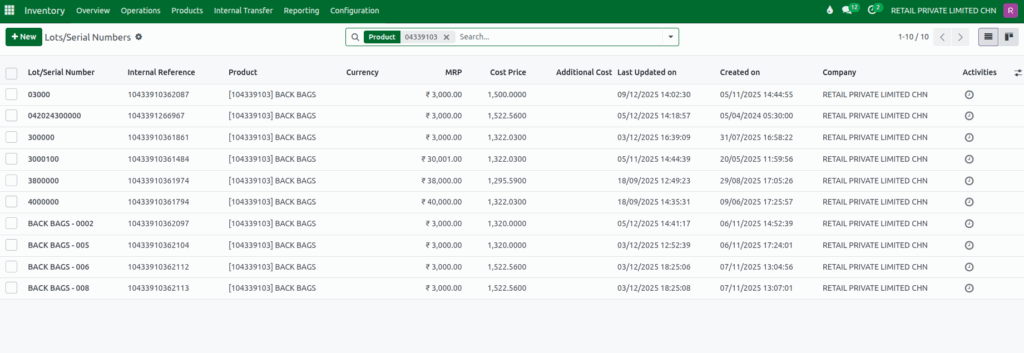
These search options help you find the exact record without scrolling through the entire details of the Lot/Serial Numbers.
Using the Filter Options in the Lot/Serial Numbers Master
Filters make it easier to view specific Lot or Serial Numbers. When you click the ▼ drop down icon in the search bar, Odoo displays predefined filter options. For date-based filtering, you can select a Date Range to display lots created within a particular period such as the last three months, a specific quarter or even the last three years.
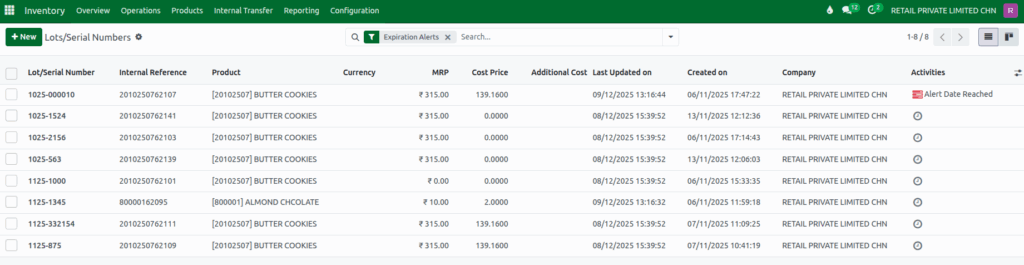
You can also filter records based on stock status using options like On Hand, items currently With Customers or those approaching expiry using Expiration Alerts.
Applying Custom Filters
If you want more precise control, Odoo allows you to create your own custom filters. When you click Add Custom Filter, a popup window appears with a default rule that you can adjust. This lets you choose a field such as On Hand Quantity or Location and apply an operator like contains or is equal to, greater than or less than and enter the value you want.

After entering the required value and clicking Add, the system displays only the lot and serial number records that meet your selected conditions.
Using Group By Options in the Lot/Serial Number Report
Grouping your data helps you understand inventory patterns more clearly. By clicking the ▼ drop down icon in the search bar and opening the Group By section, you can organize data by Product, Location or Company. This allows you to see which products or warehouses have certain lots or serial numbers.
You can also group by Creation Date to analyze inventory trends over time, with options like Year, Quarter, Month, Week or Day. These grouping options provide a structured way to review lot and serial number information.
Applying Custom Grouping Options
For more advanced organization, Odoo lets you use custom grouping. Clicking Add Custom Group shows additional fields that can be used for grouping, such as Manufacture Date, IMEI 1 or any other relevant grouping option.
Once a group is selected, Odoo arranges the data instantly based on your chosen field, providing a personalized view of your inventory and making it easier to analyze stock movements and lot-level performance.
Saving Favorites for Quick Reuse
Odoo allows you to save your search filters and grouping preferences for future use. To save your current settings, open the drop down menu and select Save Current Search. You can name your saved filter, set it as the default view, or share it with other users.

Saved searches can be applied anytime with a single click, and unwanted filters can be removed using the delete (trash) icon. This feature makes repeated reporting faster and more convenient.
By using these features in the Lot/Serial Number Report, you gain clearer insights into your inventory, stock movements, and product traceability. This helps you make better, more informed decisions and manage your warehouse operations more efficiently.
