How to View Product Inventory Details for Products in Odoo
Navigating to the Product Master
To view inventory details for a product in Odoo, you begin by opening the Inventory module. Inside the module, you can click on the Products menu and then select Product Master. This displays a list of all products available in your system. After selecting a product, you will see several smart buttons at the top of the product form.
Each button gives access to specific inventory-related information. These buttons help you quickly understand stock levels, pricing, movements, and purchase or sales history without navigating through multiple menus.

Understanding Pricing and Traceability Smart Buttons
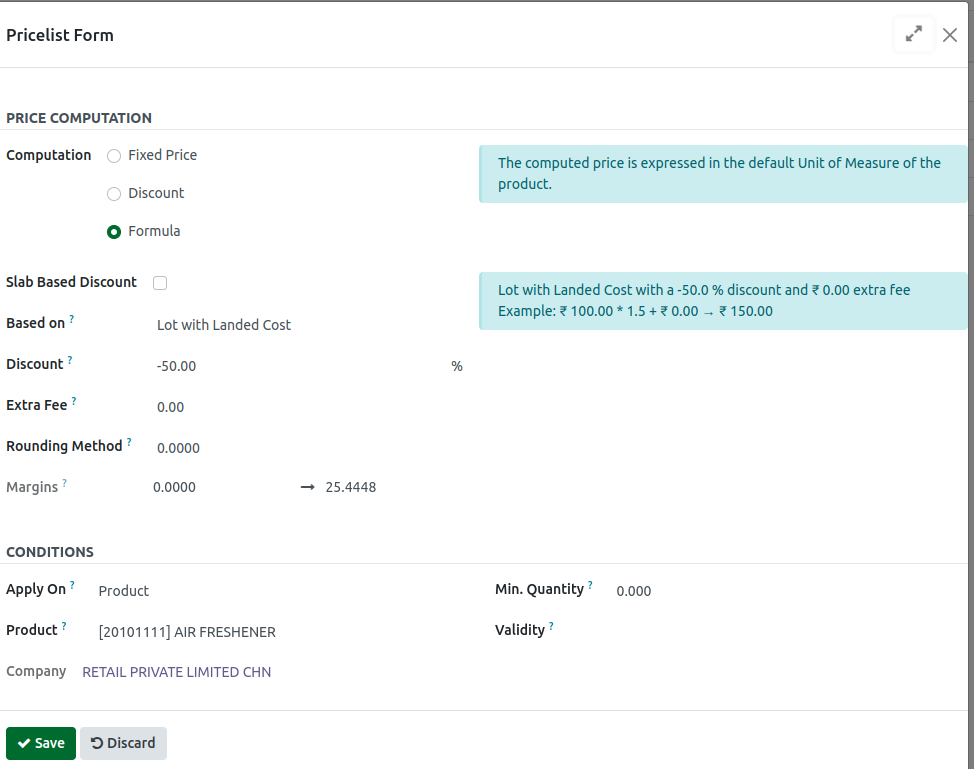
The Extra Prices smart button is designed to manage flexible pricing. It supports tier-based pricing and discount rules, ensuring that the right price is applied automatically during quotations and orders. This helps businesses maintain consistent pricing without manual checks.
The Lot/Serial smart button provides visibility into stock based on lots or serial numbers. It helps track products from the vendor all the way to the customer, making it useful for quality checks, returns, and compliance needs. It is also important for expiry tracking and batch-based processes.

Using Smart Buttons for Purchases, Stock Levels, and Forecasts
The Purchased smart button gives a complete history of past purchase orders for the selected product. You can see order references, vendor names, confirmation dates, quantities, and prices. It also allows quick access to purchase orders from within the product, making it easier to study vendor trends and make better reordering decisions.

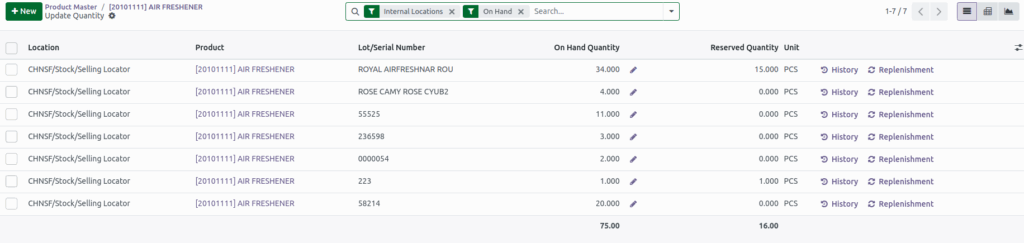
The On Hand smart button shows the current available stock across all locations. It opens a detailed view that includes product categories, lots or serial numbers, quantities, units, and values. This view supports stock audits, batch tracking, and replenishment actions.
The Forecasted smart button offers a future view of stock based on expected incoming and outgoing quantities. Odoo calculates forecasted stock by adding on-hand stock to incoming quantities and subtracting outgoing ones. This section shows upcoming purchases, receipts, delivery orders, and expected stock levels on future dates. It helps you understand stock flow and avoid shortages.

Tracking Product Movements, Reorders, and Sales
The In/Out smart button displays all stock movements related to a product, including incoming receipts and outgoing deliveries. It helps track how the product moves between vendors, warehouses, and customers. Each movement shows details like cost, quantity, and total value, which is useful for audits and valuation.

The Reordering Rule smart button shows the automatic replenishment rules for the product. It includes minimum and maximum stock levels, on-hand quantities, forecasted amounts, and reorder quantities. This makes it easier to maintain healthy stock levels and avoid running out of products.
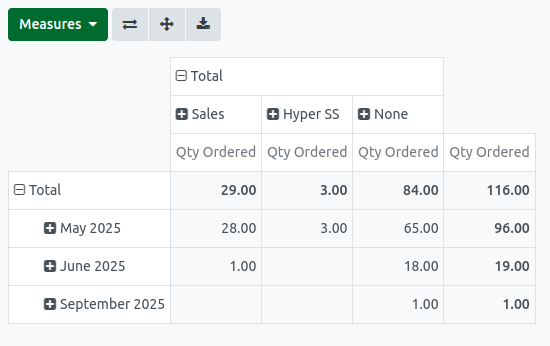
The Sold smart button highlights the sales history of the product. It shows how much has been sold, when it was sold, and to whom. This information helps in studying customer demand, planning future sales, understanding salesperson performance, and making informed reordering decisions.