How to Manage Product Quantities in Odoo Purchase Orders
Accurately specifying product quantities in Odoo Purchase Orders is key to smooth purchasing and effective inventory control. It helps businesses order the right amount of products, maintain proper stock levels, and keep invoices and costs accurate preventing both shortages and overstocking.
Create a New Purchase Order Document
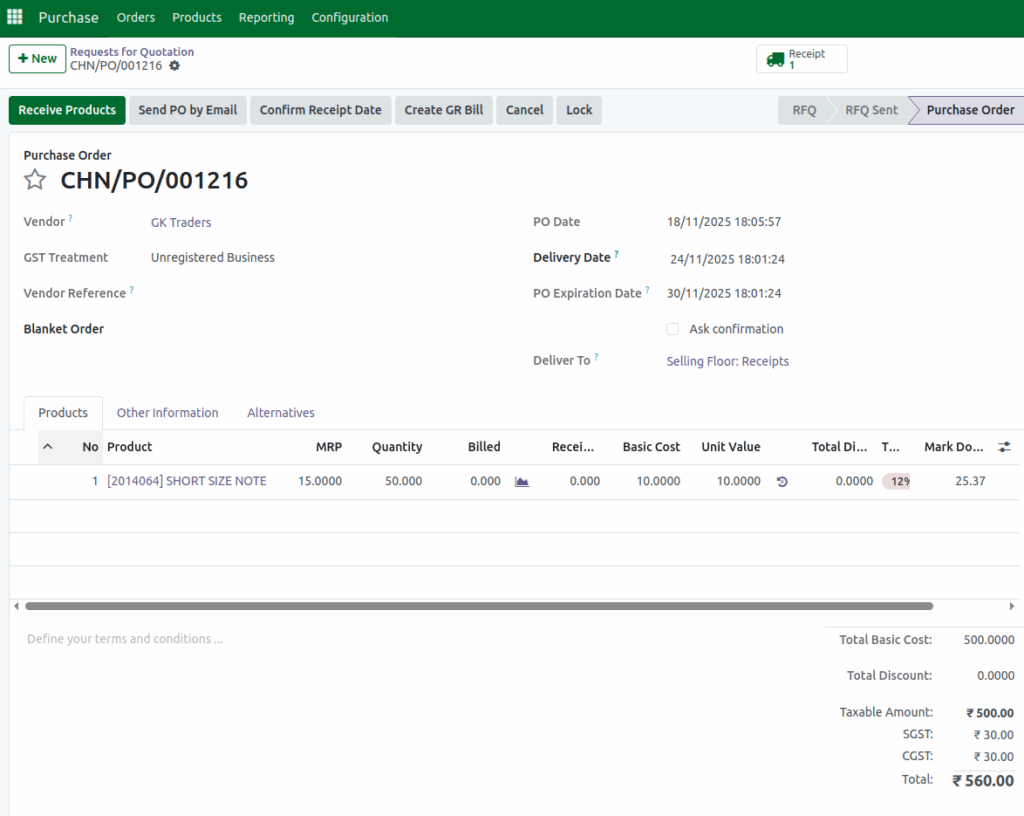
Click +New to create a new purchase order document. Select the vendor from the dropdown list. Add the product using the product code. When you click Save, the PO document number is generated.
The Quantity field is set to 1 by default when adding a product. Modify the quantity by entering a new value. Set the desired quantity based on requirement. The updated quantity will be reflected in the purchase order.

Quantity Rules for Different Product Types
In Odoo, quantity rules vary based on the type of product being handled. For Lot/Serial products, only whole numbers can be entered because their unit of measure is PCS. Example: 45, 28, 37. If a decimal quantity is entered for these products, the system displays a validation message “Please check the Quantity of the Product.”

On the other hand, No Tracking products allow decimal quantities since their unit of measure is KG. Example: ‘15.500’ or ‘26.75’.
Validating Quantity in Purchase Order
In a Purchase Order, the quantity cannot be zero or negative. If an invalid quantity is entered, Odoo will display a validation message when you click Confirm: “Quantity/Basic Cost cannot be less than zero.” Always make sure the quantity you enter is positive and valid before confirming the order.

Confirm the Purchase Order
Before confirming a Purchase Order, carefully verify all the details, including product quantities, prices, and vendor information, to ensure accuracy. Once everything is correct, click Confirm Order to save the Purchase Order and click Approve to officially approve the Purchase Order. This ensures that your Purchase Orders, including all quantities, are accurate and ready for processing.