How to Apply Cash or Scheme Discounts in a GR Bill in Odoo
Managing supplier invoices accurately is crucial for maintaining clear financial records in Odoo. When vendors offer cash discounts or scheme-based reductions, it’s important to record them correctly in the GR (Goods Receipt) Bill to reflect the actual payable amount. Odoo provides flexible options to apply these discounts directly within the bill.
Create a GR Bill in Odoo
To create a GR bill in Odoo, first open the Purchase module and click the + New button on the RFQ screen. Choose the vendor, add the required products, and confirm the Purchase Order. After confirming, complete the Goods Receipt (GR).
Once the GR is finished, click Create GR Bill. All the received products will automatically appear in the Invoice Lines tab.

Cash or Scheme Discounts in a GR Bill
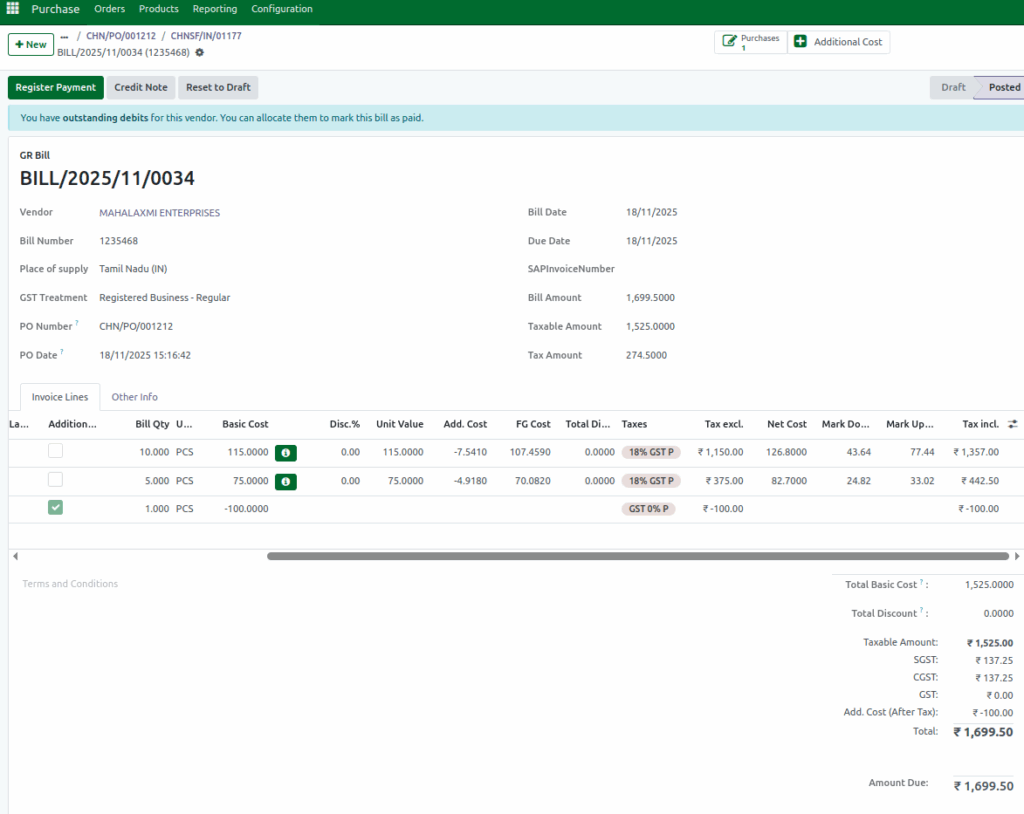
To add Cash or Scheme Discounts in a GR bill, go to the Invoice Lines tab and click Add a line. Choose the Cash or Scheme Discount product from the list, which will automatically appear with a quantity of 1.
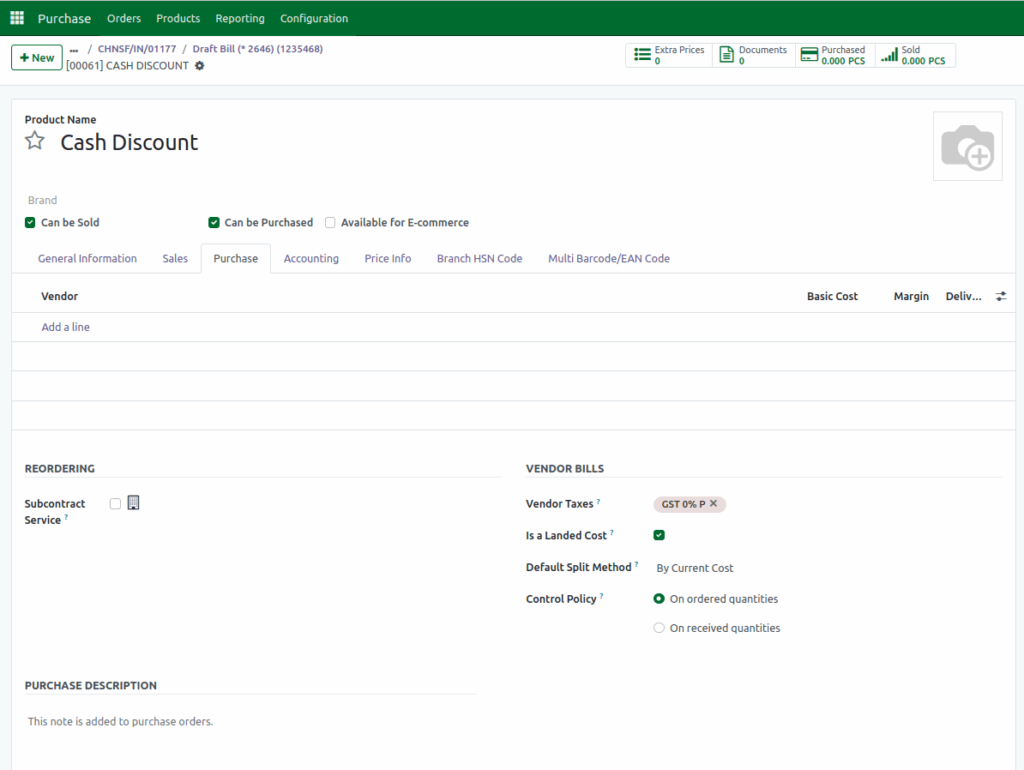
Make sure this product is set up correctly in the system as a Service Product. In its Purchase settings, enable the Is a Landed Cost option, set the Default Split Method to By Current Cost, and choose On ordered quantities as the control policy.
Next, enter the discount amount in negative in the Basic Cost field and check that it is subtracted to the total shown at the bottom of the GR bill. Once the amount is updated, review and fill in the Vendor Bill details such as the Bill Amount, Taxable Amount, and Tax Amount.
Finally, after confirming all the values are correct, click Confirm to complete and post the GR bill with the added discount.
Discount Split up into Products
Odoo automatically divides the discount among all received products based on their cost since the splitting method is By Current Cost. This ensures each product’s landed cost is updated correctly.
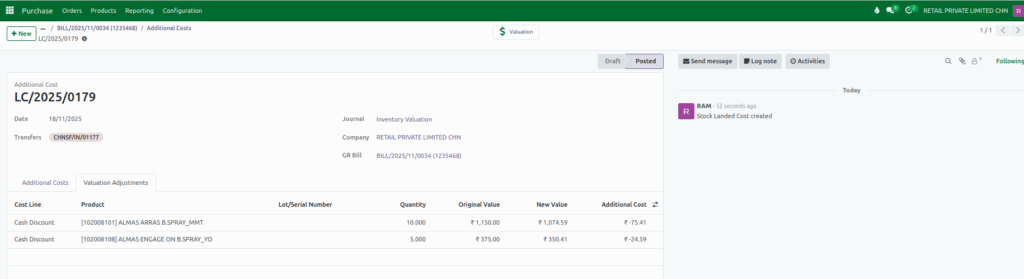
After confirming the GR Bill, the Additional Cost smart button appears at the top. Clicking it opens a landed cost document where the Valuation Adjustment tab shows the discount split for each product.
Example
Suppose I receive two products in a GR:
- Total Cost of Product A – ₹1150 for 10 quantites
- Total Cost of Product B – ₹375 for 5 quantites
- Cash Discount : ₹ -100
Odoo splits the ₹ -100 discount based on cost proportion:
- Product A: (1150 ÷ 1525) × -100 = ₹ -75.41
- Product B: (375 ÷ 1525) × -100 = ₹ -24.59
So, Product A gets ₹ -75.41 discount, and Product B gets ₹ -24.59 discou
In GR Bill it shows for each qty Product A gets -7.5410 discount, and Product B gets -4.9180 discount in the Add cost field.
Discount applied in final bill amount
The discount amount is deducted after tax, directly to the total amount.
Example:
Start with the taxable amount of ₹1525, add the total tax of ₹274.50, and then deduct the discount of ₹-100. This gives a final total of ₹1699.50.
