How to Confirm and Approve a Purchase Order in Odoo
Efficient management of purchase orders is crucial for maintaining smooth operations in any business. Odoo makes it easy to create, confirm, and approve purchase orders while ensuring that all product costs and pricing are accurate.
Create a Request for Quotation (RFQ)
To get started, navigate to the Purchase module in Odoo. This will bring you to the Requests for Quotation (RFQ) screen, where you can either select an existing draft RFQ that hasn’t been confirmed or click the +New button to create a new RFQ.
- Choose the vendor from whom you wish to purchase the items.
- Add the required products to the order and enter the required quantity.
- If necessary, adjust the product pricing (MRP, Basic Cost, Discounts), and other details like Location and Delivery Date.
Once everything is verified, you are ready to confirm the RFQ.
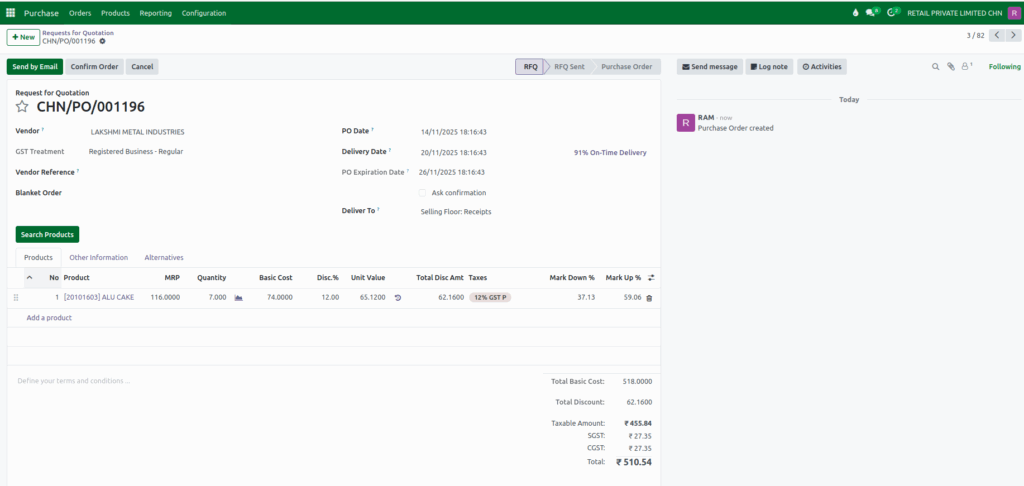
Confirm the RFQ
After verifying all the order details, click the Confirm Order button. This action will change the RFQ status to Purchase Order or To Approve, if approval is required.
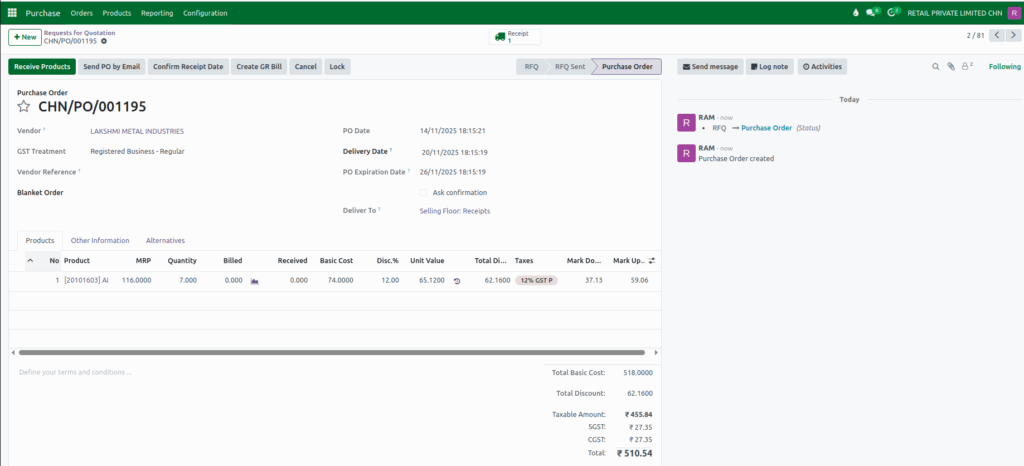
Approve the Purchase Order
Once the RFQ is confirmed, the Approve Order button will only appear if there is a margin change from a previous purchase order, indicating that the order needs approval. The approval option will be triggered in the following scenarios:
- The product is being purchased for the first time.
- The Product MRP (Maximum Retail Price) has been changed.
- The Product Basic Cost has been modified.
- A Discount has been applied to the product.

Click the Approve Order button to complete the purchase process. After approval, the status of the order will change from To Approve to Purchase Order.

Enable the Purchase Order Approval Setting
Odoo has a built-in feature to approve purchase orders automatically when needed. This helps make sure that expensive orders are checked by a manager before being confirmed.
- Go to Purchase → Configuration → Settings.
- In the Orders section, turn on the Purchase Order Approval option.
- Set the Minimum Amount for orders that need approval.
- Click the Save button.

With this setting, any purchase order over the set amount will move to a ‘To Approve’ status until a manager approves it.

