How to Create a Backorder in a Goods Receipt in Odoo
When managing inventory in Odoo, backorders play an essential role in ensuring smooth stock operations, especially when your vendor delivers products in partial quantities. Instead of canceling or waiting for the full delivery, Odoo allows you to create a backorder in a Goods Receipt to receive the remaining items. This ensures your inventory stays accurate and you can easily track what’s still pending from your vendor.
Create a Purchase Order in Odoo
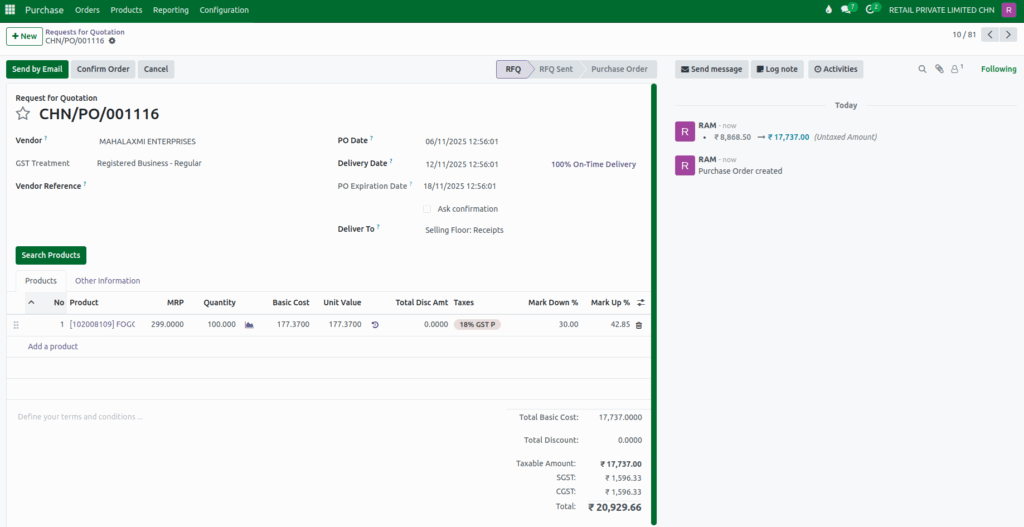
In Odoo, open the Purchase module, you can create a new purchase order by clicking +New and adding the appropriate vendor and products. Specify the ordered quantity for each item and confirm the order by selecting Confirm Order. Once the purchase order is confirmed, Odoo automatically generates a corresponding receipt for the products included in the order.
Open the Goods Receipt
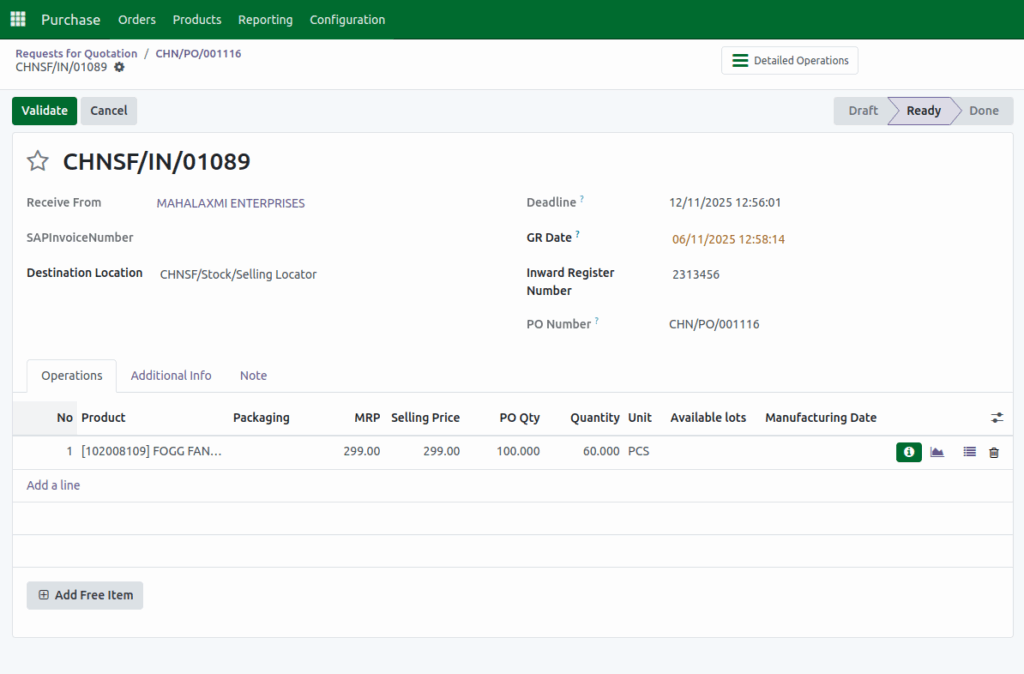
Click the Receive Products button on the purchase order to view all the items along with their ordered quantities. By default, the received quantities are initially set to match the purchase order quantities. Update these received quantities to reflect the actual amount delivered, especially if it is a partial receipt, enter the Quantity less than the PO Quantity and then click Validate to process the goods receipt.
Choose the Backorder Option
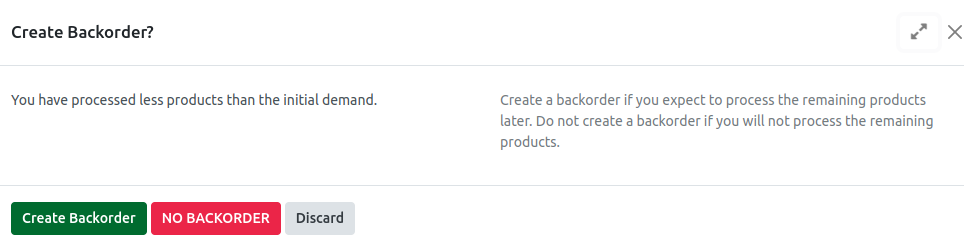
When you click Validate, Odoo will display a message:
Create Backorder?
You have processed less products than the initial demand.
Create a backorder if you expect to process the remaining products later. Do not create a backorder if you will not process the remaining products.
You’ll have three options:
- Create Backorder: Odoo will record the current quantities received and automatically create a new backorder for the remaining quantity.
- No Backorder: Odoo ill close the receipt and consider the remaining quantity as canceled.
- Discard: Cancels the current action and returns to the receipt screen.
To continue tracking the pending items, select Create Backorder.
Review the Backorder Document
After a backorder is created, Odoo automatically generates a new Goods Receipt for the remaining quantities. You can view it by clicking the Receipts button on the Purchase screen. The original receipt will be marked as Done, while the newly created receipt stays in Ready status, waiting for the pending goods. When your vendor delivers the remaining items, you can process this new receipt accordingly.

Example
Let’s say you ordered 100 units of Product FOGG FANTASTIC ABSOLUTE 150ML from your vendor, but only 60 units were delivered.
When you validate the receipt, Odoo will ask whether you want to create a backorder for the remaining 40 units.
If you choose Create Backorder, the first goods receipt will be marked Done for the 60 units received, and a new Backorder Receipt will be created automatically for the remaining 40 units.
You can then process this backorder once your vendor sends the rest of the products.


