How to Create No Backorder in Odoo Goods Receipt
In inventory and purchase management, it’s common to face situations where the vendor cannot deliver the full quantity of ordered goods. Odoo offers a useful feature called “No Backorder”, which allows users to close a purchase order without waiting for the remaining items.
Odoo records only the quantities that have been physically received, ensuring that your financial and stock data remain accurate. It also simplifies inventory management and preventing confusion over pending deliveries. This feature helps businesses finalize transactions quickly, keep inventory accurate, and avoid creating unnecessary pending deliveries in the system.
Initiating the Goods Receipt
After confirming a Purchase Order (PO) in Odoo, the system displays a “Receive Products” button. Clicking this button begins the Goods Receipt (GR) process, which is used to record the actual goods that arrive from the vendor.
When you initiate the GR, Odoo automatically generates a Goods Receipt Document Number, helping you keep a clear record of the transaction. You will also need to enter a unique IR Number (Inward Register Number) for the receipt, which acts as a mandatory identifier for tracking purposes.

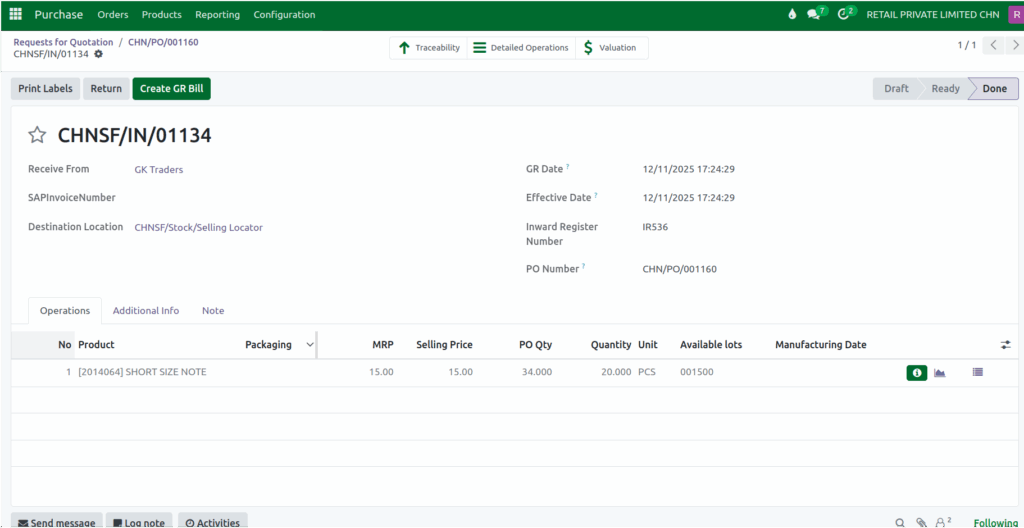
Once the Goods Receipt screen opens in Odoo, the system automatically fills in the PO Quantity field with the quantity ordered in the purchase order. At the same time, this same ordered quantity is also displayed in the GR Quantity (GR Qty) field.
The GR Qty field is editable, allowing users to modify it based on the actual quantity received. This setup helps users compare the ordered and received quantities easily, ensuring that any differences between the purchase order and the received goods are accurately recorded during the receiving process.
Handling Partial Deliveries
When the received quantity is less than the ordered quantity, Odoo recognizes this as a partial delivery. Upon clicking the Validate button, the system will prompt you to choose how to handle the remaining undelivered quantity. This is where the No Backorder option becomes important.

If you know the remaining items will not be delivered because they were canceled, discontinued, or not needed anymore, you can choose the No Backorder option. This tells Odoo not to create another GR for the items that were not received.
For example, if your purchase order was for 34 units but only 20 units arrived, selecting No Backorder means that only the 20 received units are recorded in the Goods Receipt. The purchase order will still show the original ordered quantity, but no new document will be generated for the remaining 14 units.
Completing the Goods Receipt Process
After you select the No Backorder option, Odoo finalizes the Goods Receipt based on the actual quantities received. This effectively closes the transaction for that order, ensuring that your stock records reflect only what was physically received. It’s particularly useful in situations where items are cancelled or unavailable from the supplier.
Once validated, Odoo generates a GR bill only for the items received, allowing for accurate billing and inventory valuation.