How to Handle Multiple GR BIll from a Single Purchase Order in odoo
Sometimes, products from a single Purchase Order may arrive at different times. In such cases,
multiple GR Bills will be created to record each receipt. Additionally, if credit notes are applied to any GR Bill, this can also result in multiple GR Bills for the same Purchase Order..
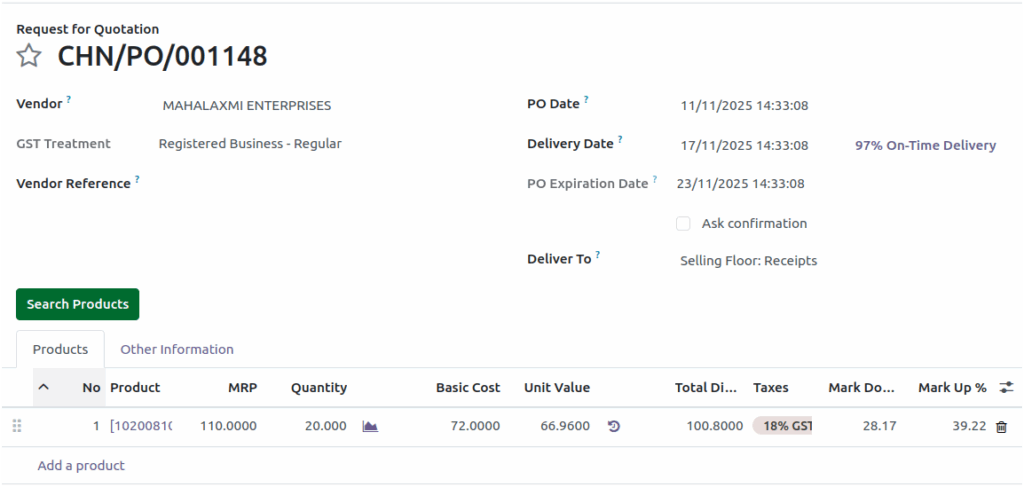
Create a new purchase order
- Go to the Purchase module.
- Click + New to create a new Purchase Order.
- Select the vendor and products from the respective fields.
- Once the RFQ (Request for Quotation) is finalized, proceed to confirm and complete the Purchase Order.
Create a new Good Receipt note(GRN)
- Click the Receive products button to create a new GRN.
- Enter the Inward Register Number(IRN).
- Enter a quantity less than the total quantity in the PO.
- Click validate, Backorder popup will occur

Note: If the quantity received is less than the quantity ordered in the PO, a Backorder is created.

Create a New GR Bill
- Click the Create GR Bill button to create a new GR Bill document for the received goods.
- Enter the Bill Number, Bill Amount, Taxable Amount and Tax Amount.
- After Verifying the details, click confirm to the save the gr bill

Another GRN and GR Bill for remaining quantity
Good Receipt (GRN)
- Open the Same PO once again.
- Click the Receive quantity button to create another GRN for the remaining quantity.
- Enter the Inward Register Number (IRN).
- Click Validate.
GR Bill
- Click the Create GR Bill
- Enter the Bill Number, Bill Amount, Taxable Amount and Tax Amount.
- After Verifying the details, click confirm

Note:
- Inward register number must be unique in the GRN.
- Bill Number must be unique in the GR Bill.
