How Bill Control Policies work in Odoo Purchase
In Odoo, the Bill Control Policies helps determine when a vendor bill (GR Bill) can be created during the purchase process. It controls whether billing happens based on the quantities ordered or the quantities actually received.
Configuring Bill Control Policies in Odoo
When you set a control policy in the default configuration, that setting is automatically applied to all newly created products. This ensures consistency for every new product added to the system.
However, if you manually change the Control Policy for a specific product, Odoo will follow the product-level setting during the purchase process, even if the default configuration is different. This allows you to customize billing behavior for certain products whenever needed.
If your goal is to apply a single Bill control policy to all products moving forward, you should update the policy in the default configuration.
To do this go to the Purchase module, click Configuration and select Settings. Under the Invoicing section, you will find the Bill Control option. By default, in Odoo it is set to On received quantities at both the default configuration level and for all newly created products.

This way, every newly created product will automatically inherit that policy, reducing manual effort and keeping your purchase workflow consistent.
Then to configure the control policy for a specific product, go to the Inventory module, open Products and search for the product you want to update. Once you select the product, navigate to the Purchase tab. In the Control Policy field, choose either On ordered quantities or On received quantities, depending on how you want vendor billing to be handled for that particular product.
Billing Based on Ordered Quantities
If the control policy is set to On ordered quantities, Odoo allows billing as soon as the purchase order is confirmed.
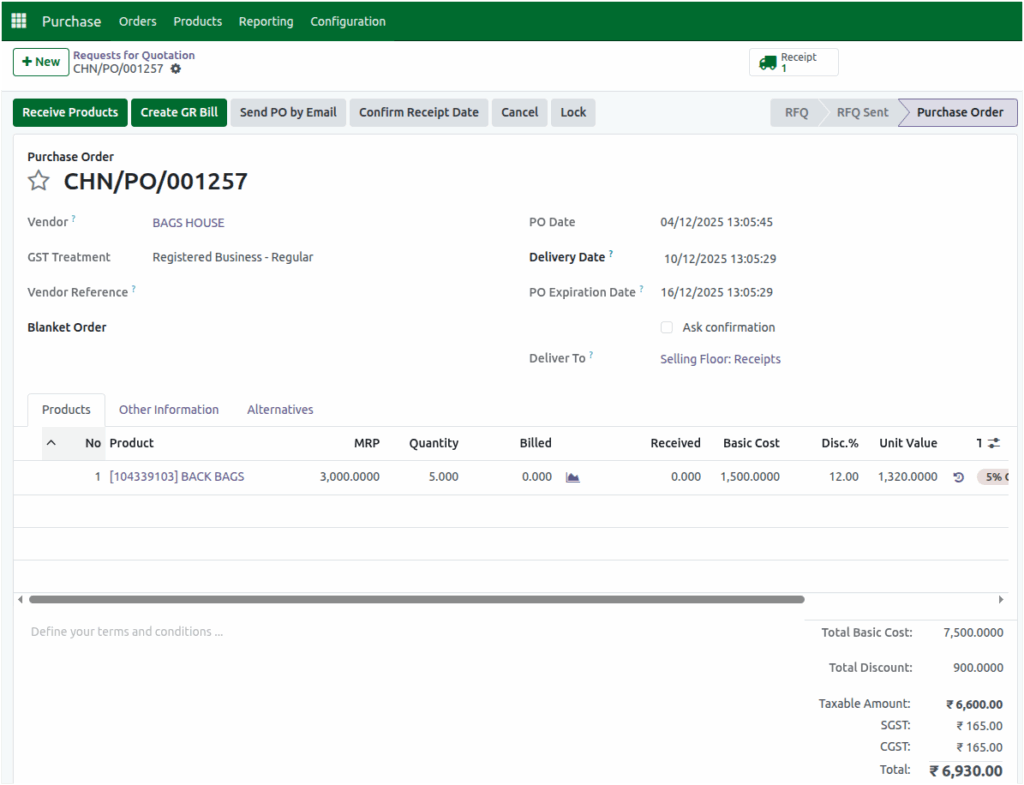
Once the Purchase Order (PO) is approved, the Create GR Bill button becomes active and appears in green, even if you have not yet received any products. This means GR Bill can be created immediately based on the ordered quantities.
This Bill Control Policy is useful when vendors bill upfront or when billing is not dependent on physical delivery.
Billing Based on Received Quantities
If the control policy is set to On received quantities, Odoo requires the actual goods to be received before generating any vendor bill.
After the Purchase Order is approved, the Create GR Bill button will initially appear in grey and it is not active. You must first receive the products in your warehouse and validate the goods receipt (GR).
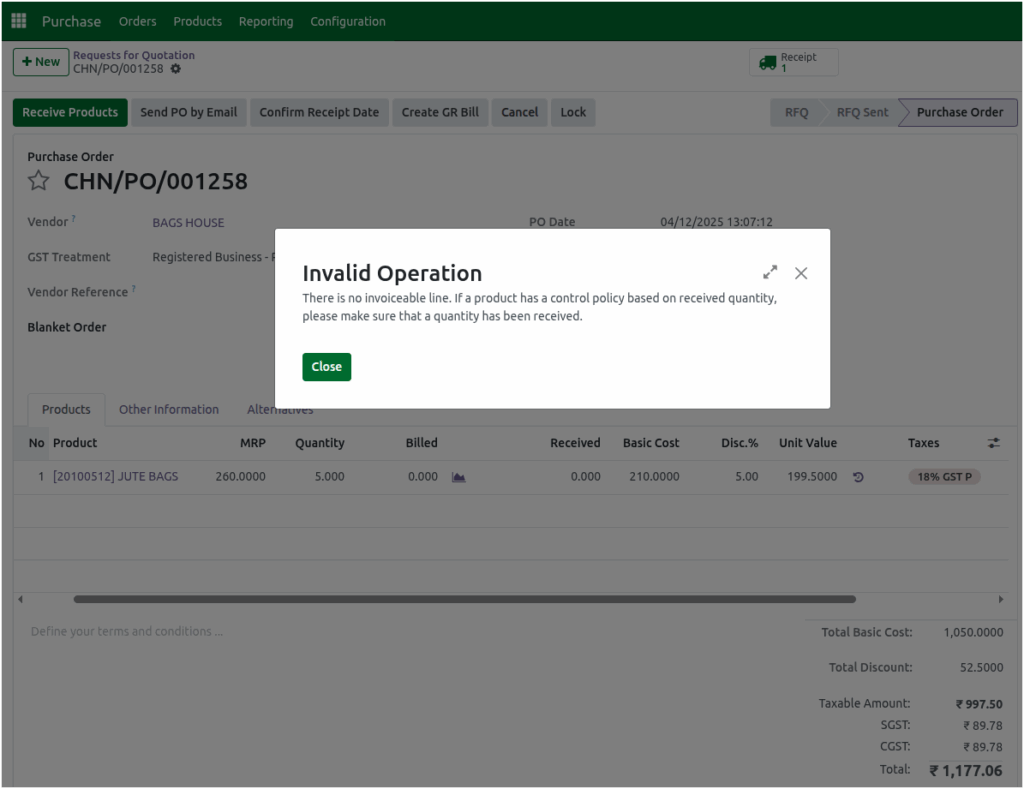
If you try to create a bill before receiving any items by clicking the Create GR Bill button, Odoo prevents the action and displays the warning: “Invalid Operation: There is no invoiceable line. If a product has a control policy based on received quantity, please make sure that a quantity has been received.”
Only after the GR is fully validated does the Create GR Bill button turn green, allowing you to generate the GR Bill.

This Bill Control Policy ensures that your billing is always accurate and perfectly aligned with the actual quantities recorded in your inventory.
