How Manufacturing and Expiration dates are handled in GR in Odoo
In business, maintaining accurate information about product manufacturing and expiration dates is critical for quality control, compliance, and traceability. Odoo provides built-in tools to manage these details efficiently during Lot Creation in the Goods Receipt (GR) process of the purchase module.
Configure Manufacturing and Expiration Dates in the Product
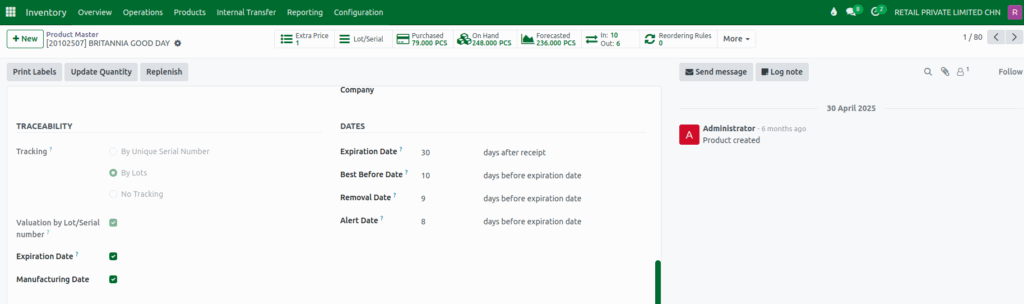
Go to Inventory → Products→ Product Master, select the product, and open the General Information tab. Set the Tracking field to By Lots or By Serial Number, then enable the Manufacturing Date and Expiration Date options.
After enabling expiration tracking, enter the number of days for the Expiration, Best Before, Removal, and Alert dates. Odoo will use these values to automatically calculate all related expiration dates whenever the product is received into inventory.
Select Manufacturing Date in GR
In Odoo, the Manufacturing Date field plays a vital role during the Goods Receipt (GR) process. To begin, open the Purchase module. In the Requests for Quotation screen, click the +New button to create a new purchase order for the desired product, and once it is confirmed, click the Receive Products button.
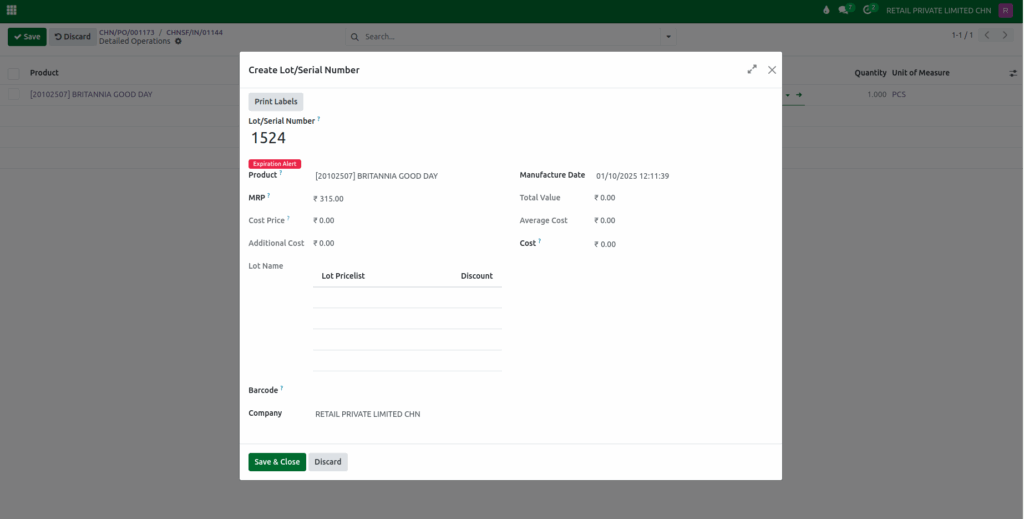
When the Manufacturing Date field is enabled in the product master, Odoo makes it mandatory to enter this date during the lot creation stage in GR.
In GR, click the Detailed Operation button, enter the Lot number and click Create. By default, the system sets this date as the previous day, but users must select the accurate manufacturing date before validating the receipt.
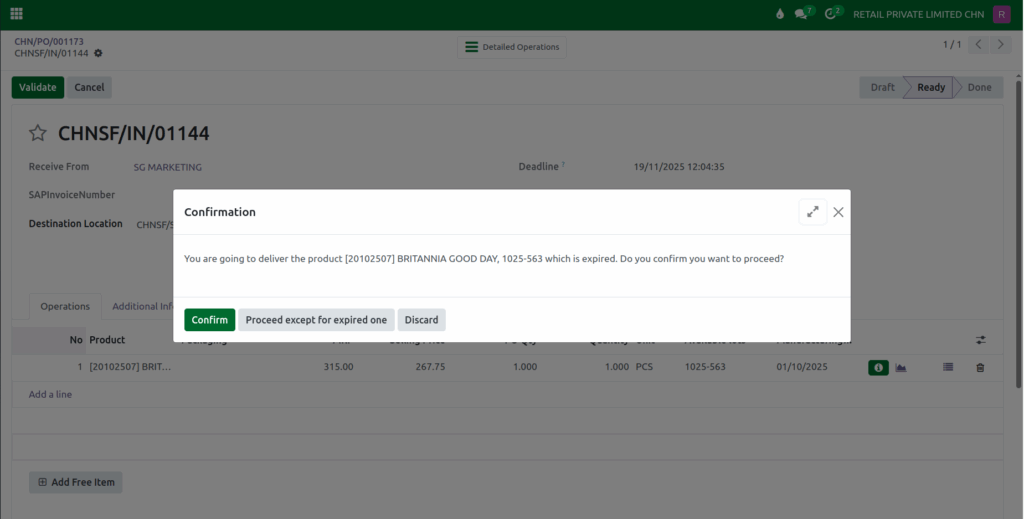
If the manufacturing date entered is older than the Expiration date configured limit defined for the product, Odoo asks Confirmation stating “You are going to deliver the product [20102507] BRITANNIA GOOD DAY, 1025-563 which is expired. Do you confirm you want to proceed?”
Similarly, if the date is set to today or any future date, the system shows another warning: “Manufacturing Date Should be not allowed in Today or Future Date.”

The entered Manufacturing Date will also be visible after the GR is validated.

Automatic Calculation of Expiration Date fields in the Lot
Based on the Manufacturing Date entered during Goods Receipt, Odoo automatically calculates all the dates related to expiration in the lot.
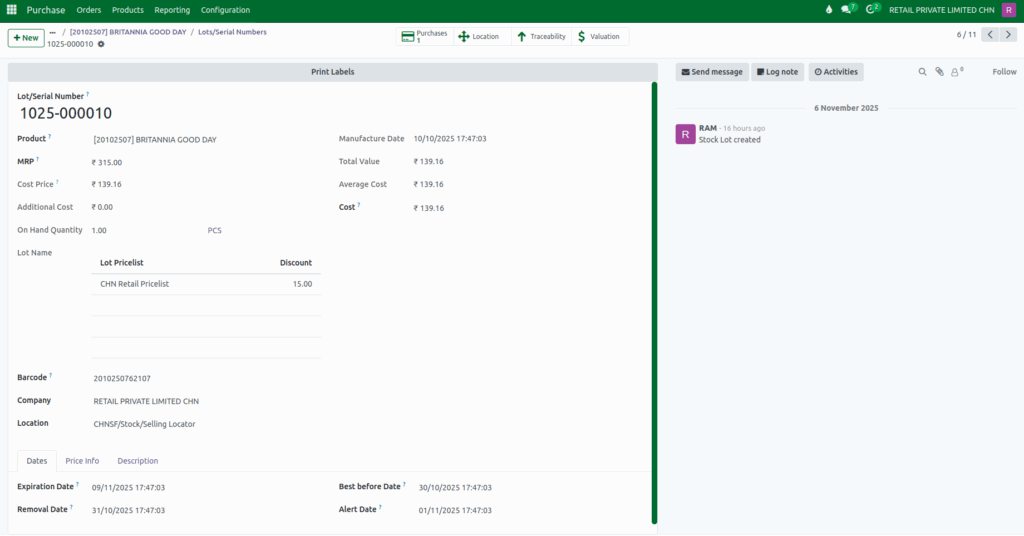
Suppose you receive a product named Britannia Good Day, lot name 1025-000010 on November 6, 2025, with the following configuration:
- Expiration Date: 30 days after receipt
- Best Before Date: 10 days before expiration
- Removal Date: 9 days before expiration
- Alert Date: 8 days before expiration
When the Manufacturing Date is entered as 10/10/2025 17:47:03 in GR, inside the lot Odoo automatically calculates:
- Expiration Date: 09/11/2025 17:47:03 (30 days after the Manufacturing Date)
- Best Before Date: 30/10/2025 17:47:03 (10 days before the Expiration Date)
- Removal Date: 31/10/2025 17:47:03 (9 days before the Expiration Date)
- Alert Date: 01/11/2025 17:47:03 (8 days before the Expiration Date)
This ensures that every product received into the system has accurate manufacturing and expiration details, traceable through its unique lot number.