How Odoo Handles Quantity Validation in Goods Receipt (GR)
In Odoo, quantity validation during Goods Receipt (GR) ensures that the quantity of products received matches the quantity specified in the Purchase Order (PO). This process helps manage situations where the received quantity is either more or less than the PO quantity, maintaining accurate inventory records.
Creating a Goods Receipt (GR)
Before creating a Goods Receipt, make sure that the Purchase Order is confirmed. Once the PO is confirmed, you can click the “Receive Products” button on the PO screen to open the GR interface. The system will automatically generate a GR document number. Entering the IRN is mandatory whenever required.
On the GR screen, the Operations tab lists all the products included in the Purchase Order. The PO quantity for each product is displayed as read-only, showing the quantity that was originally requested in the PO. This allows users to easily compare the received quantity with the ordered quantity.
Handling Partial Quantity in GR
Sometimes, the received quantity may be less than the PO quantity. In such cases, users can enter the received amount in the quantity field. The system will automatically create a backorder for the remaining quantity, ensuring that the pending items are tracked and can be received later.

Handling Greater Quantity than PO in GR
If a user enters a quantity greater than the PO quantity, the system will display a validation message, “The Given Quantity is Greater than PO/Demand Quantity.” This prevents accidental over-receipt of products and helps maintain inventory accuracy.

Handling Negative Quantities in GR
Entering a negative quantity is not allowed. If a negative value is entered, the system will display an alert saying, “Reserving a negative quantity is not allowed”, ensuring that the inventory records remain correct and logical.

Handling Zero Quantity in GR
Zero quantities are handled differently depending on the situation. If the GR contains only one product line and the received quantity is set to zero, the system will alert: “You cannot validate a transfer if no quantities are reserved.”
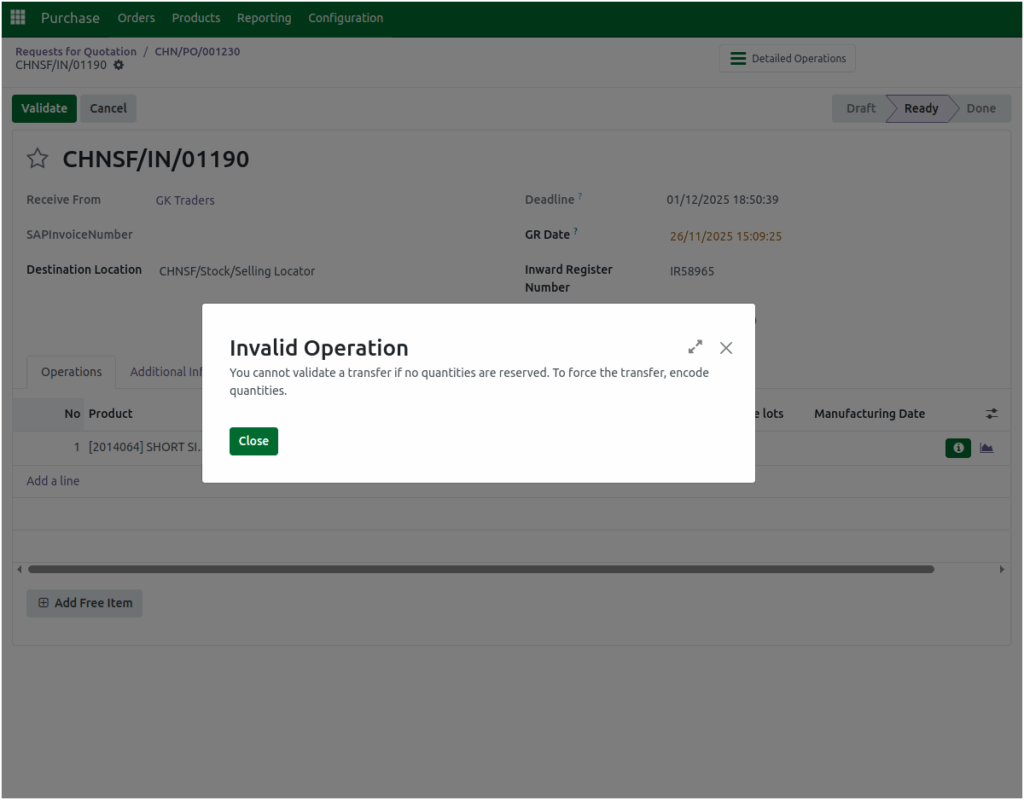
However, if the GR has multiple product lines and one of the products is received with a quantity of zero, the system will create a backorder for that product. This ensures that unreceived items are tracked for future fulfillment.
Users can manually update the GR quantity to reflect the actual products received. If the received quantity matches the PO quantity, simply click the Validate button. This ensures that the GR quantity and the PO quantity are aligned, maintaining consistency in inventory records.
