How the Lot is Updated after Applying Additional Charges in an Odoo GR Bill
In Odoo, managing additional charges in Goods Receipt Bills accurately is essential for smooth inventory and accounting processes. When additional charges like cash discounts and freight charges are applied to a GR Bill, it’s important that these adjustments reflect correctly not only in the total bill amount but also in the valuation of the product lots.
Landed Cost Allocation for Service Products
When a service product such as freight charges or cash discounts is added to a GR Bill, its cost is automatically added to the cost of the main storable product. This happens when the Landed Cost option is enabled for that service product in product’s purchase tab.

The system uses “By Current Cost” as the default split method, which distributes the landed cost based on the existing cost of each product. As a result, products with higher current costs receive a proportionately larger share of the added charges, ensuring that the final product valuation accurately reflects all expenses involved.
Creating the GR Bill
When working with Purchase Orders (PO) in Odoo, the process begins by confirming and approving the PO. Once the PO is confirmed, you can click the Receive Products button, which automatically takes you to the Goods Receipt (GR) screen.
At this stage, entering the mandatory IRN (Invoice Reference Number) is required. After creating the lot for the received products, clicking Validate completes the receipt process.
Once the goods receipt is validated, the Create GR Bill button becomes active. Clicking this button initiates the bill creation process, where you enter the vendor’s invoice number in the Bill No field.
The products listed in the validated goods receipt will automatically populate with their respective quantities and costs, all pulled directly from the Purchase Order and Goods Receipt details.
Applying Cash Discount
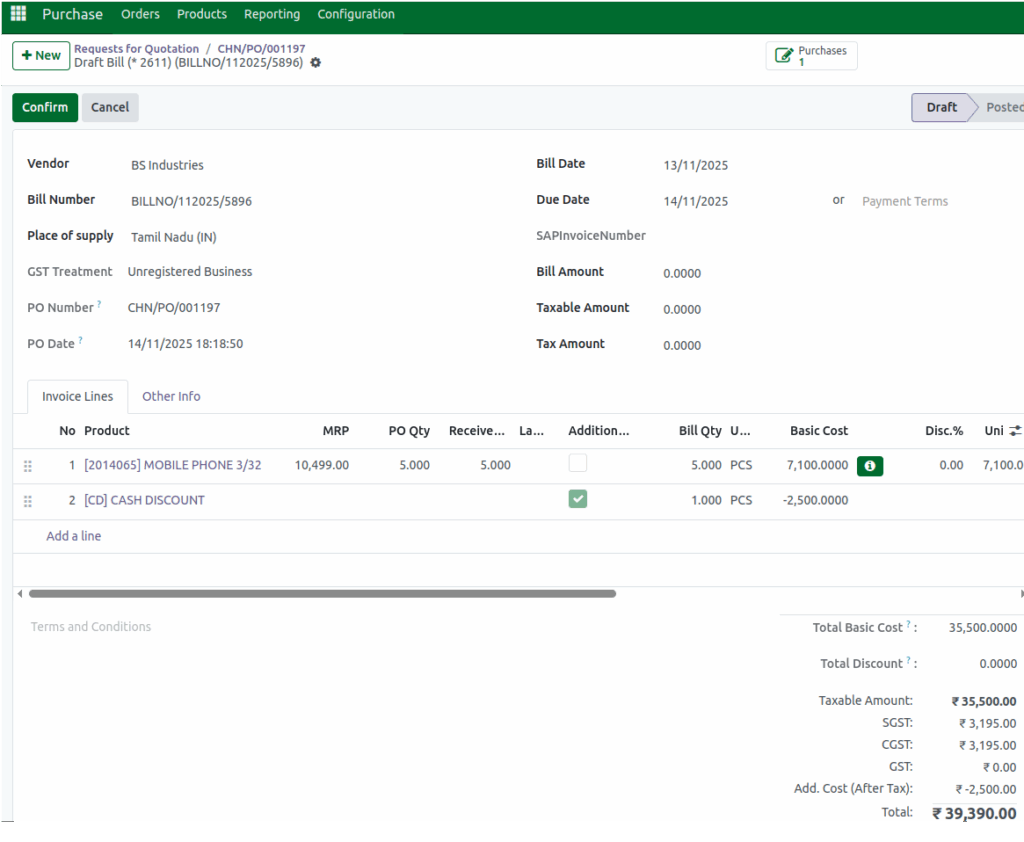
To account for any cash discounts, you can add a service product called Cash Discount directly in the GR Bill. This is done by adding a new line where the quantity defaults to one. In the Basic Cost field, the discount amount must be entered as a negative value (for example, -₹100) to properly reduce the total amount.
For example, before applying a cash discount, the system might show a taxable amount of ₹35,500, a tax of 18% amounting to ₹6390, and a total amount of ₹41,890.00. When a cash discount of ₹2500 is applied as a negative value, the system recalculates the total to ₹39,390.00, ensuring that the discount is reflected correctly in the final payable amount.
Applying Freight Charges
To include any freight charges, you can add a service product called Freight Charges directly in the GR Bill. This is done by adding a new line, with the quantity set to one by default.
For example, before adding the freight charges, the system might show a taxable amount of ₹1,200.00, a tax of 12%, and a total of ₹1,344.00. When a freight charge of ₹350 is added, the system updates the total to ₹1,694.00, ensuring that the additional cost is accurately reflected in the final payable amount.

At this stage, you must ensure that all mandatory fields such as Total Value, Taxable Amount, and Tax Amount are filled in accurately. Once everything is verified, click Confirm to complete the GR Bill. After confirmation, the additional charges you entered, such as freight charges and cash discounts, are automatically split equally and updated as the additional cost per unit of the product.
Updating Lots after applying Additional Charges in GR Bill
When you open the lot or serial number master and select the lot where the cash discount was applied, you will see that the additional cost field has been updated with the value recorded in the GR Bill. Since it is a discount, the amount appears as a negative value, for example –500 per unit.

Likewise, when you select the lot where freight charges were applied, the additional cost field reflects the added value from the GR Bill, such as 2.92 per unit. This ensures that each lot shows the correct cost adjustments based on the charges applied during the purchase process.
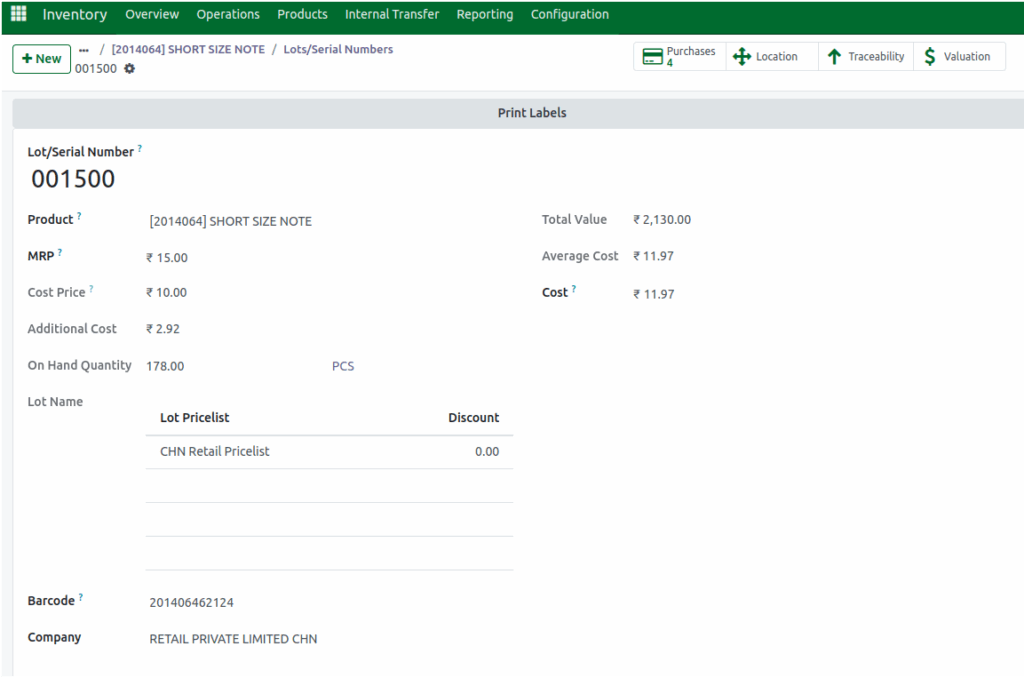
In the Price Info tab, both the Purchase Cost and Selling Price sections are updated based on the new costs. This ensures that any changes from freight charges, cash discounts, or other adjustments are reflected immediately, keeping the product’s pricing accurate without any manual updates.

