How to Create a Goods Receipt (GR) from a Purchase Order in Odoo
Efficient inventory handling is important for keeping business operations smooth, and one of the key steps is recording incoming goods using a Goods Receipt (GR).
A Goods Receipt (GR) is a document that confirms the receipt of products ordered through a Purchase Order. It serves multiple purposes:
- Updates inventory levels in real-time.
- Allows users to capture manufacturing dates and assign lot or serial numbers for batch tracking.
- Supports partial receipts, allowing multiple deliveries against a single Purchase Order.
- Free items from the vendor can be added during the Goods Receipt process
Ensure the Purchase Order is Confirmed
Before generating a Goods Receipt (GR), you need to confirm the Purchase Order (PO). To do this, navigate to the Purchase module and open the relevant PO.
Once the PO is confirmed, it will be locked and marked as confirmed. Only after this confirmation will the
Receive Products button become available, allowing you to proceed with receiving the products.
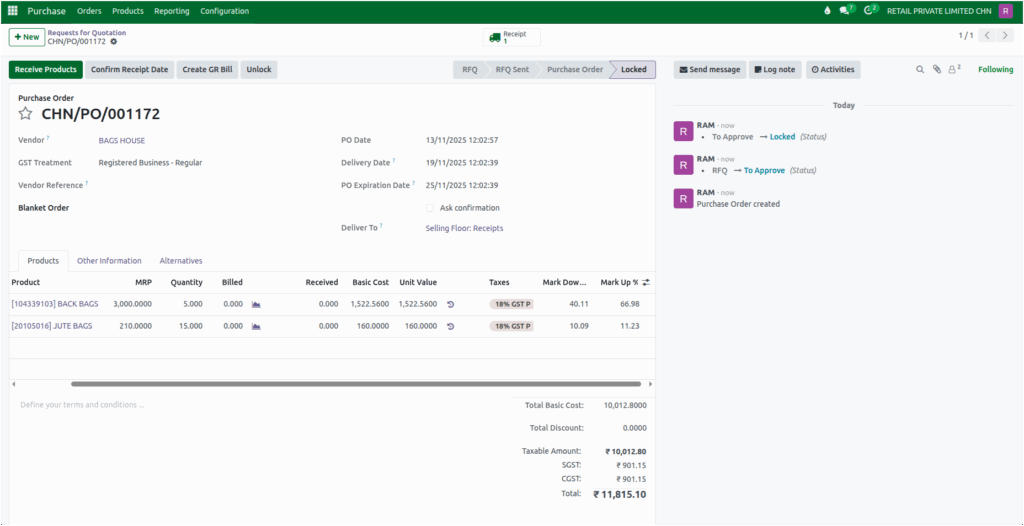
Generate Goods Receipt(GR) from the Purchase Order
As the products arrive at the warehouse, you can easily record the Goods Receipt (GR). Simply click the
Receive Products button on the Purchase Order screen.
It will automatically generate a GR document number and displays the corresponding Purchase Order number in PO Number field , including all the products and their correct quantities.
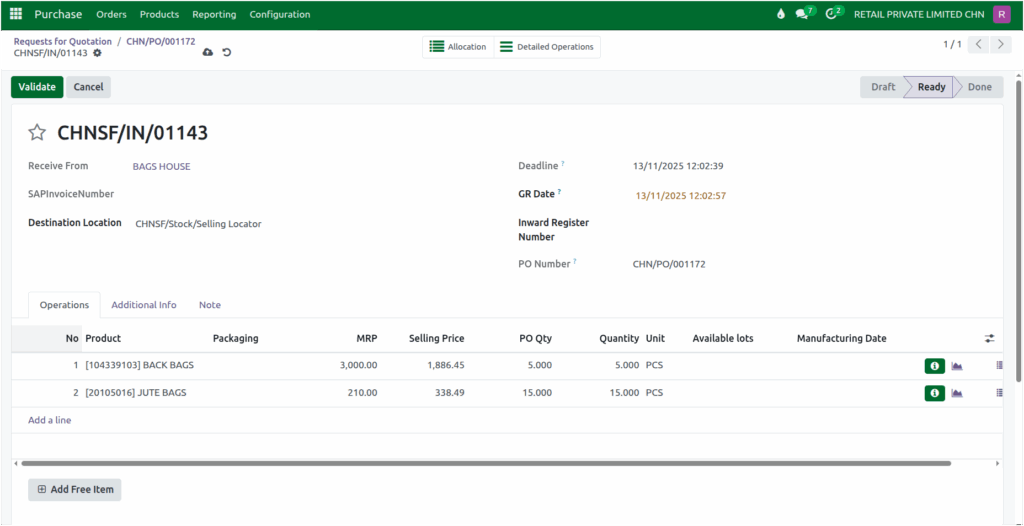
In a Goods Receipt (GR) document, the Receive From field automatically displays the vendor selected in the Purchase Order. This field is read-only to ensure consistency and avoid errors.
You also need to specify the Destination Location, which indicates where the products will be delivered. This step helps maintain accurate inventory tracking and ensures proper delivery management.
Initially, the GR Date field will display the Purchase Order (PO) Date. After validating the GR, it will automatically update to the current date.
Ensuring a Unique Inward Register Number (IRN)
When processing a Goods Receipt (GR), the first step is to enter a unique Inward Register Number. This number is mandatory and must be unique for each GR. It will display a validation alert Invalid fields: Tracking Reference if the IR Number is missing.
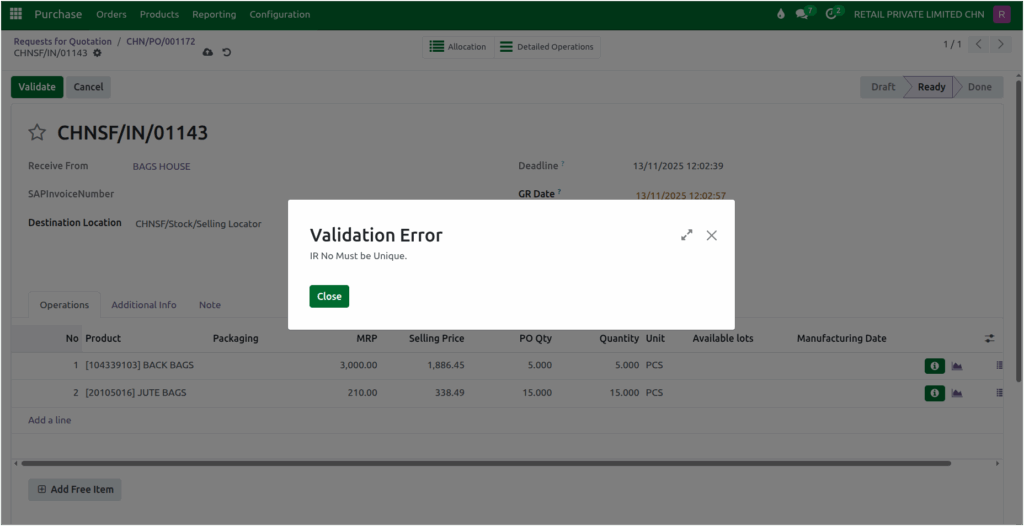
If a duplicate IR Number is entered,the system will display a validation alert: IR No must be unique.
Validate the Goods Receipt(GR)
To complete the Goods Receipt (GR) process , start by reviewing the details in the GR document.
The MRP can be modified if there are any changes, while the PO Quantity (ordered quantity) is a read-only field. Enter the actual received quantity in the Quantity field to reflect what has been delivered.
If a product is tracked by lot or unique serial number, you will need to create the corresponding lot during this step.
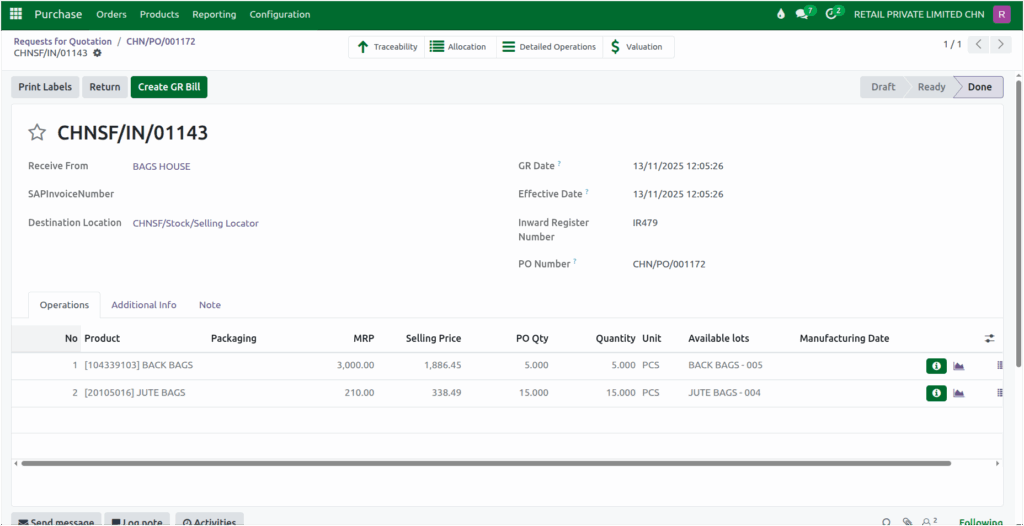
Once everything is checked and confirmed, click the Validate button. Upon validation, it automatically updates your inventory levels in real-time, making the stock available for sales or further processing.
This ensures that your inventory records are accurate, up-to-date, and helps streamline your supply chain and overall operations.
