How to Generate Unique Serial Numbers During Goods Receipt in Odoo
In Odoo, generating serial numbers during the Goods Receipt (GR) process is essential for products that require unique identification and tracking. This process ensures that every unit of a product can be individually monitored from the moment it enters your inventory.
Odoo allows businesses to maintain accurate records of each product, making it easier to manage stock, track deliveries, and prevent duplication or errors in inventory management.
Handling Serial Number Products in Odoo
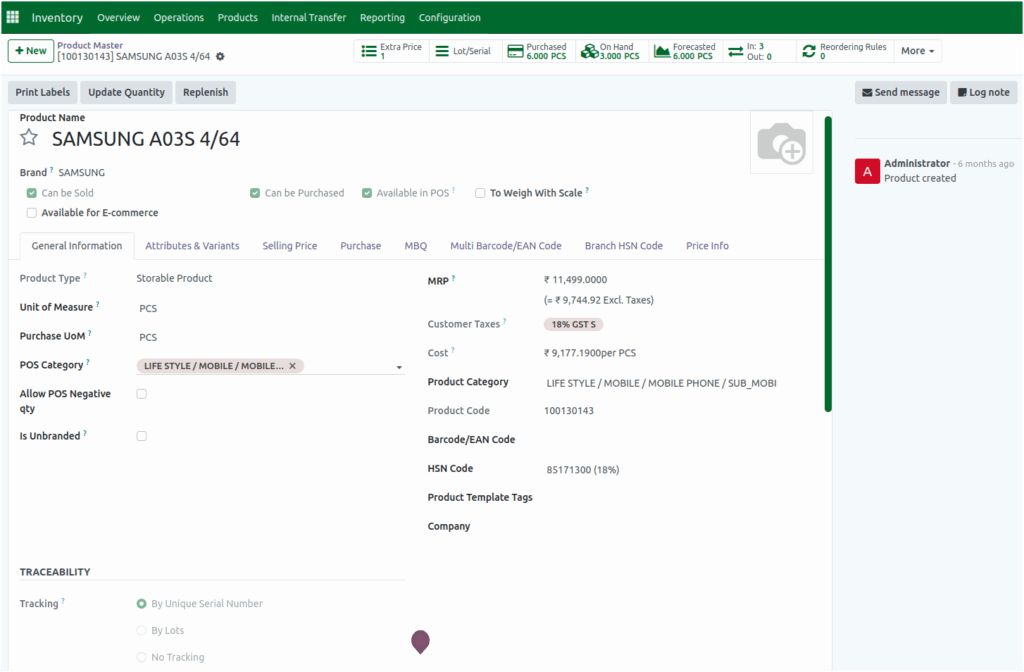
To begin, the product must be configured in the Product Master with traceability set to ‘By unique serial number’. This ensures that each unit of the product can be tracked individually throughout its lifecycle.
Starting the Goods Receipt (GR) Process
When a Purchase Order (PO) is completed, Odoo provides a Receive Products button. Clicking this button starts the Goods Receipt process and automatically generates a GR document number. At this stage, you must enter a unique IR Number for the receipt, which helps identify and track the overall receipt document even before individual product serial numbers are assigned.
The system then displays the products listed in the purchase order along with their quantities. The MRP of each product is shown and can be adjusted during the GR process, while the selling price is displayed in the relevant field.
Serial Number–Tracked Products
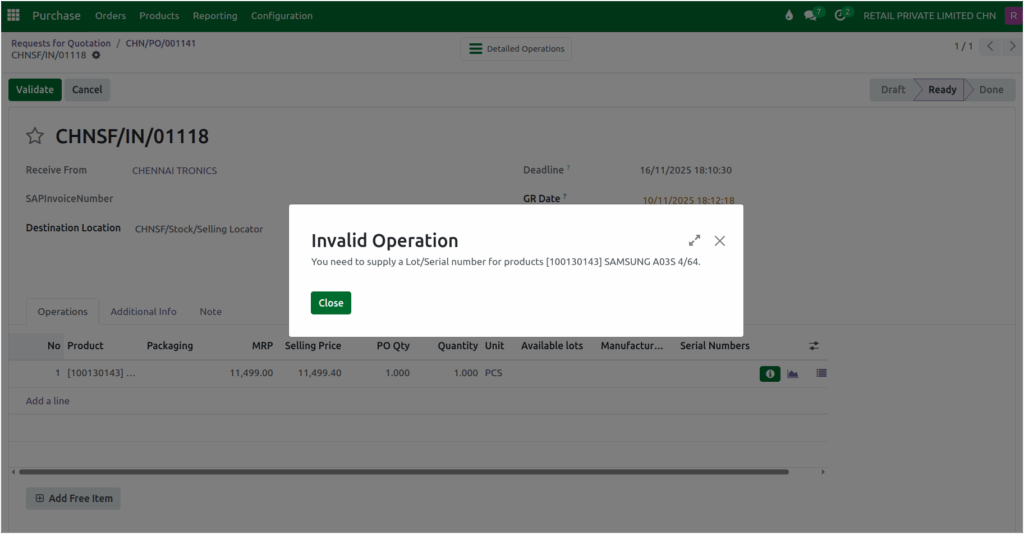
For products tracked by serial numbers, creating a lot or serial number is mandatory. If a serial number is not supplied, Odoo will display a validation error saying, “You need to supply a Lot/Serial number for products.”
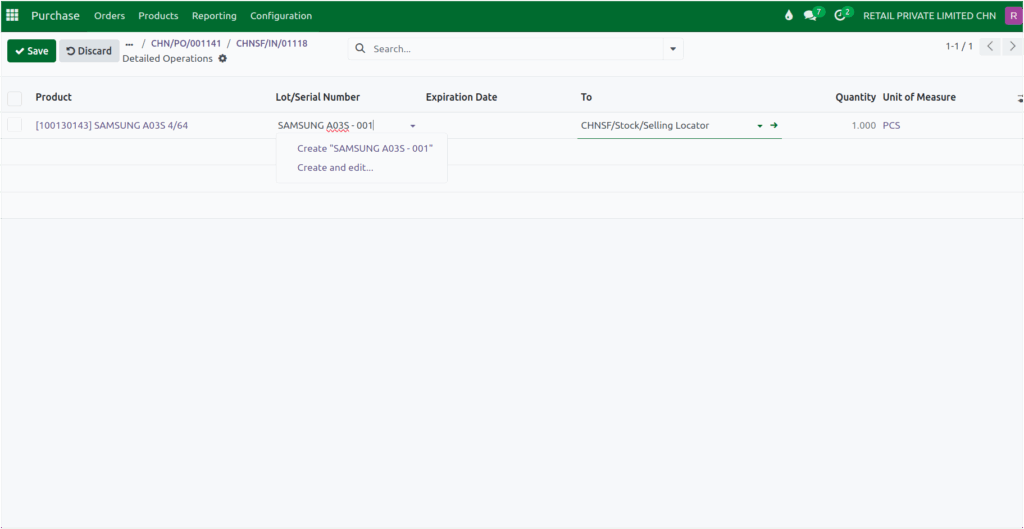
To generate serial numbers, click the ‘Detailed Operations’ smart button. The system will display each product unit as a separate line based on the quantity entered in the GR. You can then create a serial number for each unit in the Lot/Serial Number column. Odoo offers two options: ‘Create’ or ‘Create and Edit’, both of which open a screen to enter the serial numbers.
Once entered, the serial numbers appear in the Lot/Serial Number field. Each serial number must be unique. If the same serial number is entered more than once, Odoo will display a validation error: “Serial Number Must be Unique!”.
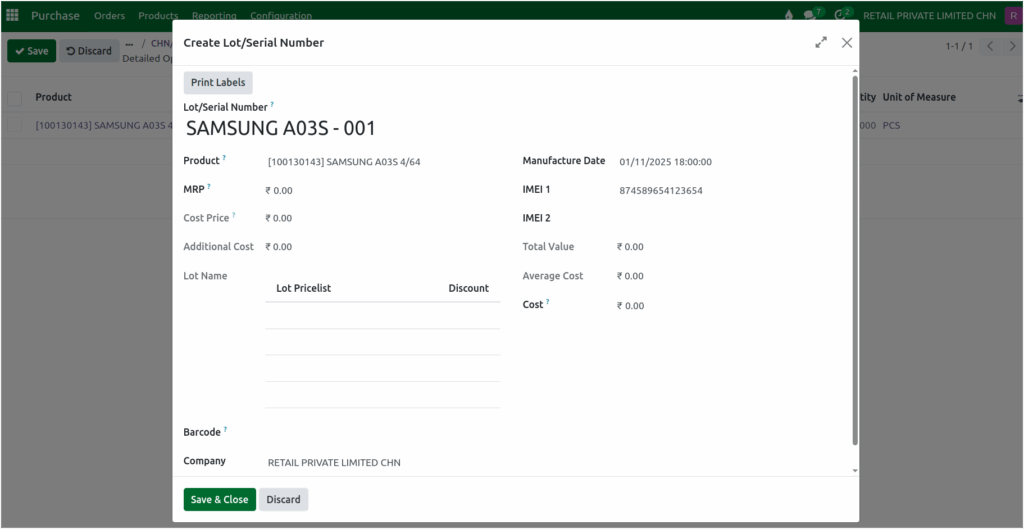
Additionally, the IMEI 1 field is mandatory, and both IMEI 1 and IMEI 2 must be unique for each unit of the product. Entering duplicate IMEI values for the same or different products will trigger an error “IMEI1 Must be Unique !” during the Goods Receipt process. After entering the serial numbers and IMEI values, click ‘Save & Close’ to complete the creation.
If the Manufacturing Date option is enabled in the Product Master, Odoo will display a Manufacturing Date field during serial number creation. This allows you to select and record the manufacturing date for each product unit, ensuring accurate tracking and better inventory management.
Back in the GR screen, all created serial numbers are displayed in the Serial Number field. Finally, click Validate to complete the GR process. Once validated, the Lot/Serial Number is updated in the Available Lot field, making the products fully traceable in the inventory and ready for further processing.

