How to Search, Filter and Group the Requests for Quotation Screen in Odoo Purchase
The Requests for Quotation (RFQ) screen in Odoo Purchase is where all your purchase requests are listed. It gives a complete view of pending RFQs, confirmed purchase orders, and documents waiting for approval. To help you work faster, Odoo provides easy search, filter, and group options.
Opening the RFQ Screen
To access the RFQ screen, go to the main menu and click Purchase. You will see a list of all RFQs created in the system. Each RFQ shows details like vendor name, products, buyer, source document, and order date. From this screen, you can quickly search or filter the records to find exactly what you need.
Search Options in the RFQ Screen
The search bar allows you to find RFQs based on common fields. You can search by the purchase order document number. You can also search by vendor and Buyer names. If you want to look for RFQs that contain a specific product, simply type the product name or code in the search bar.
You can also search through RFQs using the linked source document. These search options make it easy to locate the right RFQ without scrolling through many records.
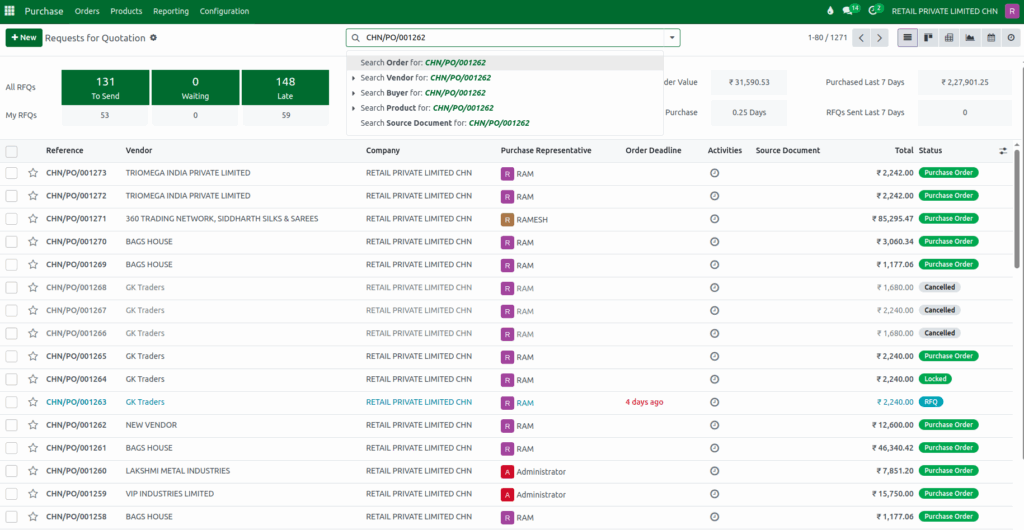
Applying Filters to Narrow Down Results
Odoo provides several filter options to refine the RFQ list. By clicking the drop down next to the search bar and selecting Filters, you can view RFQs created by you using My Purchases, starred records, or documents that are still in the RFQ stage.
You can also filter only confirmed purchase orders, Requisition orders or those that are waiting for approval. Order Date filter are also available. For more detailed filtering, you can use draft RFQs, waiting RFQs, late RFQs or entries showing warnings.
If you need something more specific, you can add a custom filter. A popup will appear, where you can choose the field, select how it should be compared, and enter the value you want. Once you click Add, the system displays results matching your custom condition.

Grouping RFQs for Better Organization
Grouping helps you reorganize the RFQ screen into meaningful sections. When you open the dropdown and select Group By, you can group records by vendor or by purchase representative. Grouping by order date is also available, and you can choose to view them by year, quarter, month, week or day. This makes it easier to study purchasing patterns or track pending orders.
If you want additional grouping options, you can click Add Custom Group, which shows a list of extra fields. Selecting one of these fields will reorganize the RFQ list based on your preference.

