How to Select Products in Different Ways for a Purchase Order in Odoo
When creating a Purchase Order (PO) in Odoo, selecting the right products is one of the most important steps. Odoo makes this process simple by offering multiple ways to search and add products, giving users the flexibility to choose the method that best fits their workflow. Whether you rely on product names, codes, barcodes, or variant selection.
Selection of Products using Different ways in a Purchase Order
To begin, open the Purchase module from your Odoo dashboard and click the + New button to create a new Request for Quotation (RFQ). Once the form opens, your first task is to select the Vendor from whom you want to purchase.
After selecting the vendor, you can start selecting products in different ways:
Search and Select Products by Product name
Quickly find products by typing their name(Example: JUTE BAGS) in the Add a Product field. Odoo instantly displays matching items, allowing you to select and add them to the PO.

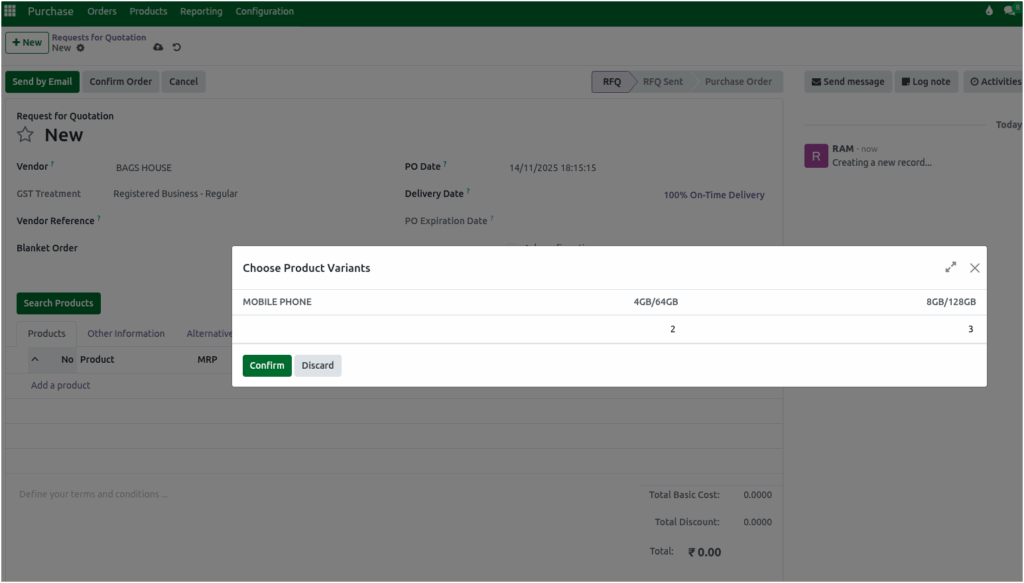
Variant products can be added only by searching through the Product Name. When you type the product name(Example: MOBILE PHONE), Odoo displays a grid showing all available variants(2 Variants). From this grid, you can directly enter the desired quantities for each variant, and click confirm to automatically add them to the Purchase Order.
This makes it easy to manage products with multiple sizes, colors, or configurations without searching for each variant separately.
Search and Select Products by Product Code
You can quickly search items by entering their Product code(Example: 20100512) directly . As soon as the code is typed, Odoo instantly filters and displays the matching product, allowing you to select it and add it to the purchase order.

Search and Select Products by Barcode / EAN and Multi Barcode
You to quickly find products by scanning their Barcode/EAN, or Multi Barcode. Simply click Add a Product and scan the Multi Barcode(Example: 201005121458965) — the system instantly identifies the item and adds it to the purchase order.

After selecting your products, you can easily enter the required quantities directly in the order lines. Once all items and details are verified, you can approve and confirm the Purchase Order, allowing it to move forward to the next stages of your procurement workflow.
