How to Filter, Search and Group the Credit Customer Report in Odoo POS
Analyzing the Credit Customer Report in Odoo POS becomes much easier when the search, filter, and grouping tools are used effectively. These options allow quick navigation through customer credit information, help locate specific records, and organize data in a meaningful way. The system provides a smooth and easy-to-use method for managing customer credit details with accuracy and speed.
Accessing the Credit Customer Report
To access the Credit Customer Report, first open the Point of Sale module from the dashboard. Then click on the Reporting menu, and under Advanced Reports, select the Credit Customer Report. This opens the report where customer credit information can be viewed and analyzed.
Using the Search Bar in the Credit Customer Report
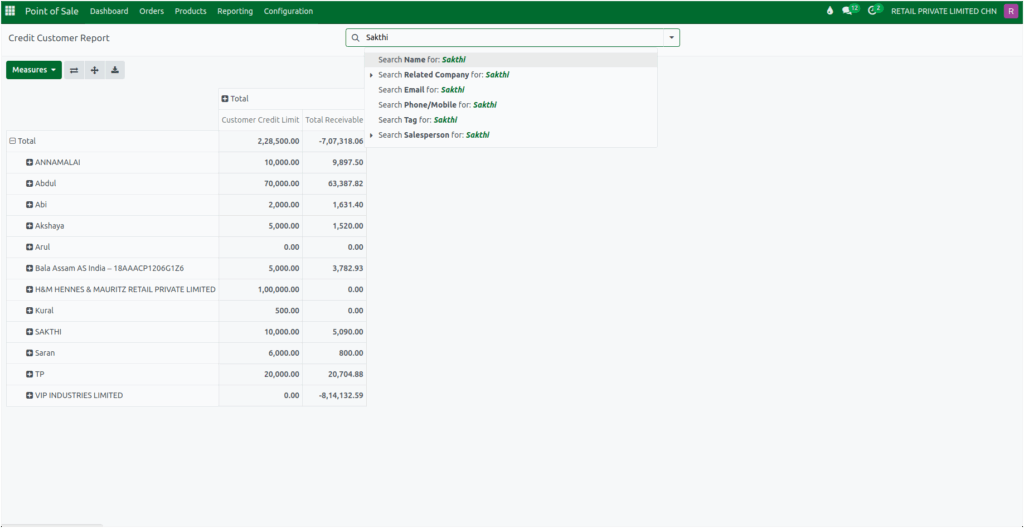
The search bar in the Credit Customer Report allows looking up information based on several customer-related fields. Searches can be performed using the customer’s name, the company associated with the transaction, or the customer’s email address. Odoo also allows finding customers through their phone or mobile number.
If customers have tags assigned for categorization, those tags can be used in the search as well. Additionally, the search option includes the name of the salesperson responsible for handling a particular customer. These search fields help quickly locate specific customer credit records based on personal, company, or sales-related details.
Filtering the Report Credit Customer Report
The report includes several customer-related filters that help refine the data. The Individuals filter displays customers who are registered as individual profiles in the POS. The Companies filter shows customers recorded as company profiles. The Customer Invoices filter combines both individuals and companies, allowing all invoiced customers to be viewed together.
The Vendor Bills filter displays customers who also act as vendors within the POS. The Archived filter reveals inactive or stored customer records that are no longer actively used. These filters help present customer information in a more organized and meaningful way.

Applying Custom Filters
For more detailed analysis, the system allows you to create your own custom filters. When you click the option to add a custom filter, a popup window gives you a rule that you can modify. You can select the field you want to filter by, such as fiscal position, choose how the filter should behave, such as matching or containing a value, and then enter the value itself. After clicking add, Odoo automatically updates the report to show only the data that meets your selected conditions.

Grouping Credit Customer Data
Grouping is another powerful tool that helps make the credit customer data easier to analyze. By clicking the down arrow in the search bar and selecting an option from the Group By menu, you can reorganize the data based on meaningful fields.
You can group customers by salesperson, allowing you to see how credit activity is distributed across your sales team. Grouping by company helps you identify credit behavior among customers linked to different organizations. If your business operates in multiple regions, grouping by country gives a clear view of how credit differs across locations.
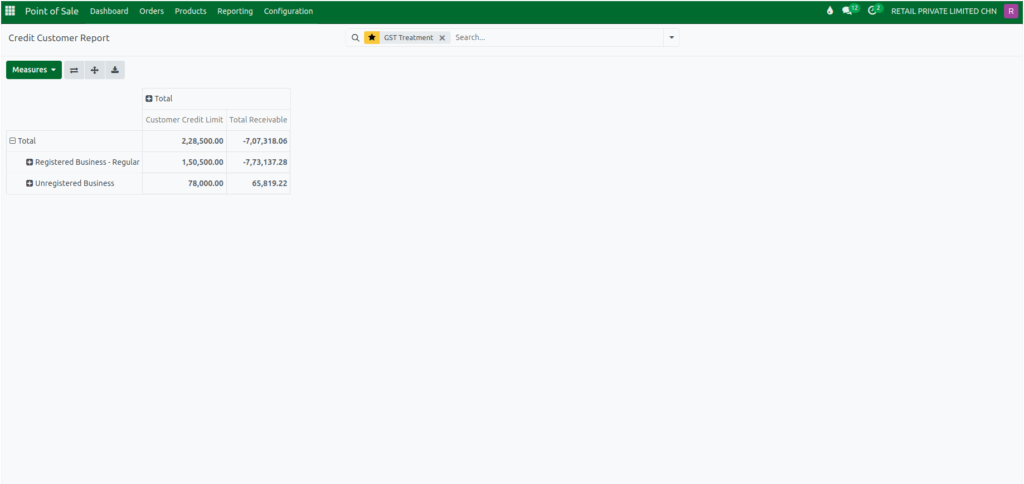
Odoo also provides the ability to add custom groups. You can group customers based on their city, GST treatment type, email address, mobile number, name, or state. These grouping options help you view credit records from different perspectives and uncover useful patterns that might not be visible in a flat list.
Applying Custom Grouping
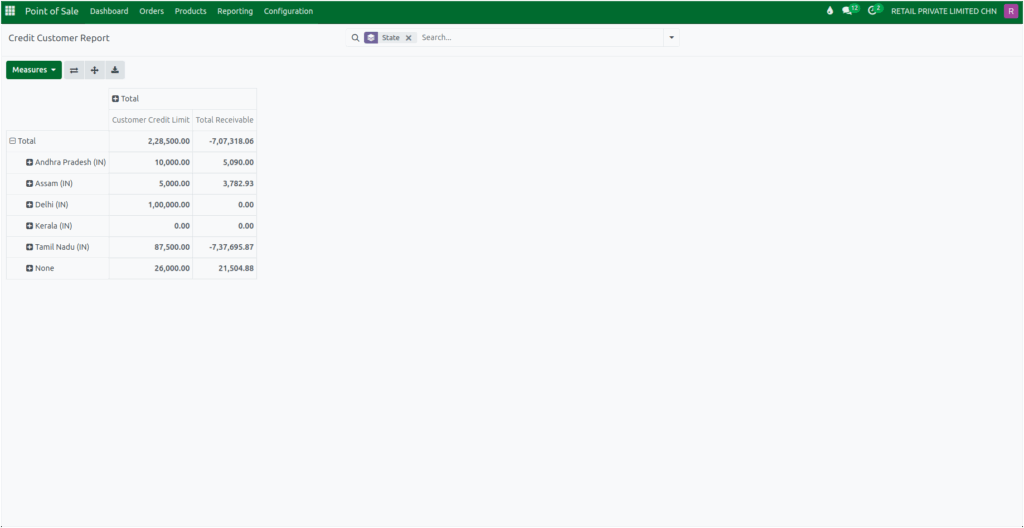
The “Add Custom Group” option allows grouping customer records by additional fields for more detailed analysis. Grouping by city organizes customers according to the city they belong to, which is useful for analyzing regional credit activity. GST Treatment groups customers based on their GST classification, helping track tax-related patterns in credit behavior.
Grouping by email address allows identification of individual customer accounts or contact points, while grouping by mobile number serves a similar purpose for phone-based identification. Grouping by name arranges customers alphabetically, making it easier to locate specific individuals. Finally, grouping by state categorizes customers according to their state of operation or billing, providing insights into regional trends in credit activity.
Saving Favorites for Quick Reuse
Odoo lets filters be saved for quick use later. To save a filter, open the dropdown menu, choose “Save current search,” and give it a name. It can also be set as default or shared with others. Saved filters can be reused anytime, and unwanted filters can be deleted using the trash icon. This makes it easy to use the same filters again without setting them every time.